Installing the power button with fingerprint reader
CAUTION: The information in this installation section is intended for authorized service technicians only.
Prerequisites
If you are replacing a component, remove the existing component before performing the installation process.
About this task
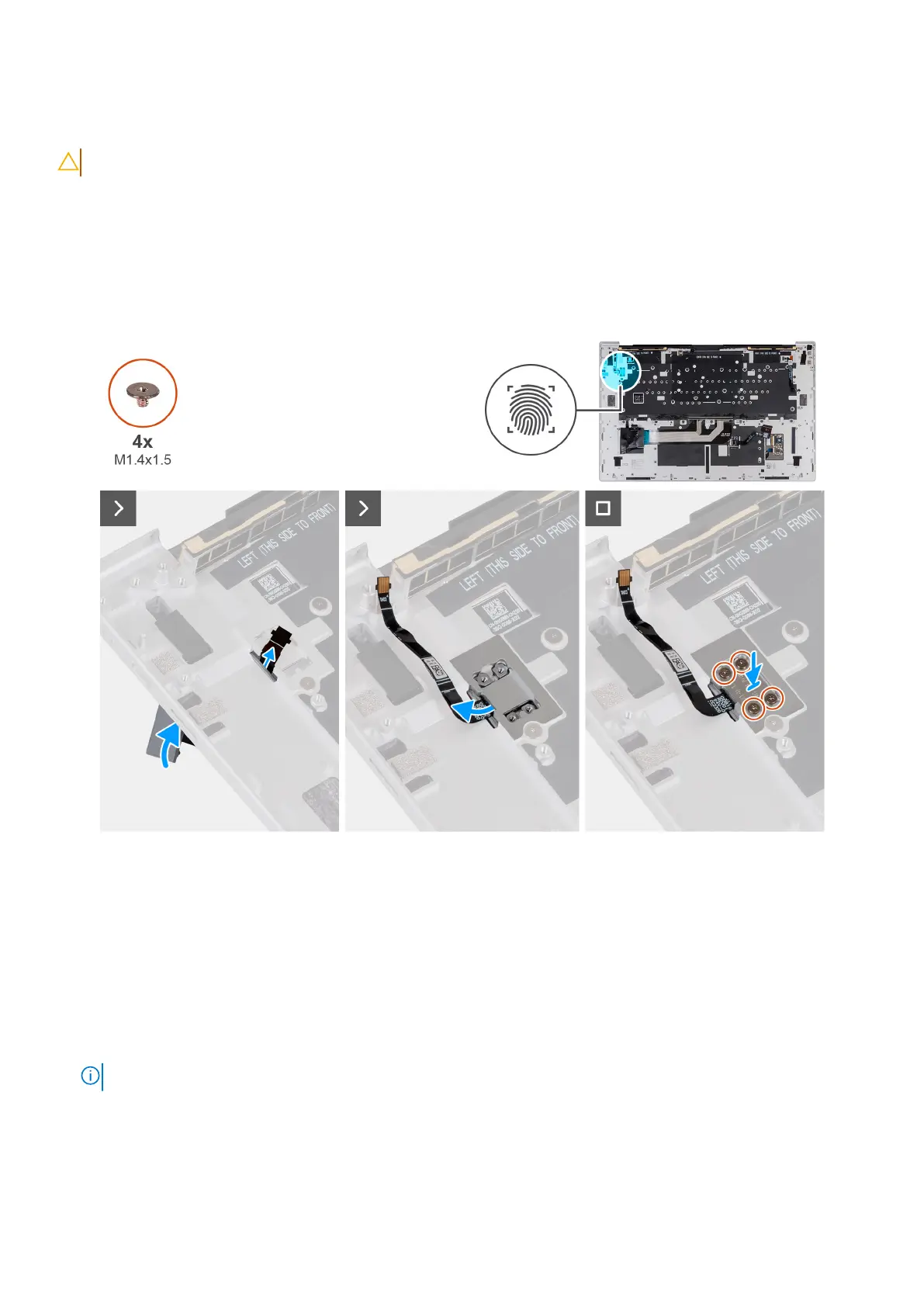
The following image(s) indicate the location of the power button and provides a visual representation of the installation
procedure.
Figure 60. Installing the power button with fingerprint reader
Steps
1. Align and place the power button, along with its cable, into the slot on the palm rest.
2. Align the screw holes on the power-button bracket with the screw holes on the palm rest.
3. Replace the four screws (M1.4x1.5) that secure the power-button bracket to the palm rest and keyboard assembly.
Next steps
1. Install the speakers.
2. Install the system board.
NOTE: The system board can be installed along with the solid state drive.
3. Install the Type-C bracket.
4. Install the heat sink.
5. Install the fans.
6. Install the solid-state drive.
7. Install the battery.
80
Removing and installing Field Replaceable Units (FRUs)



 To Next Page