EasyManua.ls Logo

Dell P2210 - Operating the Monitor; Using the Front Panel Controls; Using the On-Screen Display (OSD) Menu

Dell P2210
32 pages
Print Icon
To Next Page IconTo Next Page
To Previous Page IconTo Previous Page
Loading...
Great user manuals database on UserManuals.info
Back to Contents Page
Operating the Monitor
Dell™P2210FlatPanelMonitorUser'sGuide
Using the Front Panel Controls
Using the On-Screen Display (OSD) Menu
Setting the Maximum Resolution
Using the Dell Soundbar (Optional)
Using the Tilt, Swivel, and Vertical Extension
Rotating the monitor
Adjusting the Rotation Display Settings of Your System
Using the Front Panel
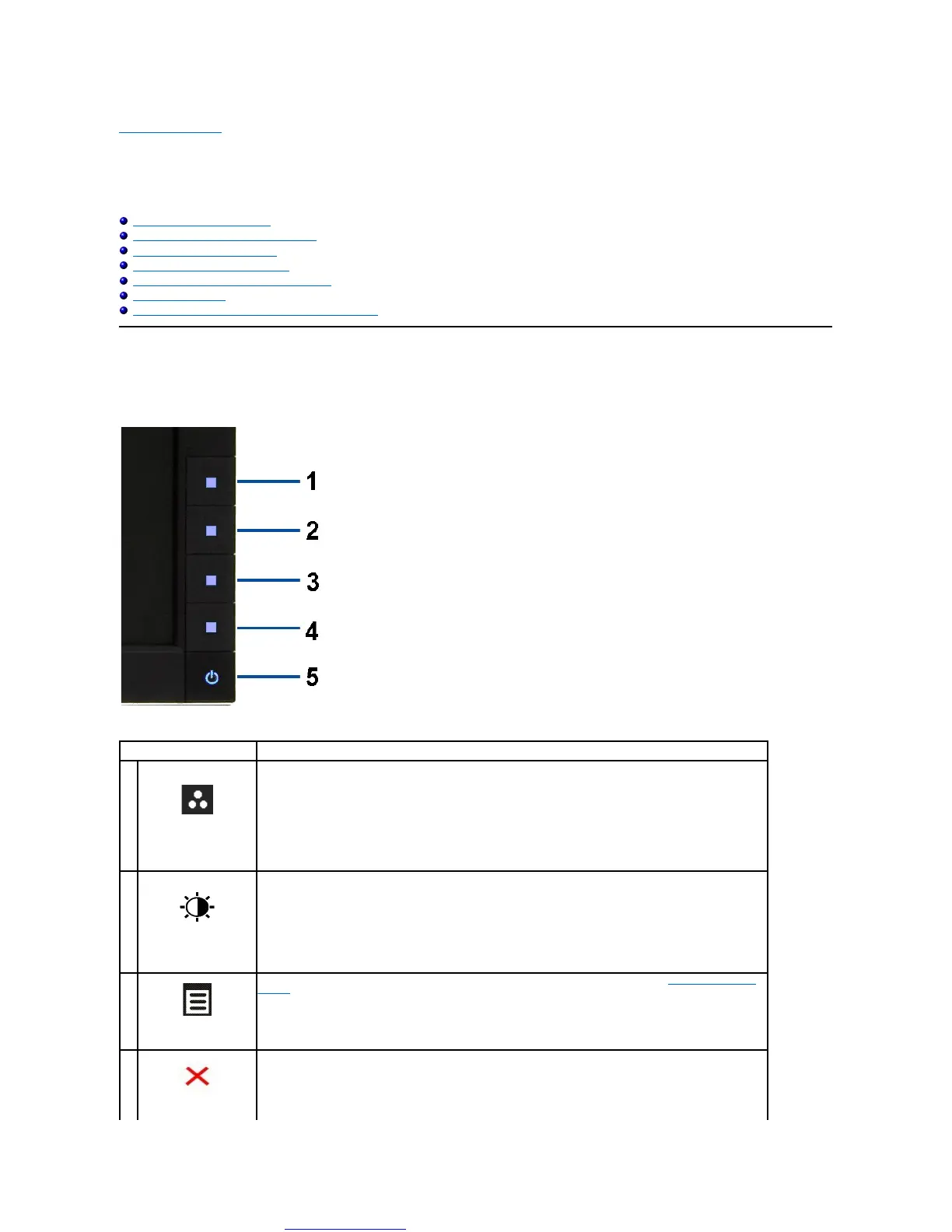
Use the control buttons on the front of the monitor to adjust the characteristics of the image being displayed. As you use these buttons to adjust the controls,
an OSD shows the numeric values of the characteristics as they change.
The following table describes the front panel buttons:

Front panel Button
Description
1
Shortcut
key/
PresetModes
Use this button to choose from a list of preset color modes.
2
Shortcut key /
Brightness/Contrast
Use this button to directly access the "Brightness/Contrast" menu or to increase the values of the selected menu
option.
3
Menu
Use the MENU button to launch the on-screen display (OSD) and select the OSD Menu. See Accessing the Menu
System.
4
Exit
Use this button to go back to the main menu or exit the OSD main menu.

Other manuals for Dell P2210

Related product manuals