Great user manuals database on UserManuals.info
Back to Contents Page
Setting Up the Monitor
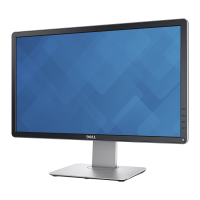
Dell™P2210FlatPanelMonitorUser'sGuide
Attaching the Stand
Connecting the Monitor
Organizing Your Cables
Attaching the Soundbar (optional)
Removing the Stand
Wall Mounting (Optional)
Attaching the Stand
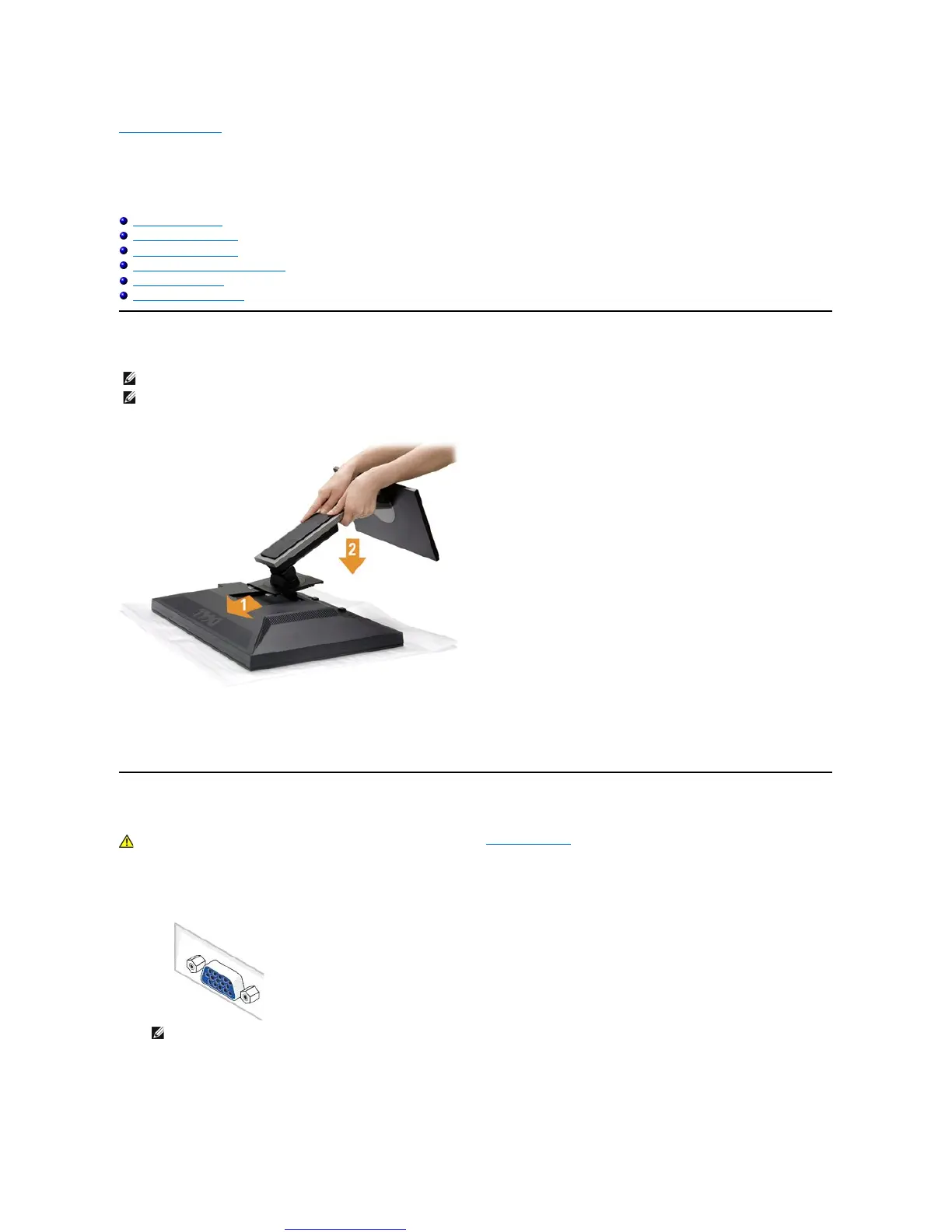
To attach the monitor stand:
1. Remove the cover and place the monitor on it.
2. Fit the two tabs on the upper part of the stand to the groove on the back of the monitor.
3. Press the stand till it snaps into its place.
Connecting Your Monitor
To connect your monitor to the computer:
1. Turnoffyourcomputeranddisconnectthepowercable.
NOTE: The stand is detached when the monitor is shipped from the factory.
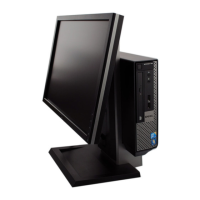
Thisisapplicableforamonitorwithastand.WhentheOptiplex™USFF780/OptiplexSFF980AIOstandisbought,pleaserefertotherespectiveAIOstandsetupguideforsetup
WARNING: Before you begin any of the procedures in this section, follow the Safety Instructions.
Connect the blue (VGA) cable from your monitor to your computer.
NOTE: If your computer supports a white DVI connector, unscrew and detach the blue (VGA) cable from the monitor and then
connect the White DVI cable to the monitor and the white DVI connector on your computer.



 To Next Page