Great user manuals database on UserManuals.info
NOTE: Inmostcases,AutoAdjustproducesthebestimageforyourconfiguration.
NOTE: Auto Adjust option is only available when you are using the analog (VGA) connector.
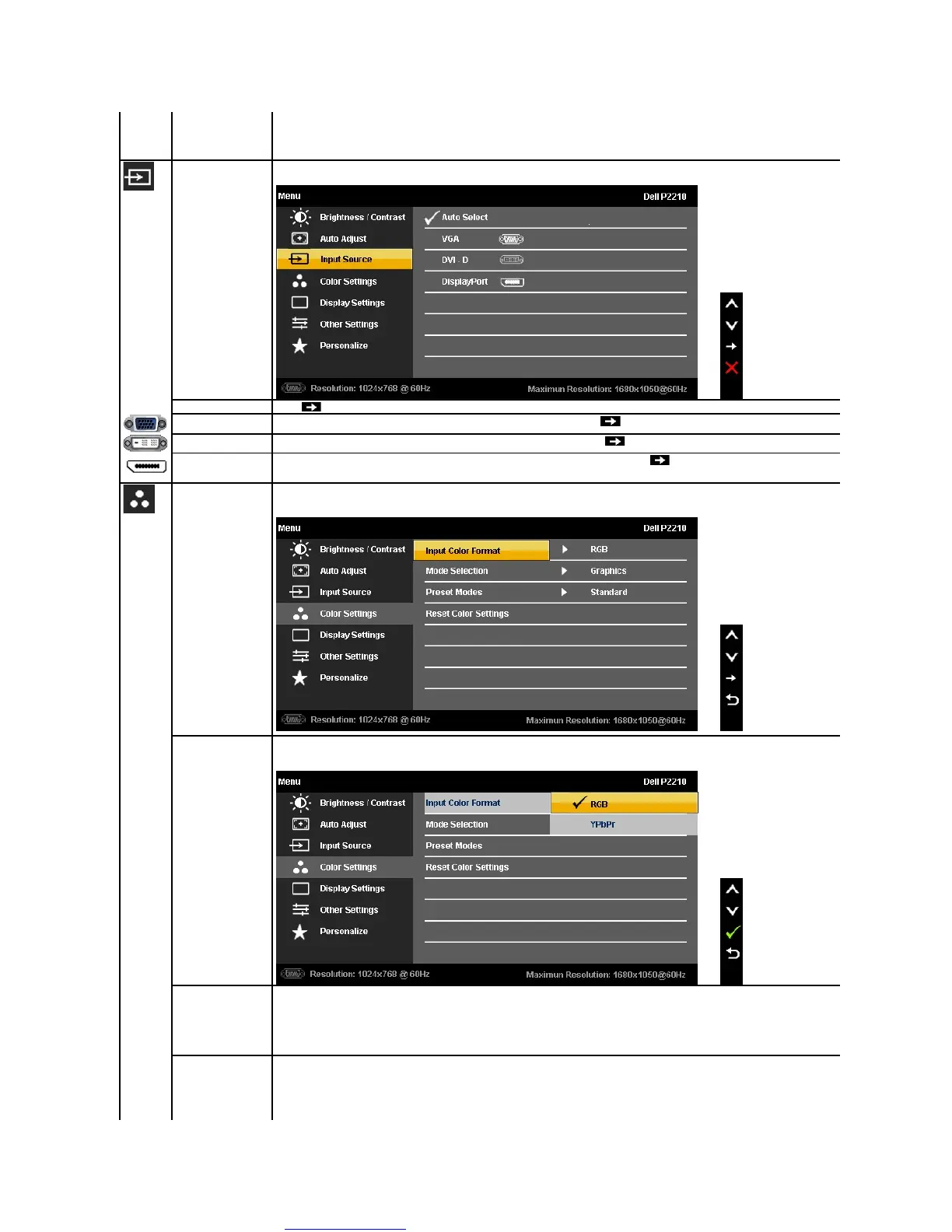
Use the Input Source menu to select between different video signals that may be connected to your monitor.
Push to select the Auto Select, the monitor will auto detect either VGA input or DVI-D input.
Select VGA input when you are using the analog (VGA) connector. Push to select the VGA input source.
Select DVI-D input when you are using the Digital (DVI) connector. Push to select the DVI input source.
Select DisplayPort input when you are using the DisplayPort (DP) connector. Push
to select the DisplayPort input source.
Use the Color Settings to adjust the color setting mode and color temperature.
There are different color setting sub-menus for VGA/DVI-D and Video input.
Choose the RGB option if monitor is connected to a computer or a DVD using a VGA or DVI cable. Choose the YPbPr option if monitor is
connected to a DVD by a YPbPr to VGA or YPbPr to DVI cable or if the DVD color output setting is not RGB.
You can choose Graphics or Video according to the input signal.
l Graphics: Select this mode if your monitor is connected to your computer.
l Video: Select this mode if your monitor is connected to a DVD player.
When you select Graphics, you can choose Standard, Multimedia, Game, Warm, Cool, or Custom (RGB);
l Standard: Loads the monitor's default color settings. This is the default preset mode.
l Multimedia: Loads color settings ideal for multimedia applications.
l Game: Loads color settings ideal for most gaming applications.
l Warm: Increase the color temperature. The screen appears warmer with a red/yellow tint.



 To Next Page