Steps
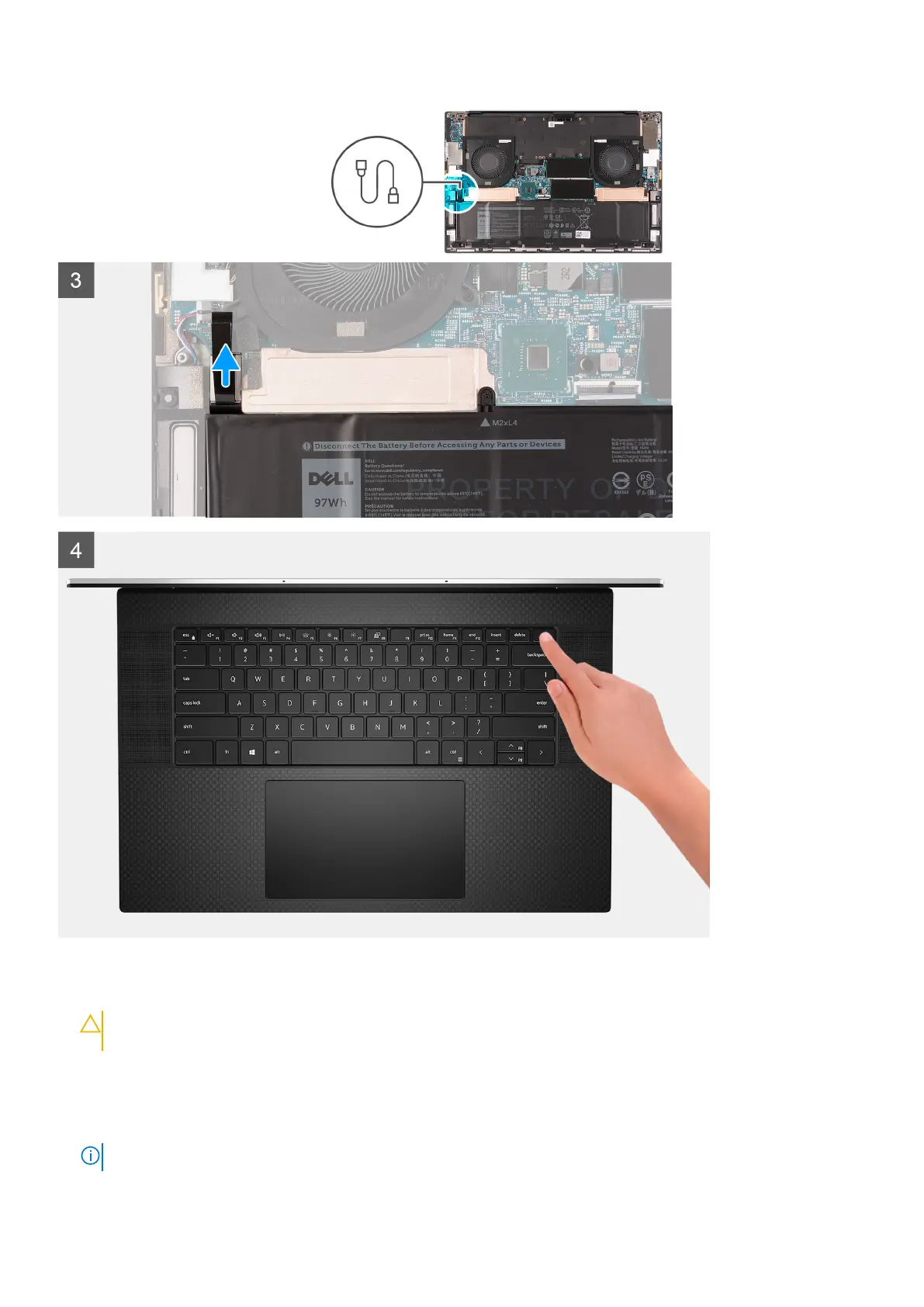
1. Remove the eight Torx T5 screws (M2.5x4) that secure the base cover to the palm-rest and keyboard assembly.
CAUTION:
Do not pull on or pry the base cover from where the hinges are located; doing so may damage the
base cover.
2. Starting from the bottom-left corner, use a plastic scribe to pry the base cover in the direction of the arrows to release the
base cover from the palm-rest and keyboard assembly.
3. Grasp the left side and the right side of the base cover and remove the base cover from the palm-rest and keyboard
assembly.
NOTE: The following steps are applicable only if you want to further remove any other component from your computer.
14 Removing and installing components





 To Next Page