See Solving Problems for more information.
Setting the Optimal Resolution
To set the optimal resolution for the monitor.
1. Right-click on the desktop and select Properties.
2. Select the Settings tab.
3. Set the screen resolution to 1920 x 1080.
4. Click OK.
If you do not see 1920 x 1080 as an option, you may need to update your graphics driver. Depending on your computer, complete one of the following
procedures.
If you have a Dell desktop or portable computer:
¡ Go to support.dell.com, enter your service tag, and download the latest driver for your graphics card.
If you are using a non-Dell computer (portable or desktop):
¡ Go to the support site for your computer and download the latest graphic drivers.
¡ Go to your graphics card website and download the latest graphic drivers.
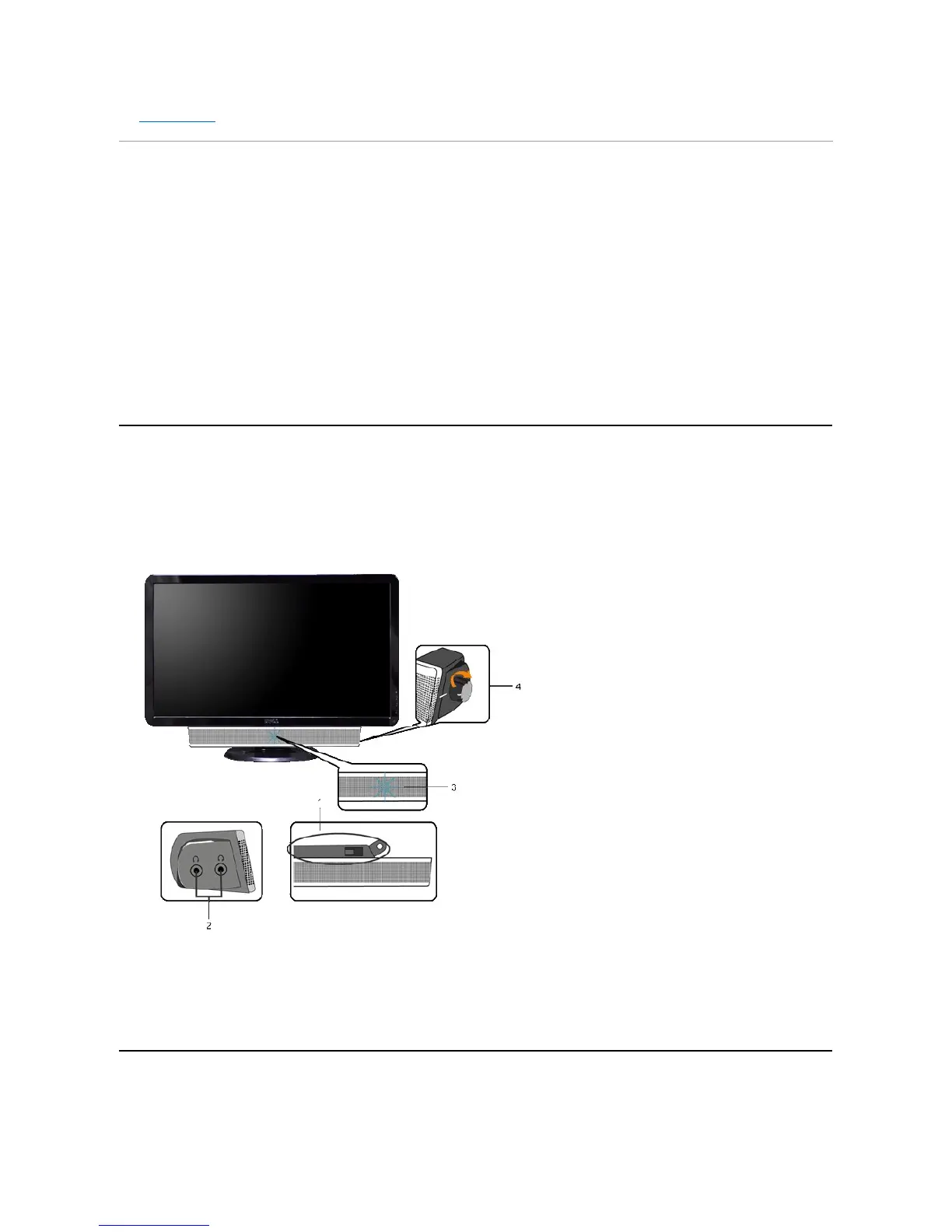
Using the Dell Soundbar (Optional)
TheDellSoundbarisastereotwochannelsystemadaptabletomountonDellflatpaneldisplays.The Soundbar has a rotary volume and on/off control to
adjust the overall system level, a blue LED for power indication, and two audio headset jacks.
Using the Tilt


 To Next Page