About your monitor │ 13
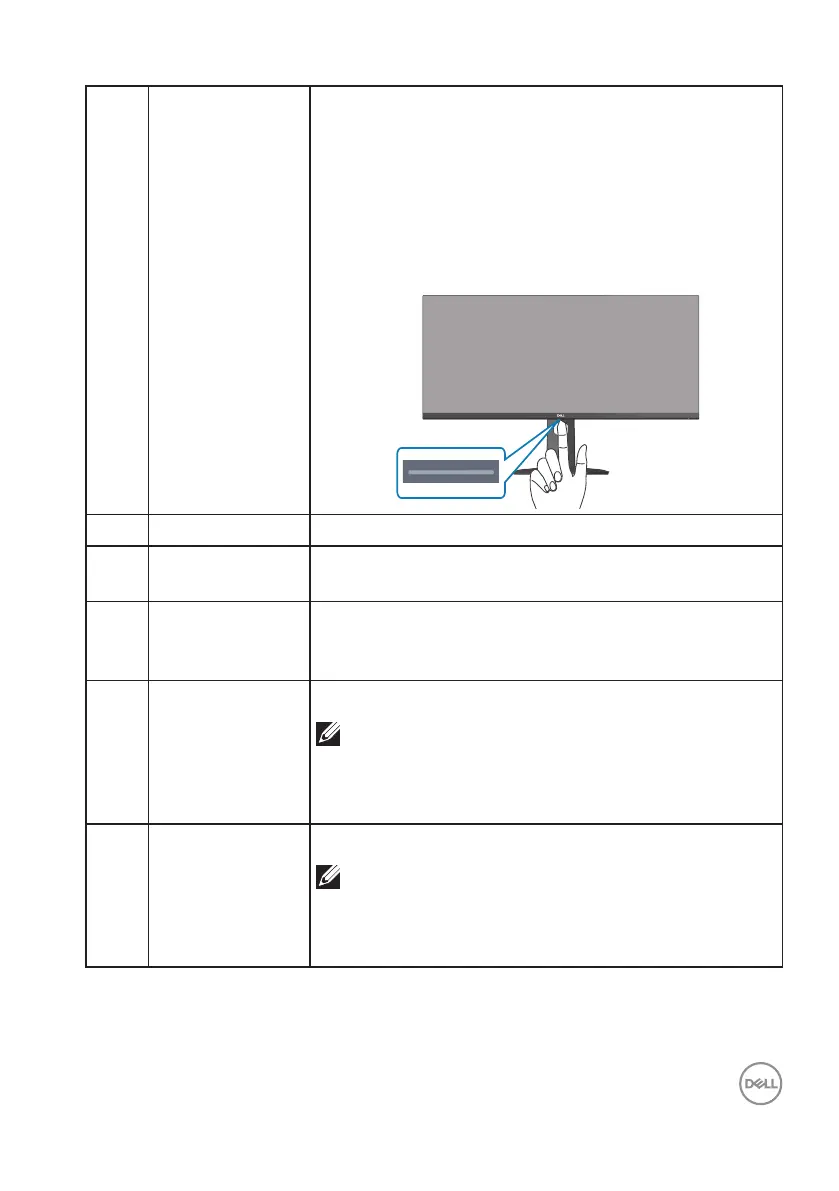
6 Downlights When the monitor setup is complete, tap the touch
sensor at the bottom of the display to turn the
downlights on or off. The factory setting is on, so the
downlights are active if the power cable is connected
(see Downlight).
Please link Downlight to the detailed downlight section
in OSD.
7 DP 1.4 port Connect to your computer using a DP cable.
8 Audio line out
port
Connect to an external speaker or a sub-woofer
(purchased separately).*
9 5 Gbps (USB 3.2
Gen1) Type-B
upstream port
Connect the USB cable from this port to your
computer to enable the USB ports on your monitor.
10 SuperSpeed USB
5 Gbps (USB 3.2
Gen1) Type-A
downstream port
(3)
Connect your USB 3.2 Gen1 (5 Gbps) device.*
NOTE: To use these ports, you must connect
the USB cable (shipped with your monitor)
to the USB-upstream port on the monitor
and to your computer.
11 SuperSpeed USB
5 Gbps (USB 3.2
Gen1) Type-A
downstream port
(3)
Connect your USB 3.2 Gen1 (5 Gbps) device.*
NOTE: To use these ports, you must connect
the USB cable (shipped with your monitor)
to the USB-upstream port on the monitor
and to your computer.


 To Next Page