Operating your monitor │ 47
Saturation This feature can adjust the color saturation of the video
image.
Use the joystick to adjust the saturation from 0 to 100.
Move the joystick up to increase the colorful appear-
ance of the video image.
Move the joystick down to increase the monochrome
appearance of the video image.
NOTE: The Saturation adjustment is available
only when you select FPS, MOBA/RTS,
SPORTS, or RPG preset mode.
Reset Game Resets all settings under the Game menu to the factory
defaults.
Brightness/
Contrast
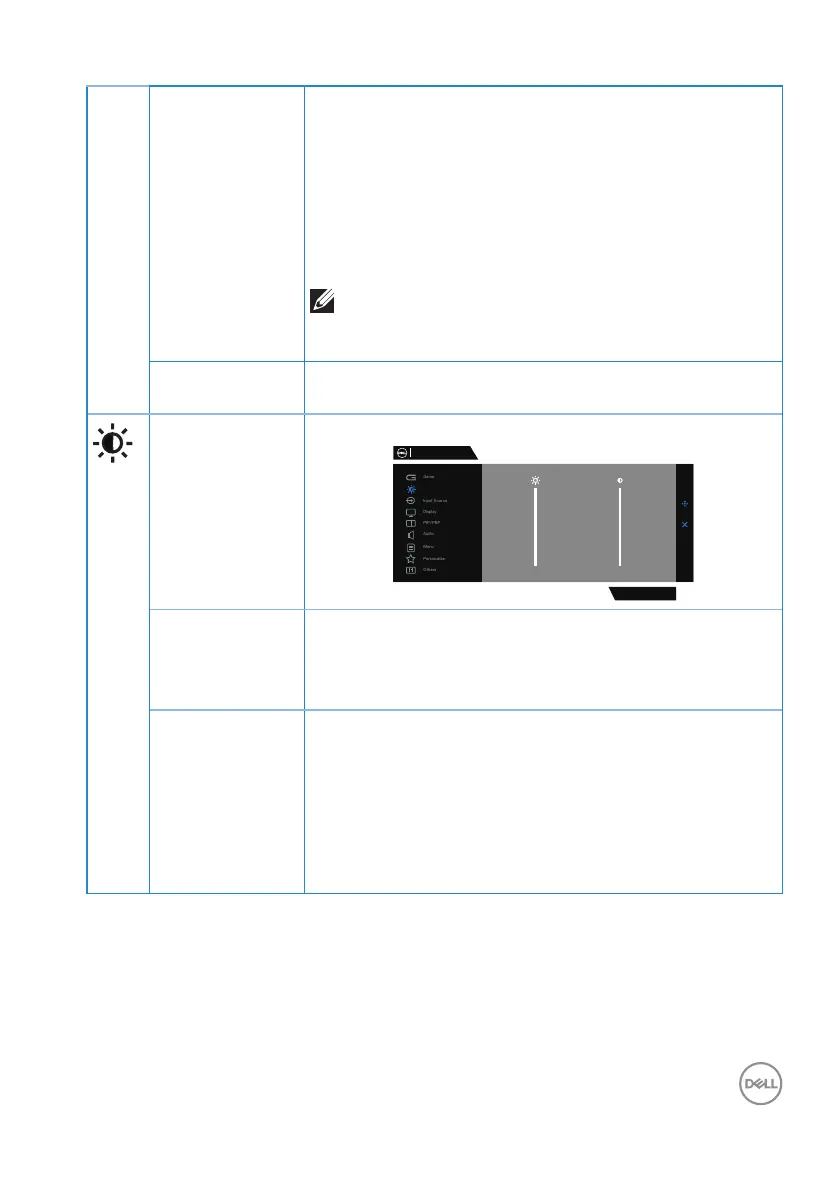
Use this menu to adjust the brightness and contrast.
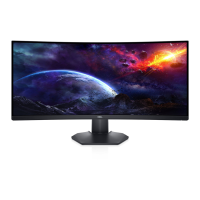
Dell 34 Gaming Monitor
S3422DWG
Brightness / Contrast
75% 75%
Brightness Brightness adjusts the luminance of the
backlight(minimum 0; maximum 100).Move the joystick
up to increase brightness.Move the joystick down to
decrease brightness.
Contrast Adjust the Brightness first, and then adjust Contras-
tonly if further adjustment is necessary.
Move the joystick up to increase contrast and Move
thejoystick down to decrease contrast (between 0 and
100).
The Contrast function adjusts the degree of difference-
between darkness and lightness on the monitor screen.


 To Next Page