Back to Contents Page
Setting Up the Monitor
Dell™ST2220T monitor User's Guide
Connecting the Monitor
Organizing Your Cables
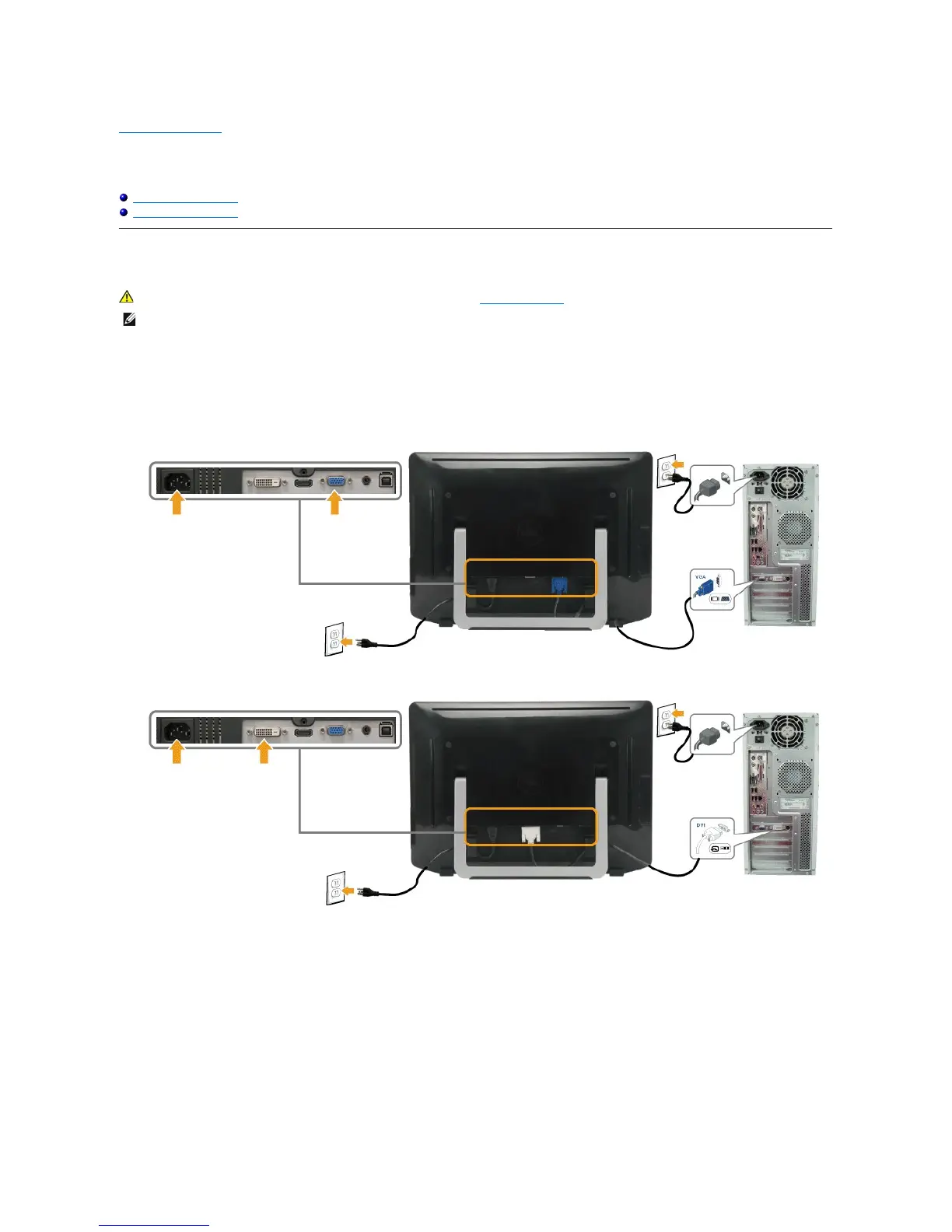
Connecting Your Monitor
To connect your monitor to the computer:
1. Turnoffyourcomputeranddisconnectthepowercable.
2. Connect the HDMI cable, white (digital DVI-D), or blue (analog VGA) display connector cable to the corresponding video port on the back of your
computer.Donotuseallthecablesonthesamecomputer. Use all of the cables only when they are connected to different computers with appropriate
video systems.
Connecting the Blue VGA Cable
Connecting the White DVI Cable
Connecting the HDMI Cable


 To Next Page