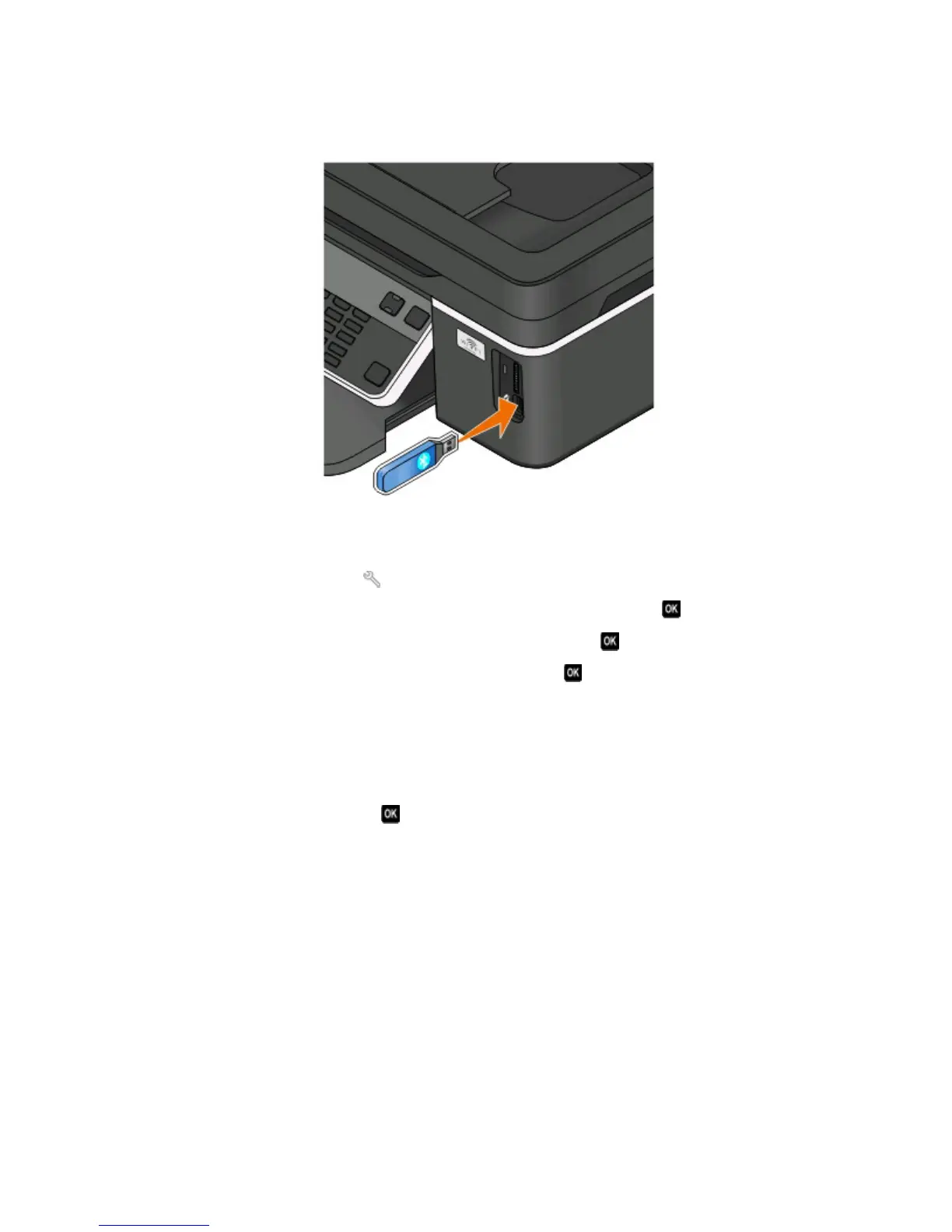
Setting the Bluetooth security level
1 Insert a Bluetooth USB adapter into the USB port.
Bluetooth Dongle Connected appears on the display.
Note: A Bluetooth adapter is not included with the printer.
2 From the printer control panel, press .
3 Press the arrow buttons to scroll to Bluetooth Setup, and then press button .
4 Press the arrow buttons to scroll to Security Level, and then press .
5 Press the arrow buttons to select the security level, and then press .
• Select Low to allow Bluetooth devices to connect and send print jobs to your printer without requiring users
to enter a pass key.
• Select High to require users to enter a four-digit numeric pass key on the Bluetooth device before connecting
and sending print jobs to the printer.
6 The Bluetooth Pass Key menu appears on the display if you set the security level to High. Use the keypad to enter
your four-digit pass key, and then press
.
Printing from a Bluetooth-enabled device
Note: The printer does not support printing files from your computer using a Bluetooth connection.
Printing
47











 To Next Page