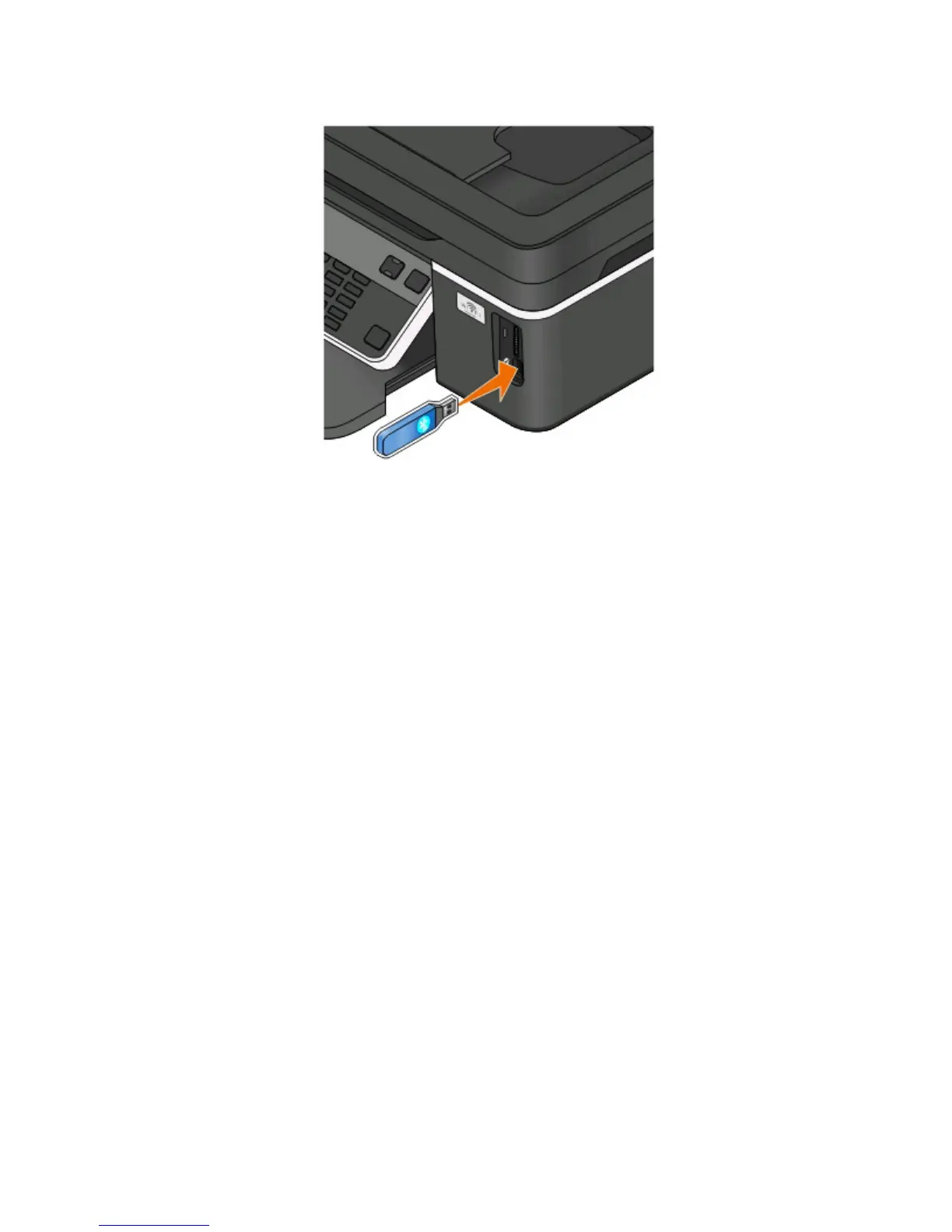
1 Insert a USB Bluetooth adapter into the USB port.
Bluetooth Dongle Connected appears on the display.
Warning—Potential Damage: Do not touch cables, any network adapter, any connector, the USB Bluetooth
adapter, or the printer in the areas shown while actively printing, reading, or writing from a Bluetooth-enabled
device. A loss of data can occur.
Notes:
• A Bluetooth adapter is not included with the printer.
• Your printer automatically switches to Bluetooth mode when you insert a USB Bluetooth adapter.
2 Make sure the printer is set up to receive Bluetooth connections. For more information, see “Setting up a
connection between your printer and a Bluetooth-enabled device” on page 45.
3 Set up the Bluetooth device to print to the printer. For more information, see the documentation for your
Bluetooth device.
4 See the documentation for your Bluetooth device to begin printing.
Note: If the Bluetooth Security Level on the printer is set to High, you must enter a pass key.
Printing on both sides of the paper (duplexing)
Printing on both sides of the paper (duplexing) manually
For Windows users
1 With a document open, click File > Print.
2 Click Properties, Preferences, Options, or Setup.
Printing
48











 To Next Page