3 Navigate to:
Advanced tab > 2-Sided Printing area > select Manual
Note: The “Print Instruction Page to Assist in Reloading” item is selected automatically.
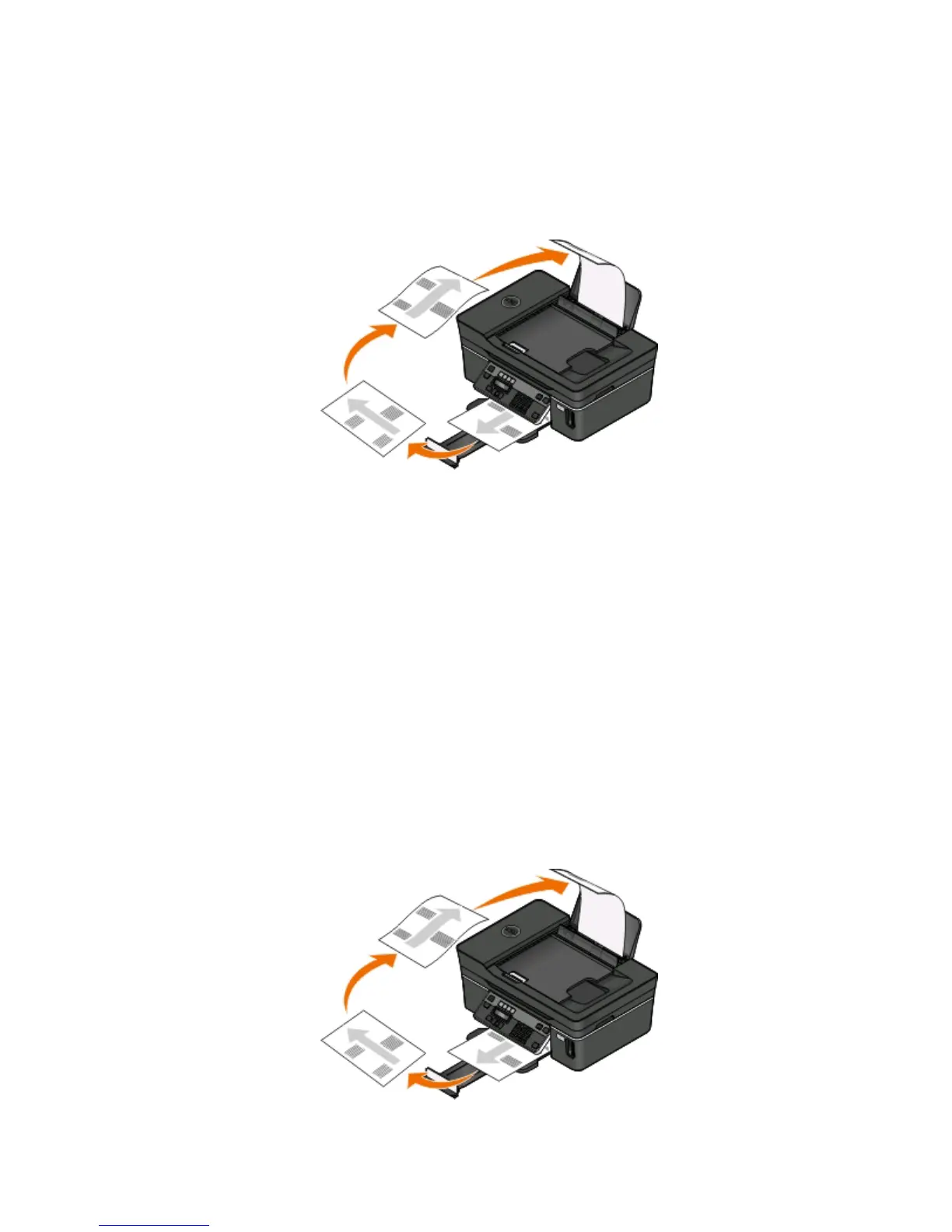
4 Click OK. The printer prints the odd-numbered pages and the instruction sheet.
5 Flip and reload the paper, following the directions on the instruction sheet to complete the print job.
To return to single-sided printing, navigate to:
Advanced tab > 2-Sided Printing area > select Off
For Macintosh users
1 With a document open, choose File > Page Setup.
2 From the Page Setup dialog, set the printer, paper size, and orientation.
3 Click OK.
4 From the menu bar, choose File > Print.
5 From the Printer pop-up menu, choose your printer.
6 From the print options pop-up menu, choose Paper Handling.
7 From the Print or “Pages to Print” pop-up menu, choose to print the odd-numbered pages.
8 Click Print.
9 Flip and reload the paper.
Printing
49











 To Next Page