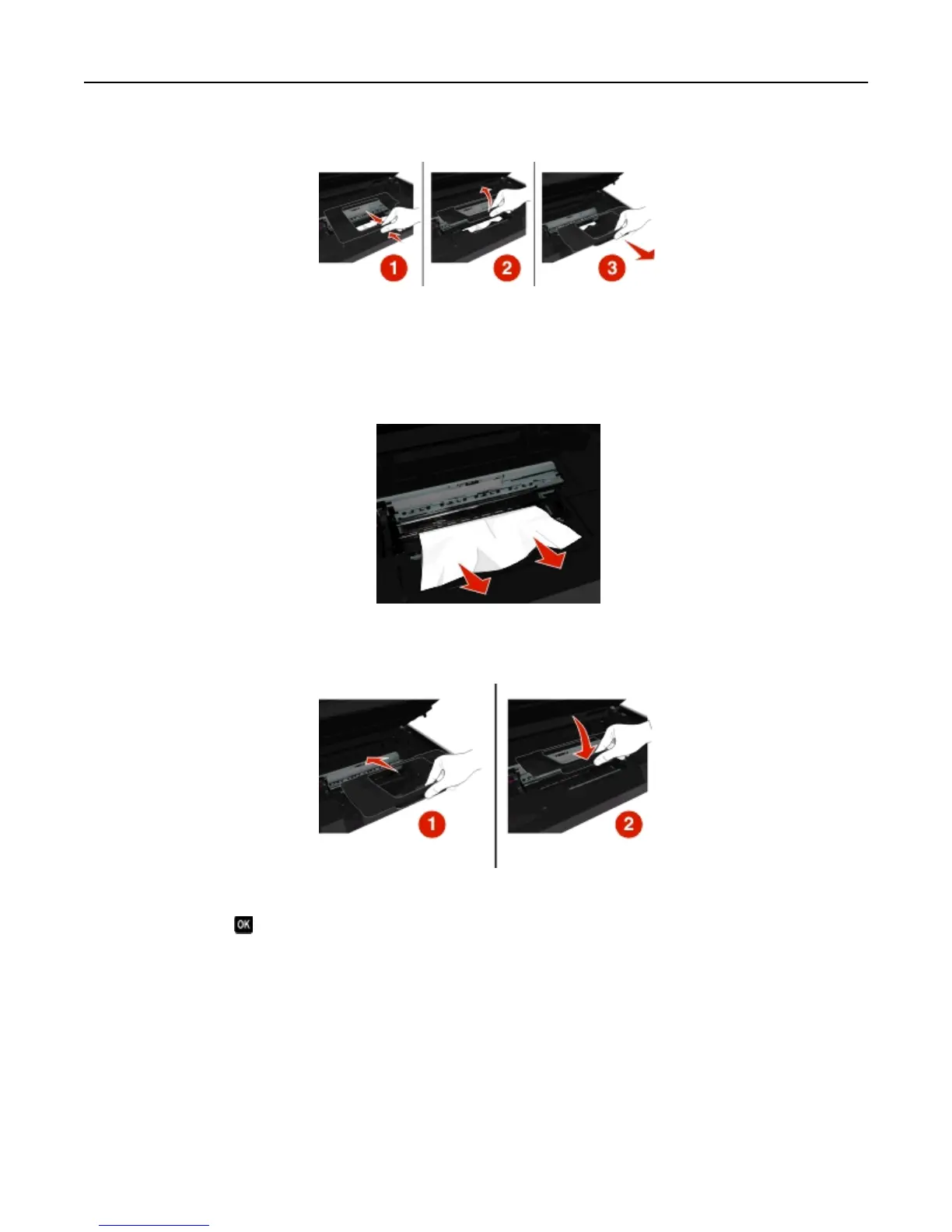
2 Remove the jam clearance cover.
Notes:
• Squeeze the snap to lift the jam clearance cover.
• Make sure that the printhead is moved to the side and away from the jammed paper.
3 Firmly grasp the paper on both sides, and then gently pull it out.
Note: Make sure all paper fragments are removed.
4 Reattach the jam clearance cover until it clicks into place.
5 Close the printer.
6 Touch OK or press , depending on your printer model.
Check the paper tray
Note: If the tray is removed, then make sure to clear all jams before inserting the tray.
Troubleshooting 142










 To Next Page