5 From the Phonebook field, choose a phone book.
6 Select the contact that you want to add, and then click Add to or change list to import the contact.
Note: To add contacts, you need to import contacts from the phone books on your computer that are supported
by the fax software. In addition to the software Address Book, you may also have phone books of the mail
clients installed on your computer, such as Microsoft Outlook.
7 Click OK.
For Macintosh users
1
From the Applications folder in the Finder, or from the Finder desktop, double-click the printer folder.
2 Double-click Printer Settings.
3 Click the Contacts tab.
• To add contacts, click the Individuals tab.
• To add fax groups, click the Groups tab.
4 Click to open the Address Book.
Note: To add contacts, you need to import contacts from the Address Book on your Macintosh computer. If the
contact is not in the Mac Address Book, then first add the contact to the address book, and then import it.
5 From the Address Book, click and drag the contacts that you want to add to the Contacts list.
For more information on the fax software, click Help or
.
Sending faxes
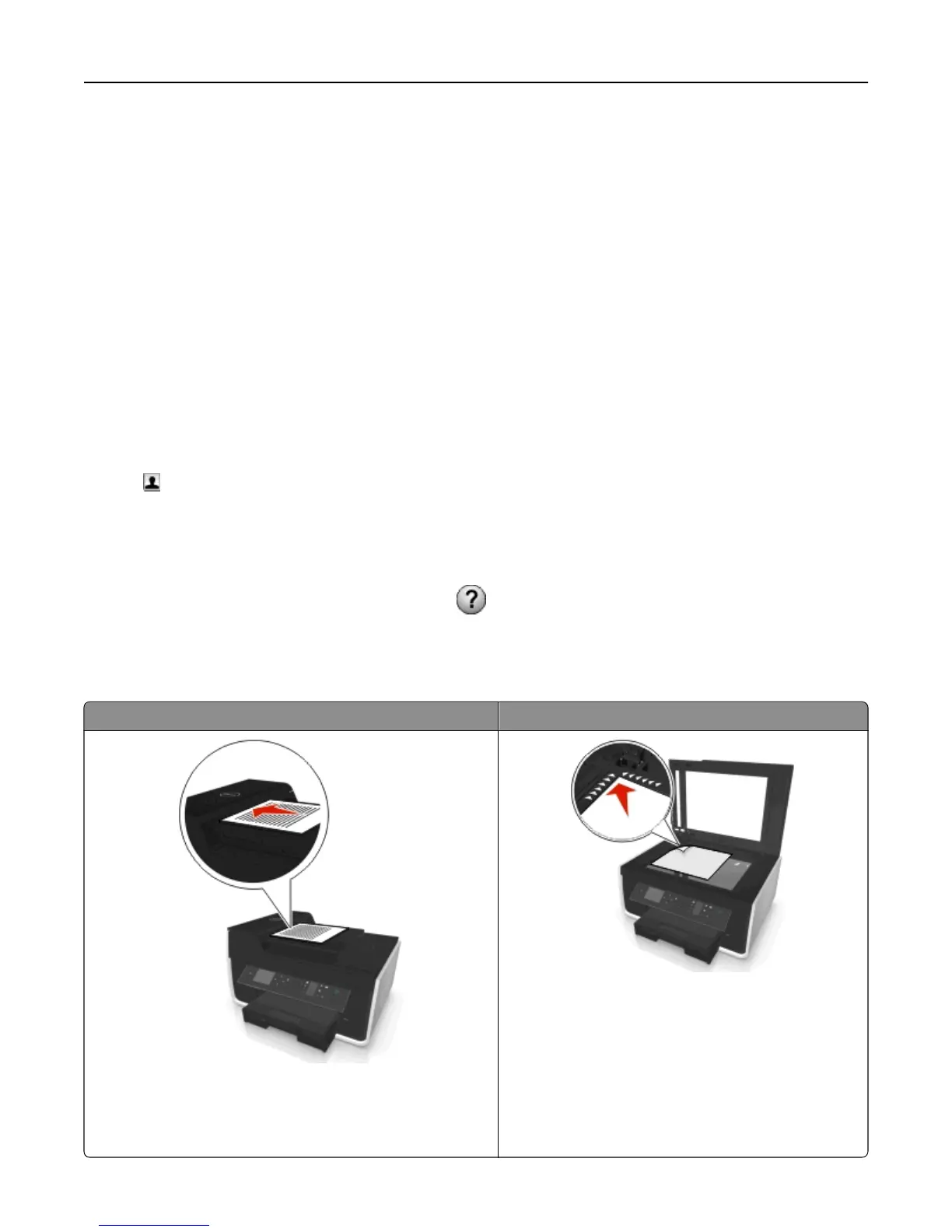
ADF Scanner glass
Use the ADF for multiple‑page documents.
Note: The ADF is available only in select printer models. If you
purchased a printer without an ADF, then load original
documents or photos on the scanner glass.
Use the scanner glass for single pages, small items (such
as postcards or photos), transparencies, photo paper, or
thin media (such as magazine clippings).
Faxing 85










 To Next Page