4
ENG
Compatibility
Compatible with Windows 8 and newer.
Keyboard combinations
= LEDs on or o
FN + space = press and hold for about 3 seconds for factory
reset
FN + ESC = §
Alt Gr + 5 = §
Alt Gr + E = €
FN + right shift + ESC =°
FN + 1 to 12 = F1 to F12
FN + tab = Switches between making F1 to F12 into direct
presses.
For example, press FN + tab to make it possible to press 1 and
it will function as F1, instead of pressing FN +1 for F1.
FN + backspace = Lock or unlock the keys on the keyboard
FN + Win= Lock or unlock the Win key
FN + Caps lock = Switch between LED modes (18)
FN + Q = Open default web browser
FN + W = Open this computer (window)
FN + E = Open default E-Mail program
FN + R = Open default media player
FN + T = Open calculator
FN + Y = Open search window
FN + U = Previous song
FN + I = Play/pause
FN + O = Next song
FN + P = Print screen
FN +
= Scroll lock on or o
FN +
= Pause
FN + Ins = Page up
FN + Del = Page down
FN + : = Home
FN + left shift = Switch color: red, orange, yellow, green, cyan,
blue, purple, white, RGB
FN + - = End
FN + arrow up or arrow down = increase or decrease light
brightness. Switch between 0%, 25%, 50%, 75%, 100%. The 4
LEDs ashes 3 times at 100% and at 0%
FN + arrow left or arrow right = increase or decrease light
speed. Switch between 0%, 25%, 50%, 75%, 100%. The 4 LEDs
ashes 3 times at 100% and at 0%
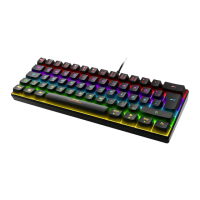
FN + Ctrl = Switch between LED modes, on the side of the
keyboard
Knob functions
Turn clockwise to increase the volume.
Turn counterclockwise to decrease volume.
Press to turn the sound on or o.
LED indicators
K: Indicates if the keyboard is lock/unlocked, press FN +
backspace to switch.
A: Indicates if Caps Lock is on or o.
S: Indicates if Scroll Lock is on or o, press FN + to switch.
W: Indicates if the Win key is locked/unlocked, press FN + Win
to switch.
Side LED modes
FN + Ctrl to switch.
There are 11 LED modes + o for the keyboard’s sides.
RGB (default) -> Neon -> pulsating mode -> red -> orange ->
yellow -> green -> cyan -> blue -> pink -> white -> lights o.
LED modes
FN + Caps lock to switch. The keyboard remembers last used
LED mode after being turned o.
FN + space = quick press to change to default LED mode.
There are 18 LED modes total. Most can be adjusted by
changing light brightness, speed and colour.
Some modes have limited functionality.
All LED modes can change brightness.
These LED modes can’t change colour: 4, 11, 12 and 18.
These LED modes can’t change speed: 6, 16, 17 and 18.
Software
Download the software from www.deltacogaming.com.
Cleaning
Clean with a soft dry cloth. For tougher stains use a mild
detergent and wipe o with a dry cloth.
Warranty
Please, see www.deltaco.eu for warranty information.
Support
More product information can be found at www.deltaco.eu.
Contact us by e-mail: help@deltaco.eu
Disposal
Disposal of electric and electronic devices EC Directive
2012/19/EU.
This product is not to be treated as regular household
waste but must be returned to a collection point for
recycling electric and electronic devices. Further information
is available from your municipality, your municipality’s waste
disposal services, or the retailer where you purchased your
product.



 To Next Page