21
Looping & Beat-Jumping
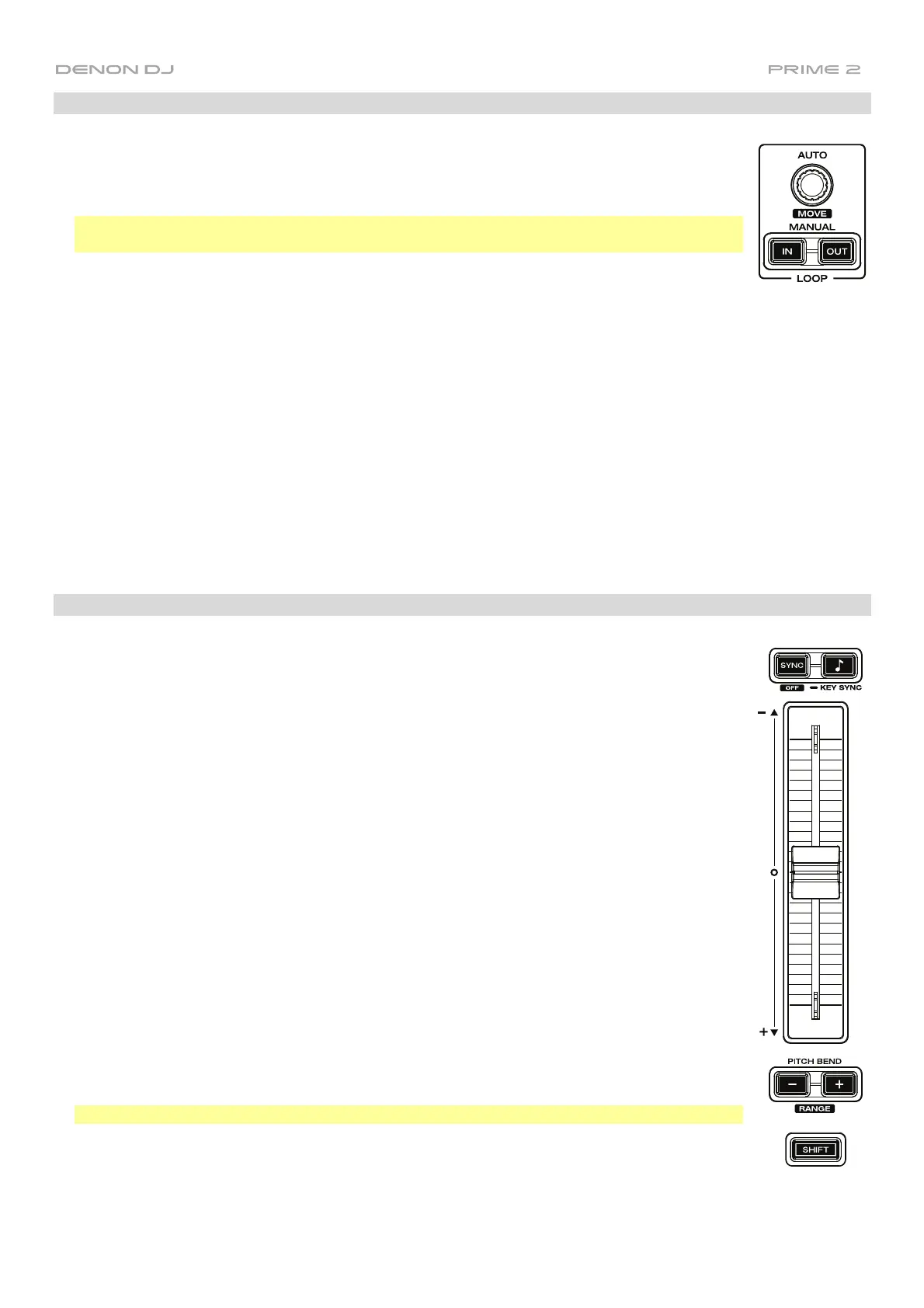
To create and activate an auto loop, press the Auto Loop knob.
To set the auto loop length, turn the Auto Loop knob to select the number of beats: 1/32, 1/16,
1/8, 1/4, 1/2, 1, 2, 4, 8, 16, 32, or 64.
Note: You can set the default Auto Loop size in the Preferences menu. When a track is
loaded, the Auto Loop size will be automatically reset to your preference.
To create and activate a manual loop, press the Manual Loop In button to set the start point,
and then press the Manual Loop Out button to set the end point. The loop will be activated
immediately, and the loop will be indicated as a shaded area in the waveform and track
overview.
To deactivate a loop, press the Auto Loop knob.
To move the loop, press and hold Shift and turn the Auto Loop knob while the loop is activated.
To double or halve the length of a loop, turn the Auto Loop knob while the loop is activated.
To manually edit the beginning or end of a loop, press Loop In or Loop Out, respectively, and
then move the platter left or right to shorten or extend the loop region. Commit the edit by
pressing Loop In or Loop Out again.
To beat-jump through a track, press one of the Beat Jump buttons. Each press will skip through
the track by the length of an auto loop, which you can set by turning the Auto Loop knob.
Syncing & Pitch Adjustment
To activate sync, press Sync on the deck that you want to control the BPM, which becomes the
“master.” After Sync is activated on that deck, press Sync on any additional decks. The tempo
of each deck will immediately synchronize to match the tempo of the master deck.
The Sync state icon on the touchscreen will indicate the current status:
• Sync Off: Sync is deactivated.
• Tempo Sync: Only the tempo is synced (the BPM will match that of the master deck).
• Beat Sync: The tempo will be synced, and the track will be automatically beat-matched
with the track on the master deck.
To deactivate sync on a deck, press Sync again, or press Shift+Sync, depending on the
setting of Sync Button Action in the Preferences menu.
To adjust the track’s pitch, move the pitch fader.
To adjust the track’s pitch momentarily, press and hold one of the Pitch Bend –/+ buttons.
To adjust the range of the pitch fader, press and hold Shift and press one of the Pitch Bend
–/+ buttons to select ±4%, 8%, 10%, 20%, 50%, or 100%.
To lock or unlock the track’s key, press Key Lock/Key Sync. When Key Lock is activated, the
track’s key will remain the same even if you adjust its speed.
To reset the track's key, press Shift+Key Lock/Key Sync.
To activate key sync, press and hold Key Lock/Key Sync on the deck you would like to sync.
The track's key will sync to the key of the track on the other deck.
Note: In order to activate Key Sync, playback must be enabled on both decks.


 To Next Page