8
Features
Top Panel
14
15
10
9
1212
13
11
11
16
17
18
19
20
21
2
1
4
56
7
3
8
9
29
30
31
32
33
22
24
23
25
26
27
28
34
3635
3837
39
40
41
42
43
45
46
44
55
56
47
48
49
50
51
52
53
54
10
10
10
10
8
10
13
19
20
21
29
30
31
32
33
22
24
23
25
26
27
28
34
3635
3837
39
40
41
48
48
42
43
4544
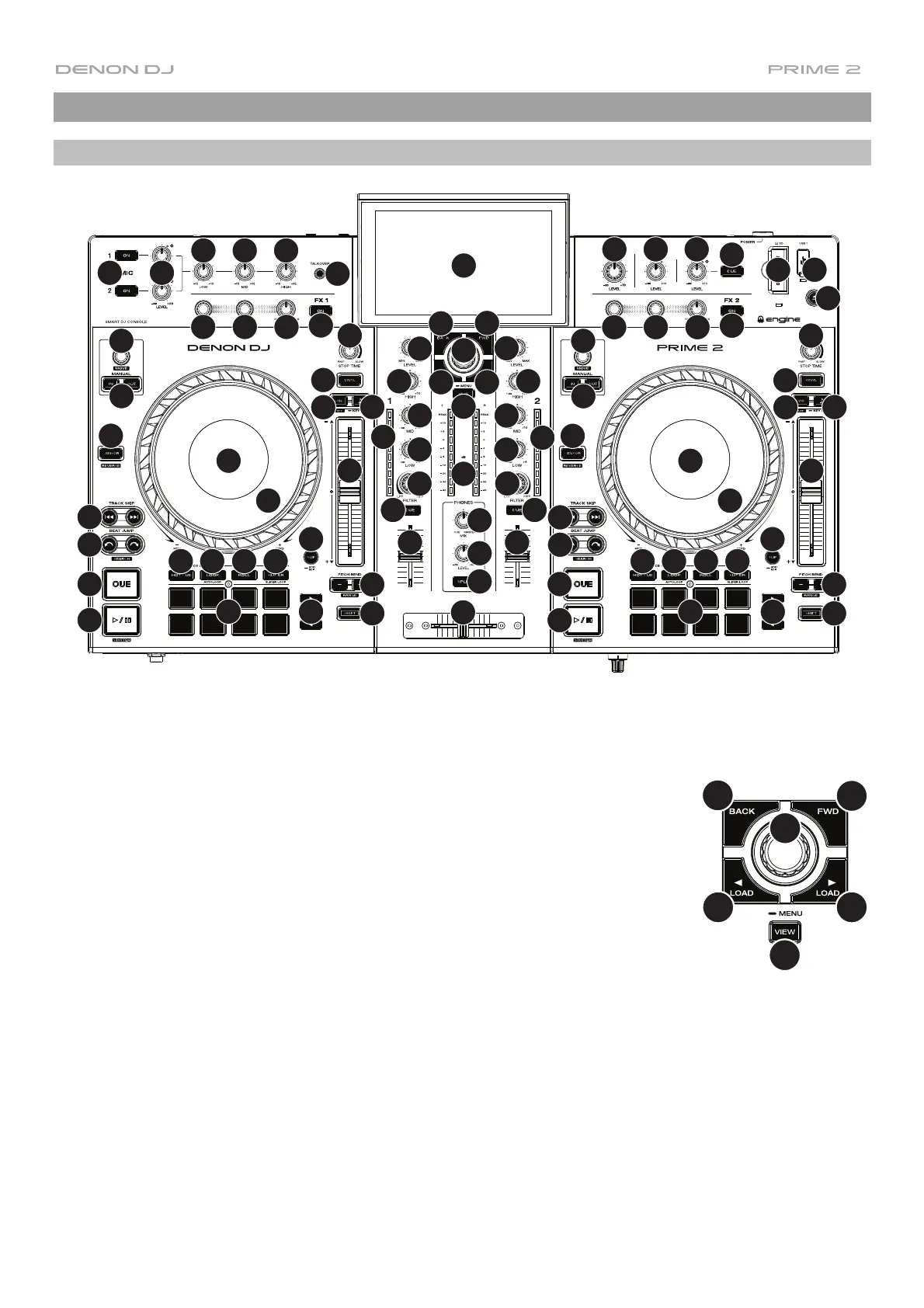
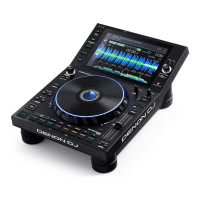
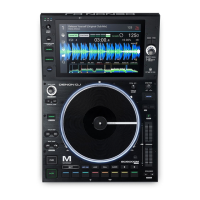
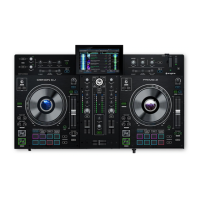
1. Touchscreen: This full-color multi-touch display shows information relevant to PRIME
2's current operation. Touch the touchscreen (and use the hardware controls) to control
the PRIME 2 interface. See Operation > Touchscreen Overview for more information.
2. Browse Knob: Turn this knob to navigate through lists. Press the knob to move
forward in the touchscreen or select a track to load on either deck.
Press and hold Shift and then press this knob to send the selected track to the Prepare
list.
3. Back: Press this button to move back in the touchscreen.
4. Forward (FWD): Press this button to move forward in the touchscreen.
Press and hold Shift and then press this button to turn Quantize on or off.
5. Load : Press this button to load the selected track to Deck 1.
Quickly double-press this button to instant double the track currently playing on Deck 2
to Deck 1.
6. Load : Press this button to load the selected track to Deck 2.
Quickly double-press this button to instant double the track currently playing on Deck 1
to Deck 2.
7. View: Press this button to cycle between the Library and Performance views.
Press and hold this button to show the Menu, which includes Source Selection, Record
Menu and the Utility/Preferences Menu. See Operation > Menu for more information.
Press and hold Shift and then press this button to toggle between vertical and
horizontal waveform views in Performance View.
2
4
56
7
3


 To Next Page