7
Devices & File Analysis
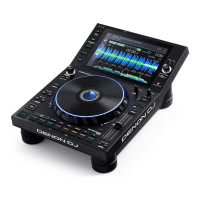
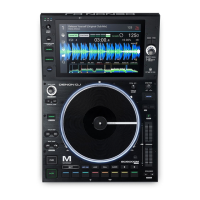
PRIME 2 can play music files from USB drives, SD cards, or other connected PRIME media players. Make sure you
are using only the supported file systems (for USB drives or SD cards) and file formats (for music files) listed below.
Supported file systems:
exFAT, FAT32
Supported file formats:
AC/M4A
IF/AIFF (44.1–192 kHz, 16–32-bit)
LAC
FLAC
MP3 (32
320 kbps)
MP4
Ogg Vorbis
WAV (44.1–192 kHz, 16–32-bit)
Although PRIME 2 can play tracks that have not been analyzed yet, pre-analyzing them allows its features to work
most effectively. You can analyze tracks in one of two ways:
• On PRIME 2, load the track: When you load a track to play, PRIME 2 will automatically analyze it (if it has
not already been analyzed). This may take a moment to complete, depending on the length of the track. You
can start playing the track from the beginning immediately, though you will need to wait a moment for the
analysis to finish.
• Use Engine Prime software: The included Engine Prime software can pre-analyze your music library to use
with PRIME 2. You can also use it to organize your library and manage your PRIME 2 hardware preferences
(see Operation to learn more about this).
Visit denondj.com/downloads and find the webpage for PRIME 2 to download the Engine Prime software.
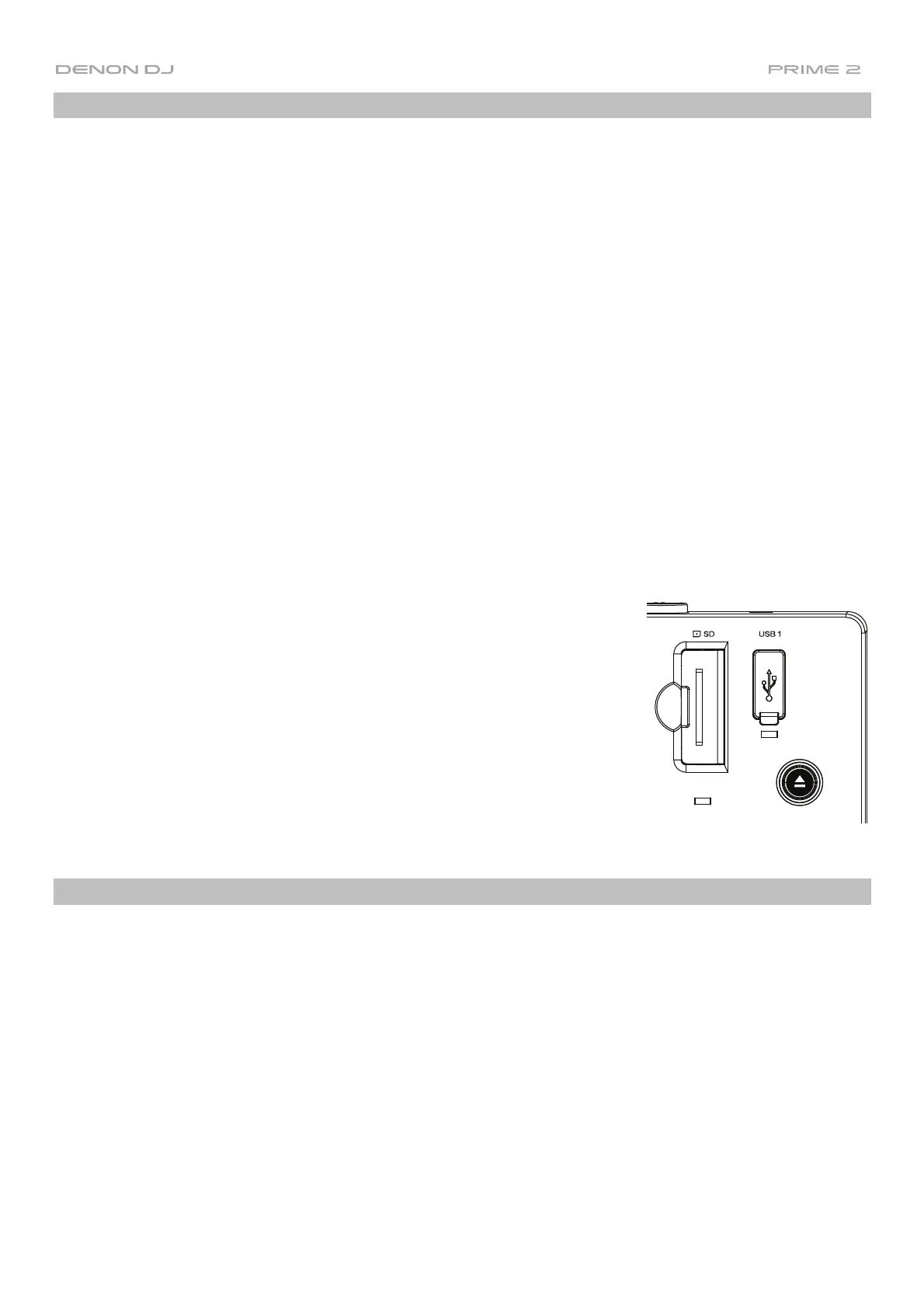
To eject a USB drive or SD card:
1. Make sure none of its tracks are being played on any connected PRIME media
players.
2. Press Eject. A list of connected devices will appear in the touchscreen.
3. Tap the eject icon for the device you would like to eject. If a track on the
device is currently playing, you will be asked if you want to continue ejecting,
which will stop the track. Tap Cancel to cancel ejecting the device, or tap
Eject Anyway to eject it.
To eject additional devices, repeat Step 3.
To return to the previous screen, press Eject again, or tap the X in the
upper-right corner.
Configuration
PRIME 2 has several settings that you can customize in the Utility (basic settings) and Preferences (advanced
settings) menus. See Operation > Menu to learn about these settings.


 To Next Page