2. Network Setup
- 9 -
Internet connection can be setup via Wireless LAN (WiFi).
Your Tuner requires a broadband Internet connection through wired
Ethernet or WiFi. The easiest way is use a CAT 5 or CAT 6 cable to connect
through wired Ethernet to a Wifi router, which connects to an Adsl modem
or a cable modem provided by your ISP.
Wireless LAN (Wi-Fi)
Connect the Wi-Fi antenna to the connector at the back side of the tuner. If
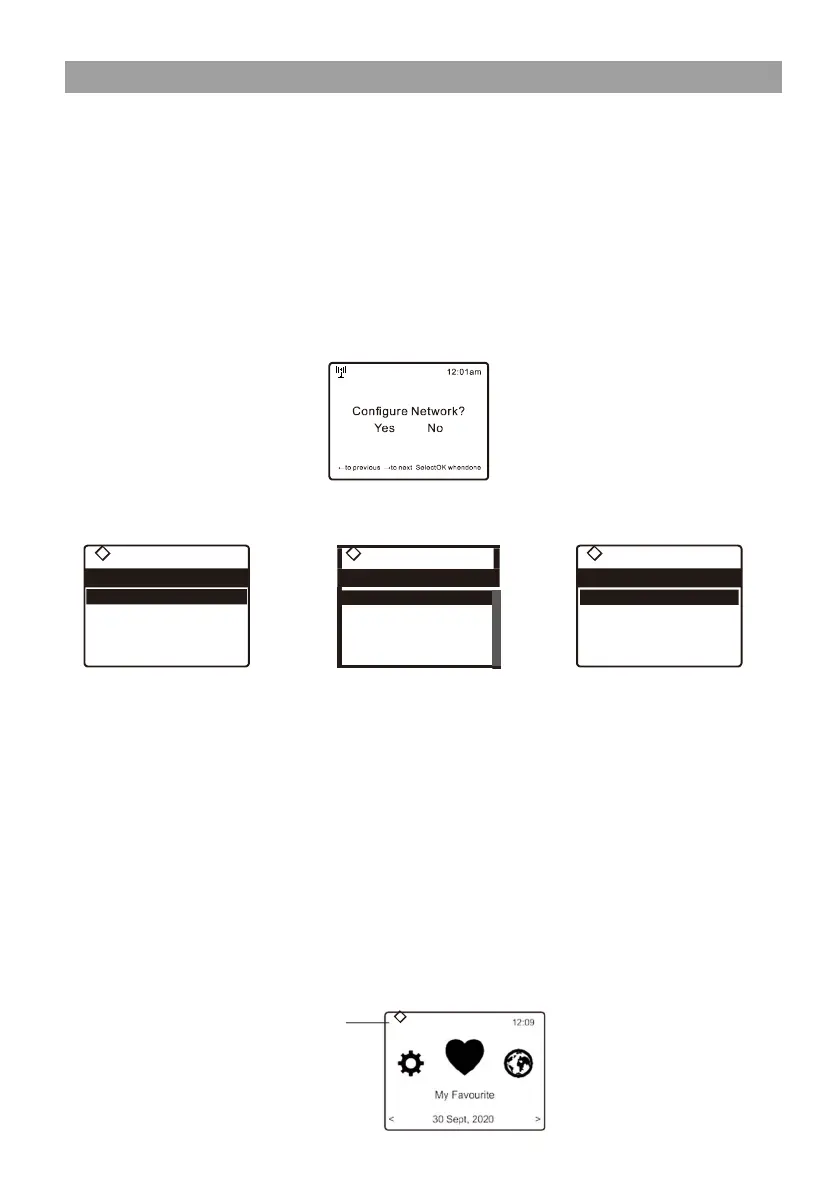
this is first time use, the Configure Network wizard will be displayed.
Choose Yes to start configuring network. Navigate by using the arrow
buttons to highlight Yes and press [OK] to confirm.
Select Network and choose Add wireless network from the list, press [OK]
to confirm, then choose “Scan & select”:
Wireless network
Add Wireless network >
Remove Wireless network
AP:[DE_AX55]
Signal:-49 dBm
IP: [Dynamic] >
•
It will start scanning the available wireless networks around. Scroll to your
network and confirm the selection. If your wireless network has a security
code protected, it will ask you to enter the passphrase/password. Please
refer to the above section ‘Entering security code for your wireless network'
on P.6.
Note: The password is case sensitive. Please consult with the one who
setup your network if you don't know the password.
Alternatively, WPS connection is available if your router has a WPS button
(Configuration > Network > Wireless Network > Add wireless network >
WPS button).
•
When the Wi-Fi connection is successful, the Association Complete will
be shown briefly. The wifi signal bar will appear on the top left corner of the
display:
Wi-Fi signal bar
11:23am
Add Wireless network 1/2
< Scan & select >
WPS button
Network
11:23am
1/4
< Wireless network >
Network options >
Wireless channels >
Network connection test >


 To Next Page