KODAK PICTURE CD / JPEG CD PLAYBACK
KODAK PICTURE CD / JPEG CD OPERATIONS
1. PLAY MODES
SKIP TO NEXT/PREVIOUS PICTURE
PICTURE ROTATIONS
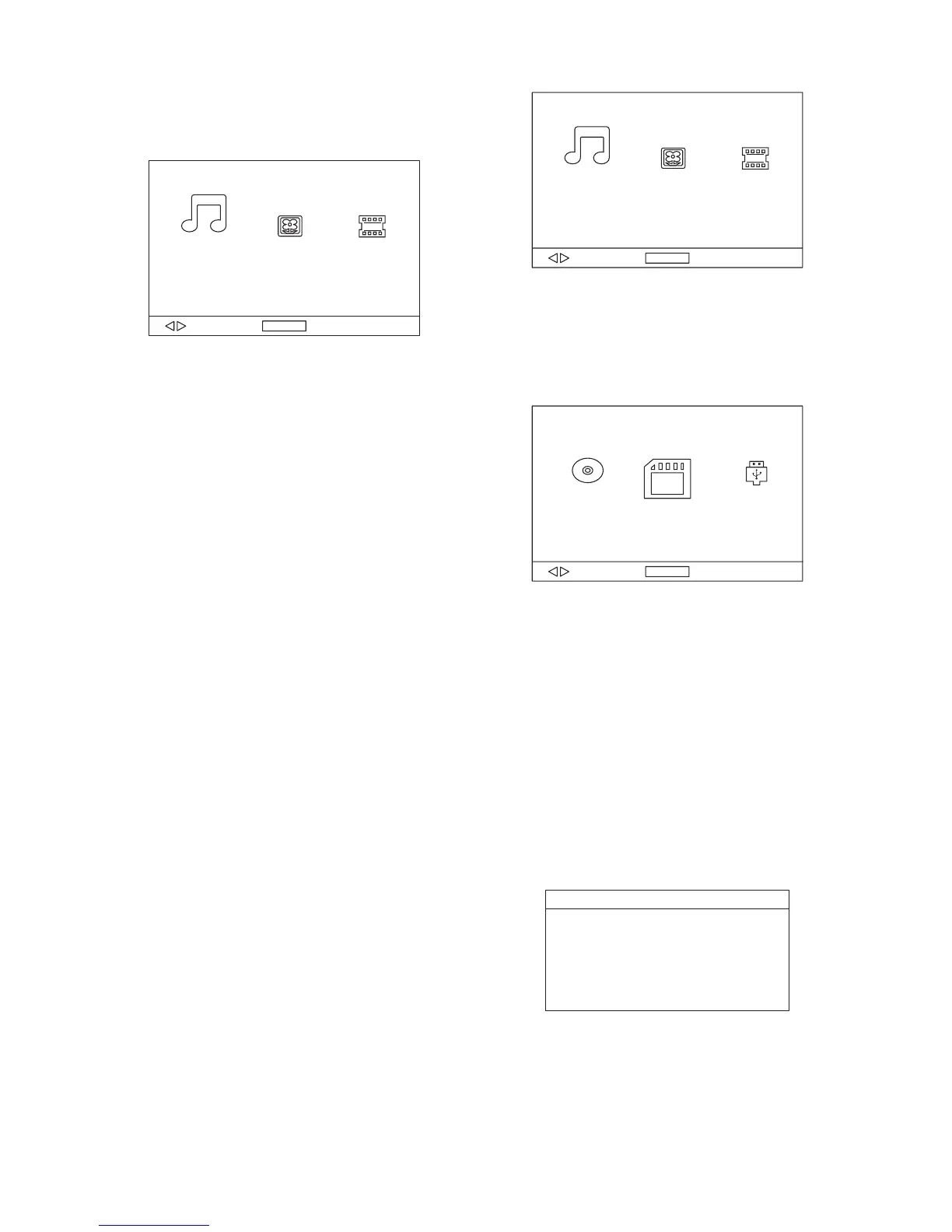
Load a Kodak picture CD/JPEG CD disc onto the disc tray,
then select picture function to play the disc with navigation
left/right button and press OK Button to confirm.
Slide show of Kodak Picture CD begins automatically;
Folders of JPEG picture CD are displayed on the TV screen;
use the navigation buttons to select the desired folder and
then press OK button to confirm.
The files in this folder are displayed and you can select your
favourable pictures using the up/down navigation buttons and
press OK button to start playback.
Preview of the picture, resolution, size, date will be displayed
while you scroll across the file names.
Press REPEAT button to change play mode.
During playback, press STOP to enter preview mode.
Press NEXT button to skip to the next picture or PREV
button to the previous picture.
Press RIGHT and LEFT navigation buttons to rotate the
picture Clockwise and anti-clockwise respectively.
2.
3.
4.
5.
6.
EXTERNAL MEMORY MEDIA OPERATION (USB&SD/MMC
CARD)
Prepare the player for External Memory media operation
PICTURE FLIP AND TURN
PICTURE ZOOM IN/OUT
SLIDE SHOW TRANSITION MODES
Press UP navigation button to flip the picture up or down.
Press DOWN navigation button to flip the picture left or right.
Press ZOOM button continuously, the picture zooms in by 2,
3, 4 times or zooms out by 1/2, 1/3, 1/4 of the original size.
Press this button once more when the picture getting 1/4 size
to return to the normal play.
If the picture is enlarged, you may use the navigation buttons
to view blocked parts of the picture.
During slide show playback, press the PROGRAM button
cyclically to select one transition mode to play picture.
1. Slide the POWER switch to ON position, Insert a USB data
traveller filled with media files into the USB port or plug a
SD/MMC card into the card slot, the USB or the SD/MMC
card is successfully detected, select a corresponding
function via navigation right/left button for play and press
OK Button to confirm.
4
Folders show on the screen and use navigation buttons to
select your desired folder and track to play.
2. Press NEXT or PREVIOUS button to skip forward or
backward.
Note: Press and hold STOP button on the remote or press
DVD/USB/SD button on the unit to make selection among
USB, card and disc via navigation LEFT/RIGHT button,
confirm by pressing OK button.
CAUTION: To avoid electronic static discharge, don't touch
the USB port and card slot during playback.
it is used to select the TV mode.
Please select this option as per your TV set.
when the player is not in use for
several minutes, a running DVD logo will move across the
TV screen to protect the TV screen.
Options:
On: Screen saver is enabled
Off: Screen saver is disabled
INITIAL SETTINGS
Initial settings page is for you to make your preferred settings
up for your player. Once the initial settings are done they are
retained in the CPU of the player until otherwise modified.
1. Press SETUP button to access the setup menu.
2. Use the navigation buttons to select the item you want to
modify, setting page with further setting items displayed
shows on the TV screen. Again use navigation buttons to
make changes. Press OK button to confirm modifications.
3. Use navigation buttons to switch to another setting on the
main setting page.
4. Press SETUP button to exit main setting page.
COMMON PROCEDURES FOR INITIAL SETTINGS
1. SYSTEM SETUP
1.1 TV SYSTEM -
1.2 SCREEN SAVER -
ENTER
ENTER
ENTER
SYSTEM SETUP
TV SYSTEM
SCREEN SAVER
TV TYPE
PASSWORD
RATING
DEFAULT


 To Next Page