Shenzhen Dericam Technology Co., Ltd. User Manual V1.0.5
Email: support@dericam.com Website: www.dericam.com
25
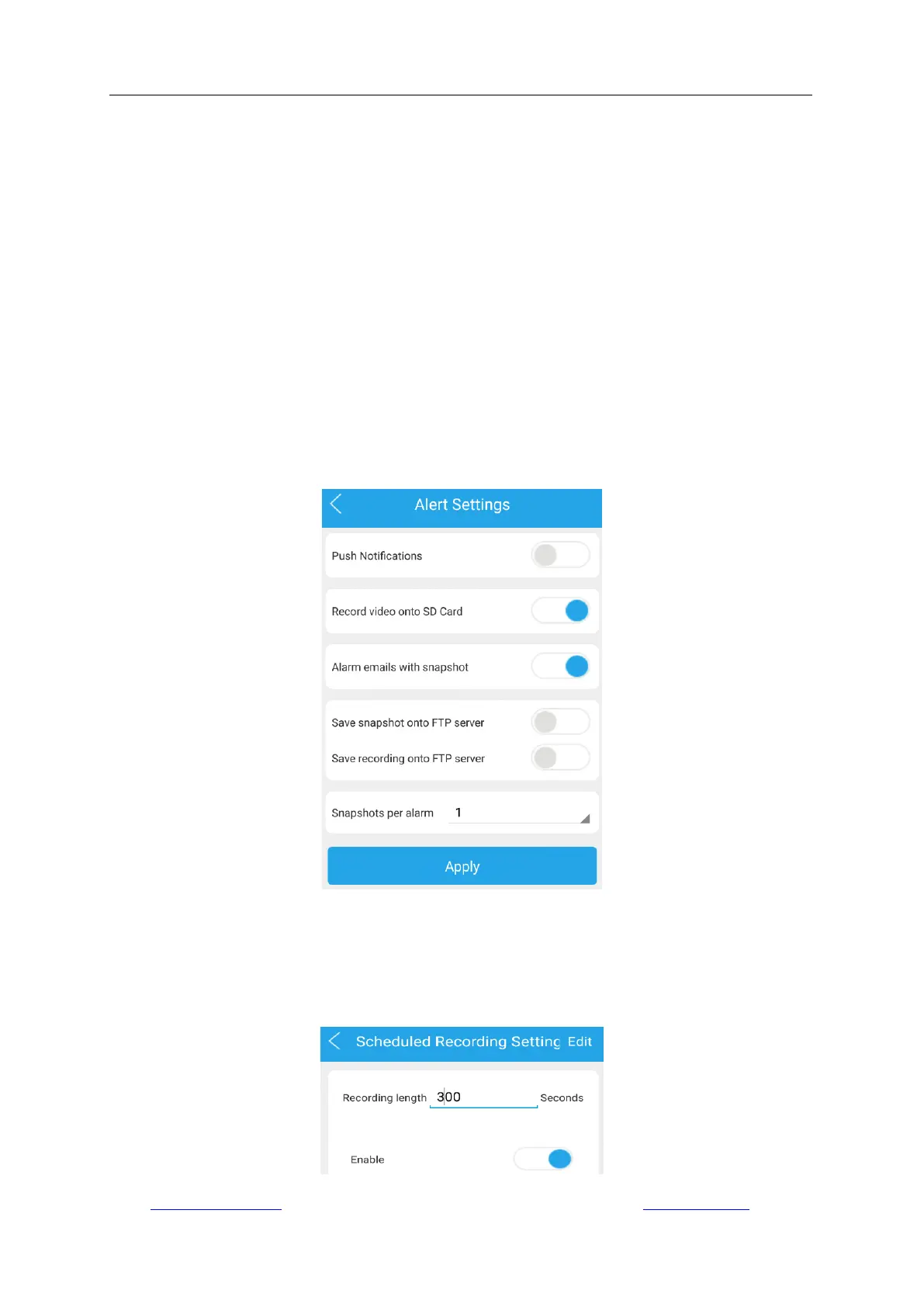
4.4.3 Alert Settings
After enable “Motion Detection” in Alarm Setting, please continuously set up in “Camera Setup” ->
“Alert Settings”.
- Enable/Disable “Push Notification” to send/not send alarm notifications by the Dericam App if
any motion is detected. You should allow Dericam App to push notifications in “Settings” ->
“Notification Management” on your mobile device, and keep the App running on the
background.
- Enable/Disable “Record video to SD Card” to save/not save the video recordings about motion
detection to the SD card of the camera.
- Enable/Disable “Alarm emails with snapshot” to send/not send alarm messages with up to 3
snapshot by email. It is required to make further email settings which will be described in the
section 4.4.10.
- Enable/Disable “Save snapshot/recording to FTP server” to save/not save snapshot/video
recordings to the FTP server if a FTP server has been built on computer.
- You can set up sending up to 3 snapshots with email message for each motion detection event
in “Snapshot per alarm”.
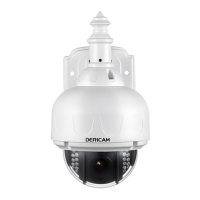
4.4.4 Scheduled Recording Settings
Go to “Camera Setup” -> “Scheduled Recording Settings” to enable/disable automatic and
constant recording. The video length of each recording can be set up, and you can also set up the
date & time schedule of a week for carrying out recording. The scheduled recordings will be saved
in the SD card of camera as default.



 To Next Page