Shenzhen Dericam Technology Co., Ltd. User Manual V1.0.5
Email: support@dericam.com Website: www.dericam.com
5
2 Camera Connection and Installation
To make your experience with the Dericam camera easy and simple, we've provided multiple
ways to set up, view, and operate your camera as on your needs. Please set up your camera in
the way that works best for you.
2.1 Connection Guide
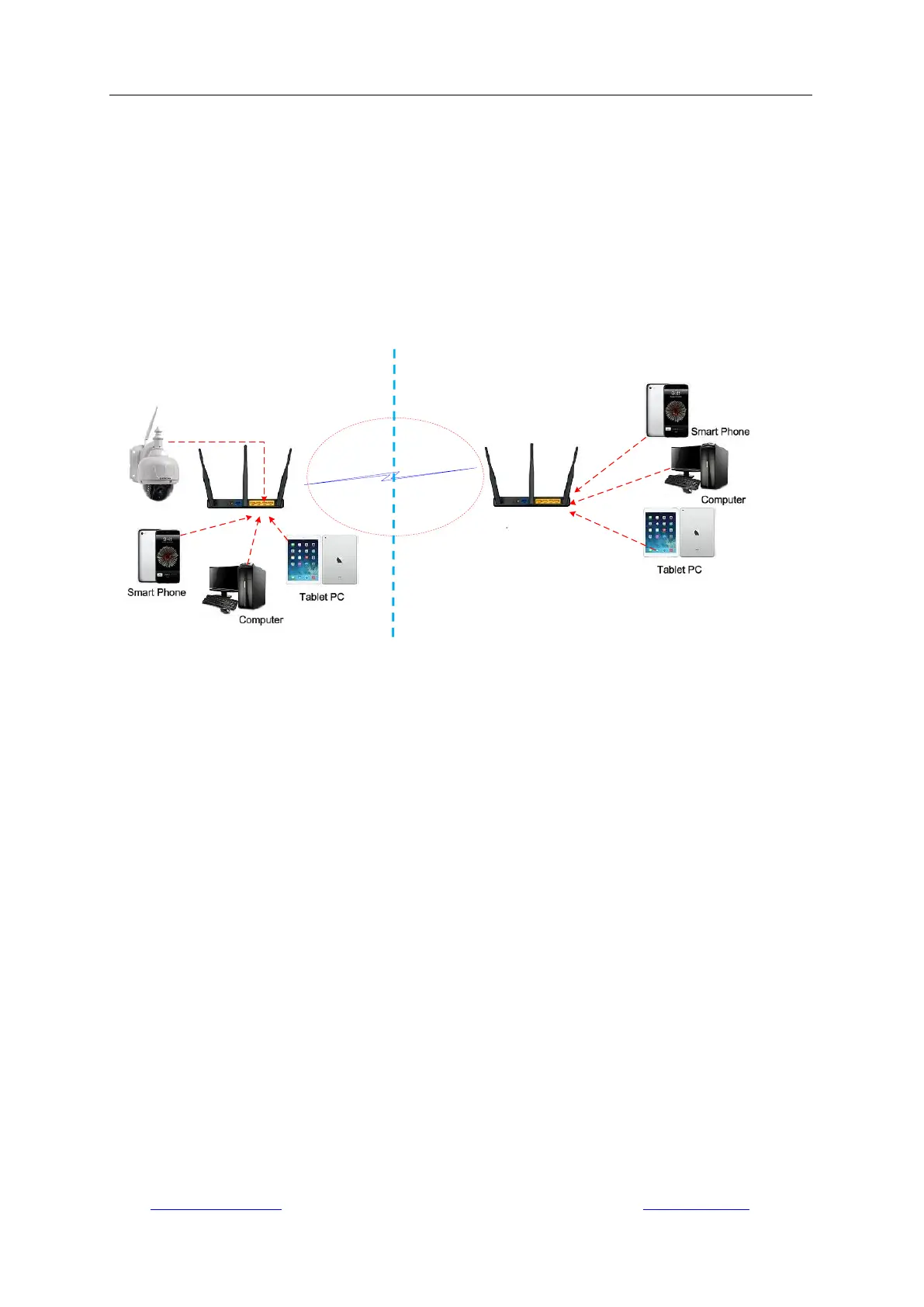
The Dericam camera can be accessed via web browser on computer or “Dericam” App on
smartphone or tablet. Before access, you should connect the camera to your router via Ethernet
cable or Wi-Fi after it is powered on.
2.2 Installation Guide
The camera has a standard camera tripod screw hole (1/4-20 UNC thread) for use in mounting
the camera onto a stable surface.
Note: Prior to installation ensure that the installation environment can support at least 3 times the
weight of the camera.
2.3 Default Username and Password
To login to the system for the first time, use one of the following default username/password
combinations. Once you’ve successfully logged in, it is highly recommended to change the
password for security reasons.
Username: admin
Password: admin
Note:
1. Changing the password for admin account is necessary with prompt during initial setup.
2. The password is case sensitive.
3. If you forget the username/password, or fail to login the camera with any usernames/passwords
you know, please hold on the hard reset button of the device for 5-8 seconds to reset it at status of
power on. And then do initial setup.



 To Next Page