Shenzhen Dericam Technology Co., Ltd. User Manual V1.0.5
Email: support@dericam.com Website: www.dericam.com
23
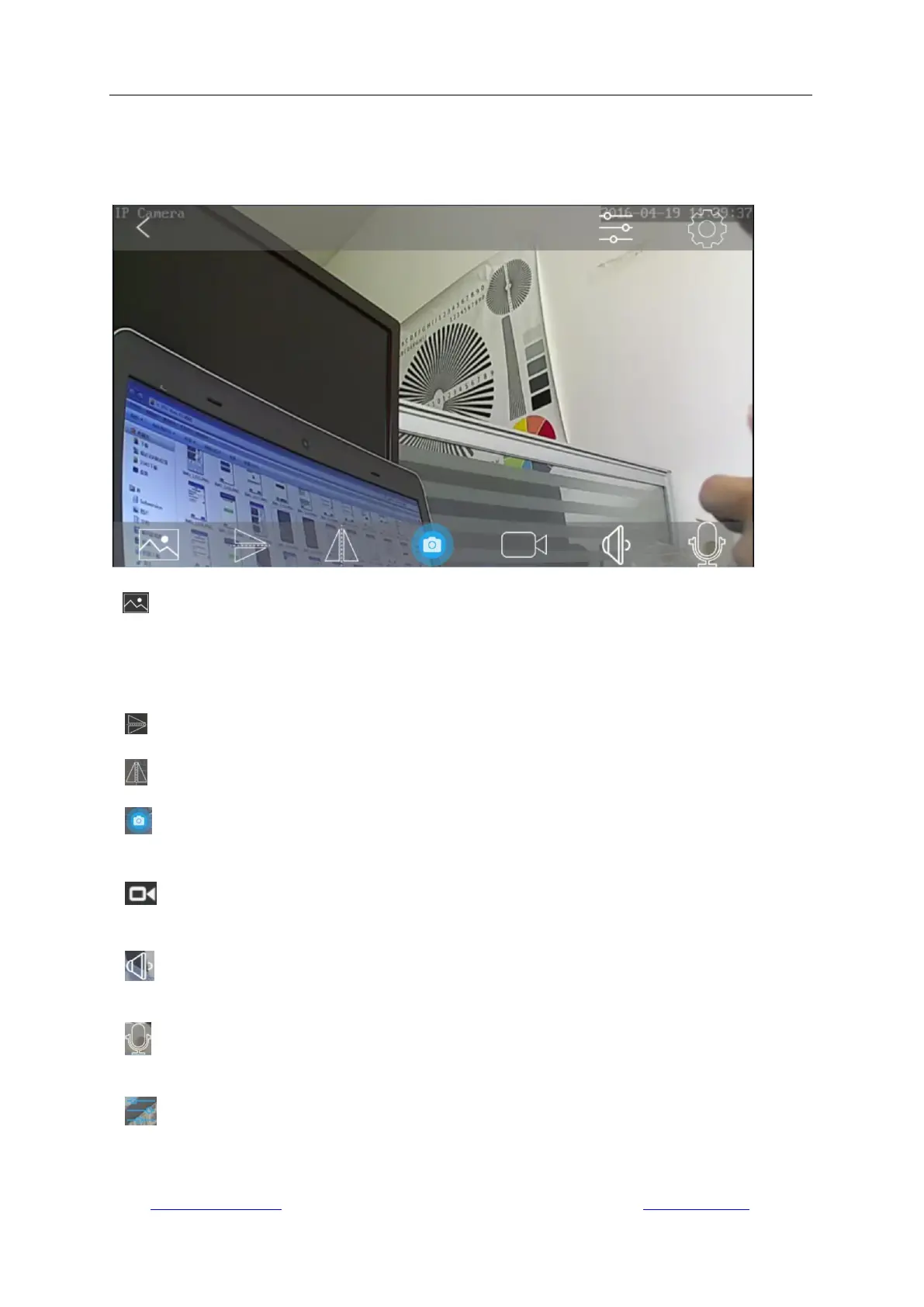
4.3 Live view page
After installation and setup, you can view the video or continue setup as you want. The functions
of each icons on the live view interface will be described in this sector.
- Resolution, you can choose “Clear” or “Fluent” mode.
The “Clear” mode takes the first/main stream; while the “Fluent” mode takes the second/sub
stream which is in VGA as default. You can also change the default settings in “Camera Setup” ->
“Video Setting”.
- Image Flip
- Image Mirror
- Capture snapshot by manual, and the snapshot will be saved into local storage of your
mobile device.
- Live feed recording by manual and the snapshot will be saved into local storage of your
mobile device.
- Speaker/Audio out. Tap this icon to allow audio output (listen to the invoice from the
terminal of the camera); tap again to exit speaker.
- Talk/Audio In; hold on this icon and then talk to allow audio input from your mobile device.
The people on the camera side can hear your voice.
- Video Parameter Settings, you can adjust the image’s brightness, contrast, saturation;
and you can also switch the vision mode among “Auto”, “Day” and “Night” by controlling the IR
(Infrared light) of your camera.



 To Next Page