16 Initial use
devolo dLAN 500 AV Wireless+
쎲 The device restarts if you press the Reset button
for less than 10 seconds.
쎲 To change the configuration of the
dLAN500AVWireless+ back to the factory
defaults, press the Reset button for more than
10 seconds. Keep in mind that all settings that
have already been configured will be lost!
You can use the tip of a drawing pin to press
the reset button.
3.3.3 Network jacks
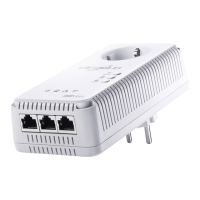
The three LAN ports can be used to connect computers
or other network devices to the
dLAN 500 AV Wireless+ via commercially available
network cables.
3.3.4 WLAN antennas
The internal WLAN antennas are for connecting to oth-
er network devices wirelessly.
3.4 Connecting the
dLAN 500 AV Wireless+
This section describes how to connect your
dLAN 500 AV Wireless+ to a computer or other net-
work device.
햲 Use a network cable to connect the
dLAN 500 AV Wireless+ to network port of your
computer or other network device.
햳 Plug the dLAN 500 AV Wireless+ into a wall
socket.
The power outlet should be in range of
the connected network device.
The dLAN 500 AV Wireless+ and the
network device should be easily acces-
sible.
To switch off the
dLAN 500 AV Wireless+ or disconnect
it from the mains supply, pull the pow-
er plug out of the power outlet.
햴 A dLAN network is set up as soon as at least one
other dLAN adapter has been connected and
plugged into the mains supply. Now you can
secure your dLAN network to prevent unauthor-
ised access and you can do so either


 To Next Page