External Devices: Printers, PCs, Scanners and Scales 49
7.2.3 Epson TM-U220 Tape Printer
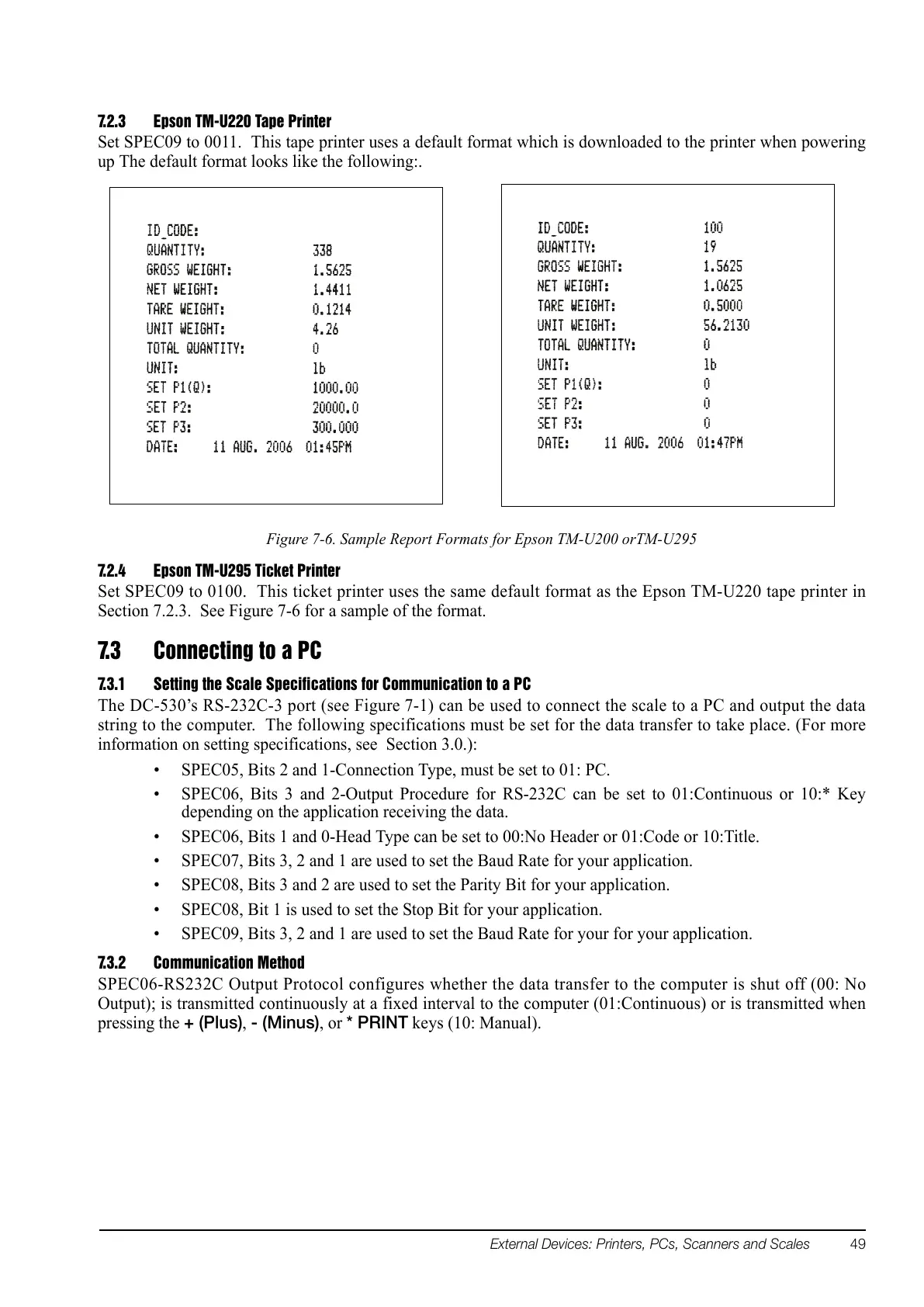
Set SPEC09 to 0011. This tape printer uses a default format which is downloaded to the printer when powering
up The default format looks like the following:.
Figure 7-6. Sample Report Formats for Epson TM-U200 orTM-U295
7.2.4 Epson TM-U295 Ticket Printer
Set SPEC09 to 0100. This ticket printer uses the same default format as the Epson TM-U220 tape printer in
Section 7.2.3. See Figure 7-6 for a sample of the format.
7.3 Connecting to a PC
7.3.1 Setting the Scale Specifications for Communication to a PC
The DC-530’s RS-232C-3 port (see Figure 7-1) can be used to connect the scale to a PC and output the data
string to the computer. The following specifications must be set for the data transfer to take place. (For more
information on setting specifications, see
Section 3.0.):
• SPEC05, Bits 2 and 1-Connection Type, must be set to 01: PC.
• SPEC06, Bits 3 and 2-Output Procedure for RS-232C can be set to 01:Continuous or 10:* Key
depending on the application receiving the data.
• SPEC06, Bits 1 and 0-Head Type can be set to 00:No Header or 01:Code or 10:Title.
• SPEC07, Bits 3, 2 and 1 are used to set the Baud Rate for your application.
• SPEC08, Bits 3 and 2 are used to set the Parity Bit for your application.
• SPEC08, Bit 1 is used to set the Stop Bit for your application.
• SPEC09, Bits 3, 2 and 1 are used to set the Baud Rate for your for your application.
7.3.2 Communication Method
SPEC06-RS232C Output Protocol configures whether the data transfer to the computer is shut off (00: No
Output); is transmitted continuously at a fixed interval to the computer (01:Continuous) or is transmitted when
pressing the
+ (Plus), - (Minus), or * PRINT keys (10: Manual).


 To Next Page