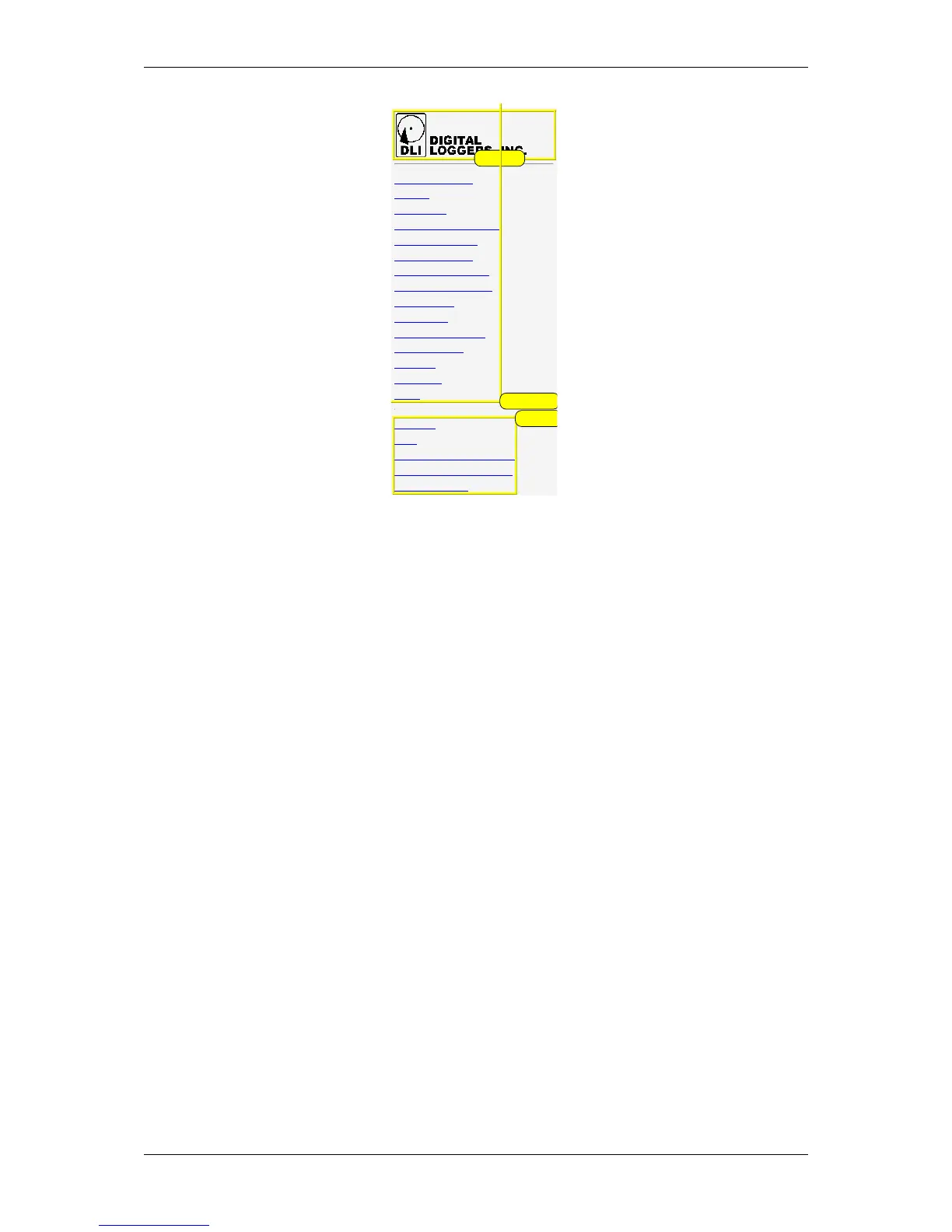
Power controller menu
Custom links can be configured on the Admin page. The branding block can be customized on the Customization
page.
4.7 Switching relays on and off
The relay control page lets you control relays. The sequence in which relays will be switched on is determined by
settings on the Admin page. To switch an relay on or off, simply click to the right of the relay name or number.
Switching an relay off is immediate. Switching an relay on may be delayed if a different (or possibly even the same)
relay was recently turned on. The delay acts to protect the device from simultaneous inrush currents and limit
cycling rate. You may also "cycle" a device which is connected to the controller. This feature is useful for rebooting
Ethernet devices which may interrupt the web link to the controller. Clicking "Cycle" switches power off, waits a few
seconds, and then switches power back on. This resets the attached device. You may also "cycle" all relays using
the "Cycle all relays" button on the bottom of the page. Depending on your web browser settings, you may need to
click the "refresh" button to update the on-screen status display after changing settings. A screen refresh setting is
provided on the Setup page.
4.8 Logout
Browser logout is automatic when a session is closed or after a time-out period. You can use a menu link to log-out
in advance.
DLI DIN4 User’s Guide: 20170809T111540Z



 To Next Page