42 Dolby
®
Digital Cinema System Manual Issue 0.92 (Preliminary)
Installing a Dolby Digital Cinema System
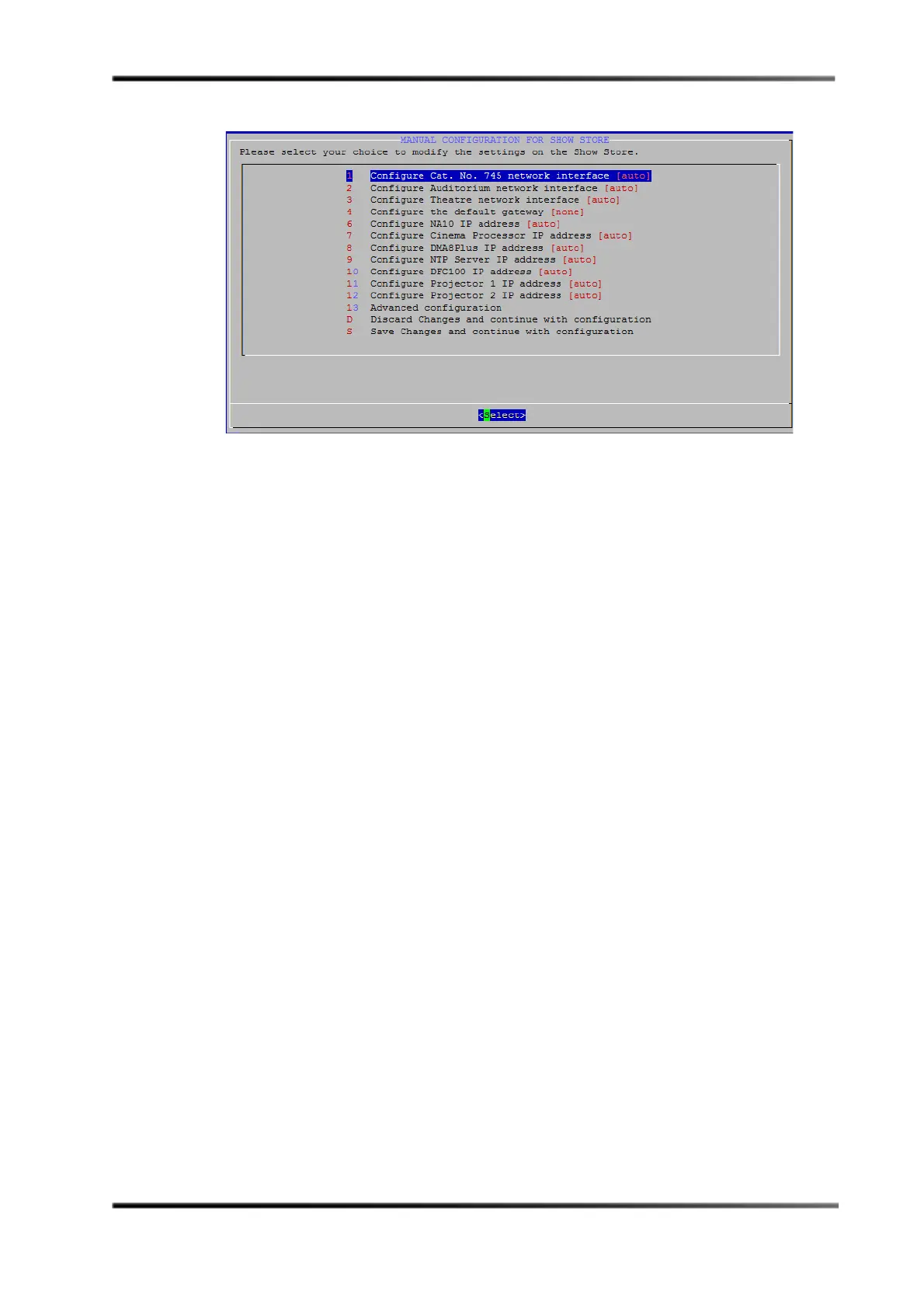
Figure 3- 37
Figure 3-37 Manual Configuration for DSS220 Screen
14. Press the up/down arrow keys to select a network setting that you want to override,
then press
Select.
15. Enter the desired custom setting, then press <Tab> to select
OK for that setting, and
press <Enter>.
Your custom setting replaces the word
auto in the brackets next to that setting.
16. Repeat steps 14 and 15 for each setting you want to override.
17. If you want to allow the delivery of licenses (key delivery messages [KDMs]) using a
modem, be sure to provide the modem’s phone number to your distributor. The
phone line must be equipped with a caller ID. To configure this option, select the
Advanced Configuration option (option 12), then select Configure Modem Users for
KDM Ingest
to display the Modem Users Configuration for DSS220 screen and follow
the bulleted steps below (if you do not want to perform this function, proceed to step
18).
•Select
Add a new user to display the Enter New User Name screen.
• Enter the new user’s login ID (one word with no blank spaces), then press <Enter>
to display the
Enter New User Password screen.
• Enter the password (used to login) for the new user, then press <Enter> to display
the
Enter New User Phone Number screen. Users must login with the same user ID
and password for both PPP and SFTP logins.
• Enter the phone number that the user will be calling from (no dashes or spaces).
You can also enter only the area code and prefix to allow anyone in this category
to call in, or enter
any to allow anyone to call in.
• Press <Enter> to redisplay the
Modem Users Configuration for DSS220 screen with
the new user’s information.
• Enter any other modem users you require following the preceding steps. You can
also delete modem users on this screen.
•Select
Done modifying modem users to redisplay the Advanced Configuration
options, then connect one end of a Best Data 56 kbps USB modem to the phone
line with a US caller ID, and the other end to one of the DSS220’s USB ports.
•Press
<Esc> to redisplay the Manual Configuration for Show Store screen, and
proceed to step 18.
18. Select
Save Changes and continue with configuration (option S), press <Enter>, and
then select
Yes in the confirmation dialog box.



 To Next Page