Configuring Single Auditoriums and Multiple Auditoriums
Dolby
®
Digital Cinema System Manual Issue 0.92 (Preliminary) 41
If you are using a GPI/O automation system, select
Yes to import your GPI/O
configuration from an XML file on an inserted USB device, then follow the onscreen
instructions. If you are not using a GPI/O automation system, select
No.
For information on the default GPI/O configuration and the configuration schema, see
Appendix C.
The
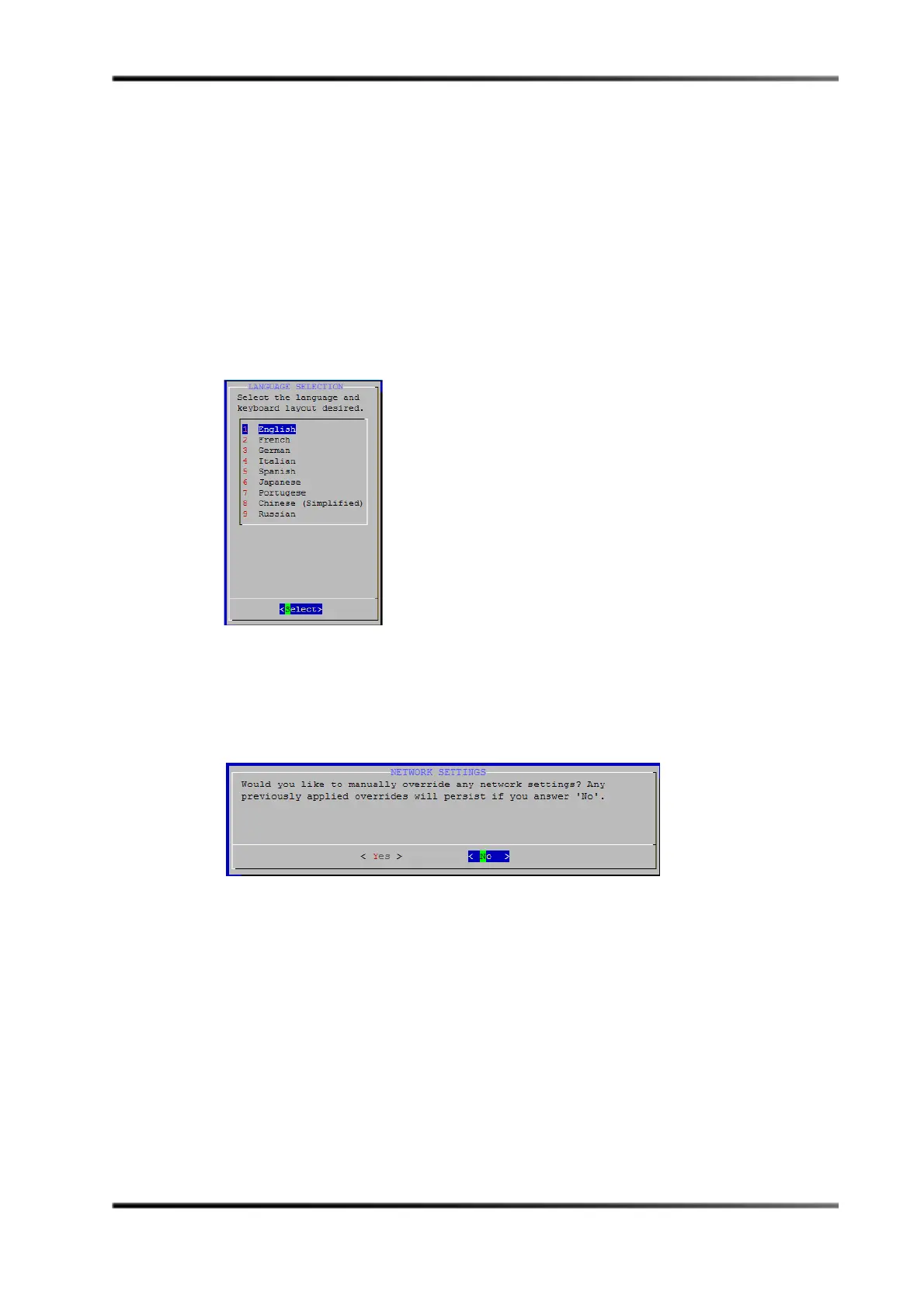
Language Selection screen appears, as shown in Figure 3-35.
The language setting specifies the type of keyboard that is connected to the system.
For Italian, Chinese (Simplified), and Russian, this setting also specifies the respective
Show Manager user interface (UI) translation. (All other language selections display an
English UI.) Chinese and Russian selections support an English keyboard with a
localized UI.
Figure 3- 35
Figure 3-35 Language Selection Screen
13. Use the arrow keys to select your language, then press <Enter>. The default is English.
The
Network Settings screen appears, which asks if you want to override any network
settings, as shown in Figure 3-36.
Figure 3- 36
Figure 3-36 Network Settings Screen
• If you want to use the semiautomatic (auto) network settings, press <Enter> to
select
No and proceed to step 18. This configuration specifies the default network
settings for a single auditorium, with no overrides.
• If you want to override the automatic settings, press <Tab> to select
Yes, then
press <Enter> to display the
Manual Configuration for Show Store (DSS220) screen
(
as shown in Figure 3-37), and proceed to step 14. In this screen, you can select the
network settings you want to override, and then enter the desired custom
settings.
• For information on configuring two projectors, contact Dolby Laboratories.


 To Next Page
 Loading...