The dormakaba Saffire™ EVO Wi-Fi Lock is a smart lock designed for secure access control in an online environment with stable Wi-Fi connectivity. It integrates with approved dormakaba Lyazon Cloud API partner systems for comprehensive management.
Function Description
The Saffire EVO Wi-Fi Lock provides secure access control through multiple credential types and communicates with cloud servers via Wi-Fi. It supports both unlocking and locking functionalities, with clear LED indicators for various states and actions. The lock is intended for use in an online setting, leveraging Wi-Fi for real-time updates and management.
Important Technical Specifications
- Connectivity: The lock requires a 2.4GHz Wi-Fi network (802.1 b/g/n) for operation.
- Wi-Fi Signal Strength: A minimum Wi-Fi signal of -70 dB at the lock is recommended for optimal performance.
- Battery: The lock operates on batteries, with a low battery indicator appearing when the battery level drops to 3.6V. Batteries are expected to last 1-2 weeks after this indicator is shown.
- Management System: Designed to be managed with approved dormakaba Lyazon Cloud API partner systems.
- Commissioning App: The Lyazon Utility App is available for iOS and Android devices for commissioning and setup. Installers require a username and password provided by an approved dormakaba Lyazon integration partner to use the app.
Usage Features
Unlocking:
The Saffire EVO lock can be unlocked using one of the following credential types:
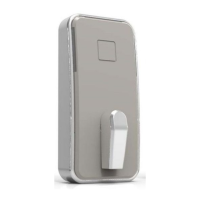
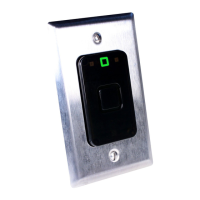
- RFID Card or Fob: Hold the RFID card or fob near the square target on the front of the lock.
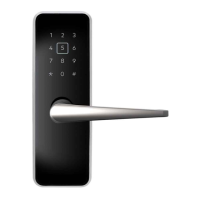
- PIN Code: Touch the keypad to wake up the lock, then enter the PIN code.
- Mobile App: Use the dedicated app on a mobile device.
Upon successful credential recognition, the LED at the top of the lock will turn green, indicating that the exterior thumbturn can be turned to retract the deadbolt. If the LED blinks red, the credential is not recognized.
Locking:
- One-Touch Locking (if enabled): Press the square target on the keypad.
- Credential-Based Locking (if One-Touch Locking is disabled): Use an RFID, PIN Code, or Mobile credential at the lock.
When the LED at the top of the lock turns green, turn the exterior thumbturn to extend the deadbolt, thereby locking the door. A red blinking LED indicates the credential is not recognized.
Keypad Sequences for Tests and Commands:
The lock supports specific keypad sequences to perform various tests and commands, with corresponding LED confirmations:
- Initiate BLE pairing (
*#*#): Locks flash blue while connected via BLE.
- Check battery Level (
**4#): Flashing Green for good battery, Flashing Yellow for low battery.
- Cloud server connection status (
**1#):
- Pass: 1 Blue flash and 1 Green flash.
- Fail: 1 Blue flash and 1 Red flash.
- Wi-Fi access point connection status (
**2#):
- Pass: 1 Blue flash and 1 Green flash.
- Fail: 1 Blue flash and 1 Red flash.
- Turn on One-touch Relock (
**6#): 2 Green flashes.
- Turn off One-touch Relock (
**7#): 2 Yellow flashes.
LED Indicators:
The lock provides clear LED feedback for various states:
- Cloud connection - Connected: 1 Blue flash and 1 Green flash.
- Cloud connection - Disconnected: 1 Blue flash and 1 Red flash.
- Low battery: Long Red light.
- Credential accepted (Mobile, PIN, or RFID): 3 Green flashes, then Battery level indicator: Cyan (BAD: battery level <3.6V).
- Credential failed (Mobile, PIN, or RFID): 3 Red flashes, then Battery level indicator: Cyan (BAD: battery level <3.6V).
- Main board FW update in process: Solid Yellow, then Yellow flashes until lock restarts. After successful update, the lock will restart.
- Wi-Fi board FW update in process: Blue flashes until lock restarts.
Insufficient Wi-Fi Recommendations:
While designed for online use, temporary management of the lock in areas with insufficient Wi-Fi can be achieved by:
- Bringing a mobile Wi-Fi hotspot or access point to the door, ensuring it uses the same SSID and password as the lock and provides a minimum -70 dB Wi-Fi signal.
- Allowing a few minutes for the lock to fully update once it comes back online after being offline.
Maintenance Features
Cleaning and Maintenance:
Regular cleaning and maintenance are crucial for the longevity and trouble-free operation of dormakaba locks.
- Product Selection: Only use products recommended for the intended surfaces, especially on plastic surfaces and when using alcohol-based cleaning agents. Always refer to the cleaning product manufacturer's website for specific properties and instructions.
- Plastic Surfaces: Pay special attention to plastic surfaces with a gloss finish, as they are more susceptible to scratching or tarnishing.
- New Products: It is strongly recommended to test any new cleaning product on a small, inconspicuous surface for 4 hours to ensure no detrimental effects.
- Extreme Conditions (Ocean Front finish): For locks with an Ocean Front finish, regular cleaning and waxing are recommended.
- Salt Removal: Remove salt from the lock weekly using a damp cloth in areas subject to salt mist.
- Polishing and Waxing: Clean, polish, and wax locks using a suitable polisher agent every 6 months, adjusting frequency based on environmental severity.
Lock Finish Warranty:
The standard warranty on the dormakaba lock includes the finish, provided that the aforementioned cleaning and maintenance conditions are met.

 Need help?
 General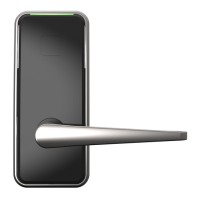


 To Next Page