EasyManua.ls Logo

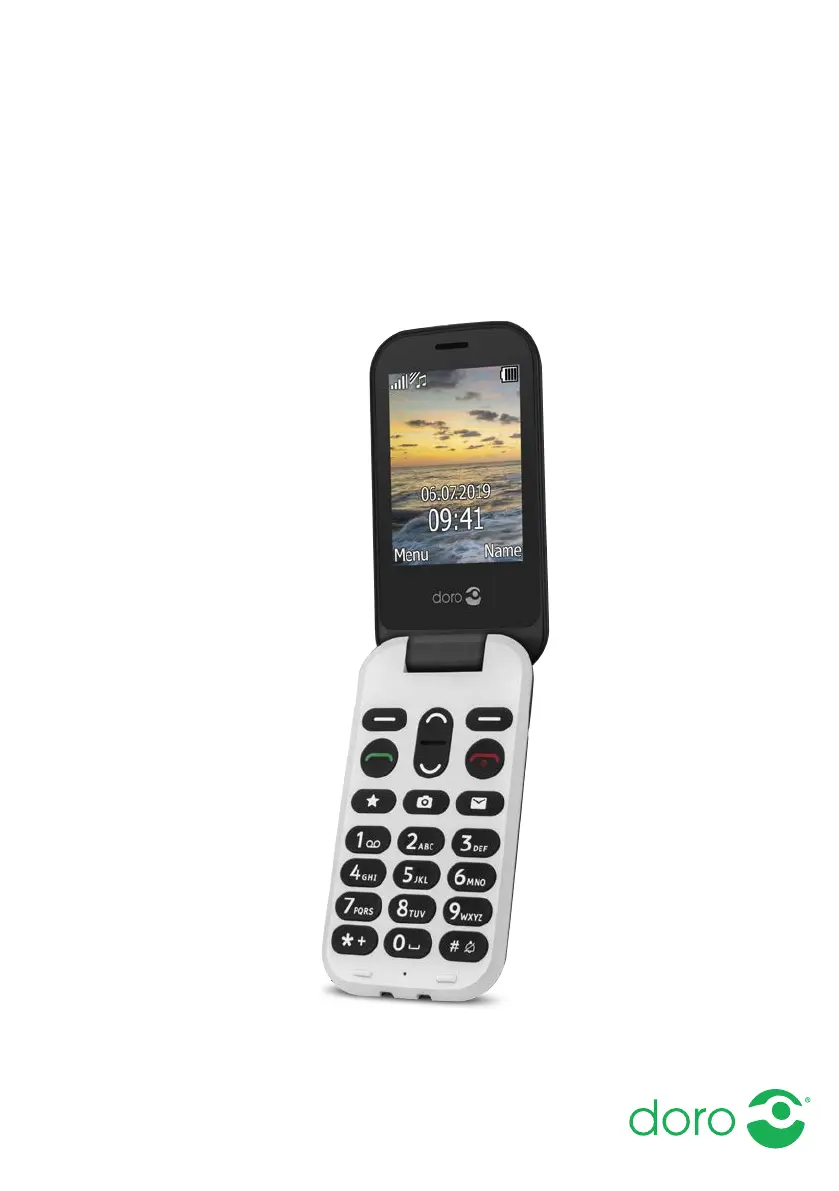
Doro 6061 - User Manual

Doro 6061
62 pages
Print Icon
To Next Page IconTo Next Page
Loading...
English
Doro 6061

Table of Contents

Questions and Answers

  • A
    Andrew DownsAug 18, 2025
    How to fix a Doro 6061 Cell Phone that will not turn on?
    • J
      Julie HoltAug 18, 2025
      If your Doro Cell Phone will not switch on, the battery charge may be low. Connect the power adapter and charge the battery for 3 hours. Note that full battery capacity is reached after the battery has been charged 3–4 times. Alternatively, the battery may be incorrectly installed, so check its installation.
  • A
    Alyssa CollinsAug 20, 2025
    What to do if I can't add a contact on my Doro 6061 Cell Phone?
    • R
      raymondmartinezAug 20, 2025
      If you are unable to add a contact on your Doro Cell Phone, the phonebook memory may be full. Delete contacts to free up memory.
  • A
    Alex MasseyAug 23, 2025
    What to do if my Doro 6061 Cell Phone is not charging?
    • G
      gabriella35Aug 23, 2025
      If your Doro Cell Phone is not charging, there might be several reasons. The battery or charger could be damaged, so check them. Ensure the charging environment is between 0 °C and 40 °C. Also, verify that the charger is correctly connected to both the phone and the power socket.
  • B
    Beth ThomasAug 26, 2025
    What to do if I get a SIM card error on my Doro 6061?
    • M
      Miranda BlackAug 26, 2025
      If your Doro Cell Phone displays a SIM card error, the SIM card might be damaged. In this case, contact your service provider. Alternatively, the SIM card may be incorrectly installed; check its installation, remove it, and reinstall it. Also, the SIM card might be dirty or damp; wipe the contact surfaces with a clean cloth.
  • E
    ebaileyAug 28, 2025
    Why can't I make calls on my Doro 6061 Cell Phone?
    • A
      Andrea WalkerAug 28, 2025
      If you are unable to place or receive calls on your Doro Cell Phone, call barring may be activated. Deactivate call barring. If the problem persists, it may be necessary to contact your service provider.
  • C
    campbellpeterAug 30, 2025
    How to improve a weak signal on my Doro Cell Phone?
    • K
      Kyle HuangAug 31, 2025
      If you are experiencing a weak signal on your Doro Cell Phone, you might be too far from the base station. Try again from another location. Alternatively, there may be network congestion, so try calling at a later time.
  • B
    bowenericSep 2, 2025
    What to do if my Doro Cell Phone doesn't accept my PIN code?
    • E
      Emma CastanedaSep 2, 2025
      If your Doro Cell Phone is not accepting your PIN code, it is possible that the wrong PIN code was entered too many times. Enter the PUK code to change the PIN code, or contact your service provider.
  • J
    Jeffrey HansonSep 4, 2025
    Why can't I send MMS on my Doro 6061?
    • M
      moorechristopherSep 4, 2025
      If you are unable to send or download MMS on your Doro Cell Phone, the phone memory might be full. Delete received MMS messages or select to set the default storage for MMS to be saved on a memory card (not included). It could also be due to an incorrect MMS profile selected. For some service providers, the MMS profile has to be selected manually.
  • D
    David NicholsSep 7, 2025
    Why can't people hear me clearly on my Doro Cell Phone?
    • P
      Paula BrownSep 7, 2025
      If others cannot hear you clearly on a call using your Doro Cell Phone, make sure that you are not covering the built-in microphone. If you are using a headset, verify that it is properly connected.
  • S
    Susan DavisSep 9, 2025
    How to eliminate echo on my Doro 6061?
    • J
      Jason MarshSep 9, 2025
      If you are experiencing echo or noise on your Doro Cell Phone, it could be a regional problem from a bad network relay. Hang up and redial; this may switch you to another network relay.

Summary

Congratulations on your purchase

Get Started

Initial Setup: SIM, Memory, Battery, and Charging

Guides through installing SIM/memory cards, battery, and charging the device.

Get to Know Your Phone

Basic Operations: Power, Navigation, and Text Input

Covers powering on/off, navigating menus, and entering text.

Phone Settings: Input Modes and Hearing Aid Compatibility

Details on input modes and the phone's hearing aid compatibility features.

Phone Settings

Time, Date, Language, PIN, and Blocking

Configuration options for time, date, language, PIN, and blocking features.

PIN Code Change and Blacklist Management

Procedure to change PIN and manage blocked phone numbers.

Calls

Call Basics: Whitelist, Dialing, Receiving, and Volume

Covers whitelist, making/receiving calls, and volume control.

Silent Mode, Headset, and Call Options

Managing silent mode, headset use, and accessing advanced call functions.

Emergency Calls and Call Log

Instructions for making emergency calls and viewing call history.

Advanced Call Settings: Divert, Waiting, and Barring

Configuration for call divert, waiting, and barring.

Caller ID and Call Barring Configuration

Managing caller ID display and restricting types of calls.

Fixed Dial (FDN) and Adding Phonebook Contacts

Limiting calls with FDN and adding new contacts to the phonebook.

Phonebook

Managing Contacts, Settings, and Voice Mail

Editing, copying, deleting contacts, and setting up voice mail.

Speed Dial, Top 10, and Owner Number

Setting up speed dial, Top 10 contacts, and owner number.

ICE (In Case of Emergency)

Emergency Information and Contacts Setup

Entering personal, medical, and contact details for emergencies.

Assistance Button

Making an Assistance Call

Initiating emergency calls using the assistance button.

Activation and Contact List Management

Activating the button and managing the emergency contact list.

SMS Alerts, Position Sending, and Confirmation

Configuring SMS alerts, position data, and call confirmation.

Signal Type for Assistance

Selecting notification signal types for assistance sequences.

Messages

SMS and MMS Messaging

Creating and sending text and picture messages.

Voice Messages and Message Management

Sending voice messages and managing message folders.

Message Settings and SMS Configuration

Configuring message settings, SMS centre, and storage.

Connectivity

Bluetooth Connectivity

Connecting wirelessly to Bluetooth devices.

Audio Path, Network Setup, and File Management

Routing calls, setting up networks, and managing files.

Connecting the Phone to a Computer

Steps for transferring files and managing data via USB.

Sound & Display

Audio Setup and Ringtone Customization

Adjusting audio settings and customizing ringtones.

Volume, Silent Mode, Alerts, and Menu Style

Adjusting volume, silent mode, alerts, and main menu appearance.

Display Customization: Wallpaper, Text, Backlight, Brightness

Customizing wallpaper, text size, idle display, backlight, and brightness.

Additional Functions

Alarm and Organiser Setup

Setting alarms and accessing organiser functions.

Calendar and Daily Reminders

Adding calendar tasks and setting daily reminders.

Calculator and FM Radio Operation

Using the phone's calculator and operating the FM radio.

Torch Settings and Management

Controlling the torch function and its settings.

Display Symbols

Status and Main Symbols Overview

Explanation of various status and main symbols shown on the phone.

Reset Settings

Resetting Phone Settings and Data

Procedures for resetting phone settings and deleting all data.

Troubleshooting: Power and Battery Issues

Troubleshooting: Call and SIM Errors

Troubleshooting: Connectivity, Functions, and Safety

Network Services, Environment, and Medical Device Safety

Explosion Risk, Battery Safety, and Hearing Protection

Emergency Calls, GPS, Vehicle Safety, and Data Protection

Malware Protection and Care Instructions

Detailed Care and Maintenance Guidelines

Warranty and Copyright Information

Product Specifications and Technical Details

Hearing Aid Compatibility and SAR Information

Product Disposal and Compliance Declarations

Doro 6061 Specifications

General IconGeneral
Resolution320 x 240 pixels
SIMMicro-SIM
Standby time (max)Up to 500 hours
Display2.4" QVGA
BatteryRemovable Li-ion 1000 mAh
StorageMicroSD up to 32 GB
ConnectivityBluetooth 3.0
NetworkGSM 900/1800/1900

Related product manuals