EasyManua.ls Logo

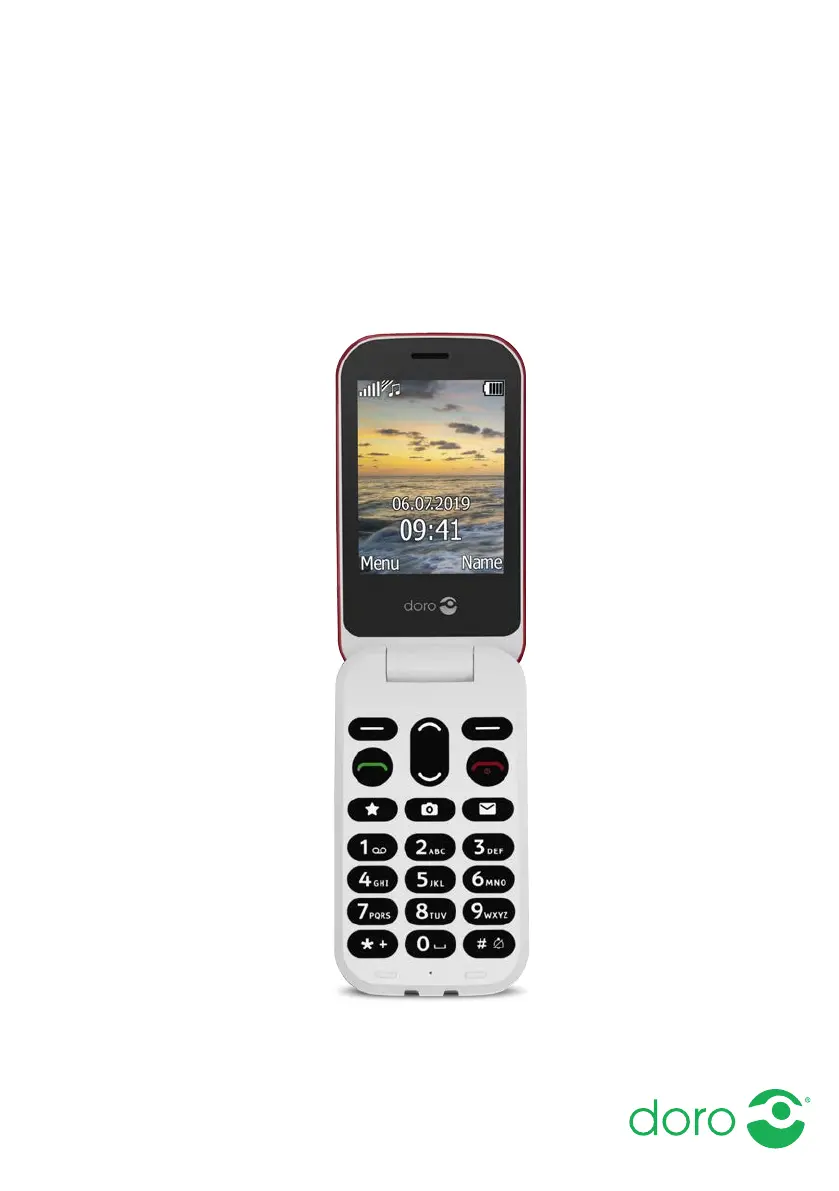
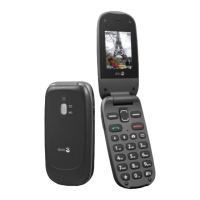
Doro 6038 - User Manual

Doro 6038
62 pages
Print Icon
To Next Page IconTo Next Page
Loading...
English
Doro 6038

Table of Contents

Questions and Answers

  • J
    Janet McdowellAug 17, 2025
    Why Doro 6038 cannot be switched on?
    • H
      hphillipsAug 17, 2025
      If your Doro Cell Phone won't switch on, the battery charge may be low. Connect the power adapter and charge the battery for 3 hours. Full battery capacity is reached after the battery has been charged 3–4 times. Also, check the installation of the battery.
  • S
    Shari ClarkAug 20, 2025
    What to do if my Doro 6038 Cell Phone fails to add a contact?
    • A
      Andrew SimpsonAug 20, 2025
      If your Doro Cell Phone fails to add a contact, the phonebook memory might be full. Delete contacts to free up memory.
  • M
    Mary RodriguezAug 23, 2025
    What to do if my Doro Cell Phone has a SIM card error?
    • S
      Shannon McgeeAug 23, 2025
      If your Doro Cell Phone displays a SIM card error, check the condition of the SIM card. Remove the SIM card and reinstall it to ensure it is correctly installed. Also, wipe the contact surfaces of the SIM card with a clean cloth to remove any dirt or dampness.
  • M
    Michael KennedyAug 26, 2025
    What to do if my Doro Cell Phone standby time decreases?
    • C
      crystalfrancisAug 26, 2025
      If the standby time of your Doro Cell Phone is decreasing, it could be due to a low battery charge capacity, in which case you should install a new battery. Alternatively, if you are too far from a base station and the phone is constantly searching for a signal, try moving to a location with a stronger signal or temporarily turn off the phone, as searching for the network consumes battery power.
  • M
    michael64Aug 28, 2025
    What to do if my Doro Cell Phone fails to send or download MMS?
    • D
      Dominique MejiaAug 28, 2025
      If your Doro Cell Phone fails to send or download MMS, it may be due to a full phone memory. Delete received MMS messages or select to save MMS messages on a memory card (not included). Alternatively, ensure that the correct MMS profile is selected, as some service providers require manual selection.
  • E
    Erica HarrisonAug 31, 2025
    What to do if my Doro 6038 Cell Phone fails to charge?
    • S
      susanabbottAug 31, 2025
      If your Doro Cell Phone battery isn't charging, check the battery and charger for damage. Also, ensure the phone is charging within the temperature range of 0 °C to 40 °C, and verify that the charger is correctly connected to both the phone and the power socket.
  • M
    matthew29Sep 2, 2025
    What to do if my Doro 6038 Cell Phone has a weak signal?
    • T
      Thomas HarveySep 2, 2025
      If your Doro Cell Phone has a weak signal, you might be too far from the base station. Try again from another location. Network congestion can also cause a weak signal, so try calling at a later time.
  • K
    kimberly26Sep 5, 2025
    What to do if my Doro Cell Phone has an echo or noise during calls?
    • A
      Andrew ObrienSep 5, 2025
      If you experience echo or noise on your Doro Cell Phone calls, it could be a regional problem from a bad network relay. Hang up and redial, as this may switch you to another network relay.
  • J
    Jennifer GreenSep 8, 2025
    What to do if my Doro Cell Phone fails to place or receive calls?
    • L
      leondustinSep 8, 2025
      If your Doro Cell Phone fails to place or receive calls, call barring may be activated. Deactivate call barring.
  • K
    Kathryn LewisSep 12, 2025
    Why is my Doro 6038 PIN code not accepted?
    • J
      Joseph MccormickSep 12, 2025
      If your Doro Cell Phone doesn't accept the PIN code, it might be because the wrong PIN code was entered too many times. Enter the PUK code to change the PIN code.

Summary

Get to know your phone

Navigate the phone

How to move through menus and options on the phone.

Enter text

Methods for text input on the phone.

Phone settings

Configuration options for phone settings.

Calls

Make a call

Steps to initiate a phone call.

SOS calls

How to make emergency calls.

Call settings

Customizing call-related preferences.

Phonebook

Add contact

Adding new entries to the phonebook.

ICE (In Case of Emergency)

Storing emergency contact and medical information.

Assistance button

Make an assistance call

Using the dedicated button for help.

Messages

Create and send text message (SMS)

Composing and sending SMS messages.

Create and send picture message (MMS)

Composing and sending MMS messages.

Camera (take photos)

Camera settings

Configuring resolution, shutter sound, and storage.

Connectivity

Bluetooth

Connecting wirelessly to other devices.

Connect the phone to a computer

Transferring data between phone and PC.

Sound & Display

Audio setup

Adjusting sound settings for hearing aid compatibility.

Brightness

Adjusting screen brightness.

Additional functions

Alarm

Setting and managing alarms.

FM radio

Listening to the radio.

Troubleshooting

Phone cannot be switched on

Solutions for a phone that won't power on.

Failure to charge the battery

Steps to resolve battery charging issues.

Failure to place or receive calls

Solutions for call connection problems.

Safety instructions

Medical units

Precautions regarding medical equipment.

Protect your hearing

Advice on preventing hearing damage from sound.

Protect your personal data

Tips for securing personal information.

Care and maintenance

Specifications

Hearing aid compatibility

Doro 6038 Specifications

General IconGeneral
TypeAnalog/DECT telephone
ECO modeYes
Intercom-
Ringer typePolyphonic
Handset typeWireless handset
Answering machineNo
Number of melodies10
Maximum indoor range50 m
Maximum outdoor range300 m
Display size (HxV)20 x 35 mm
Mounting typeDesk
Product colorBlack
Battery typeAAA
Standby time100 h
Battery technologyNickel-Metal Hydride (NiMH)
Number of batteries supported2
Dialer locationHandset
Phonebook capacity50 entries
Volume controlDigital
Number of handsets included1
Weight and Dimensions IconWeight and Dimensions
Handset weight122 g
Handset dimensions (WxDxH)167 x 48 x 24 mm

Related product manuals