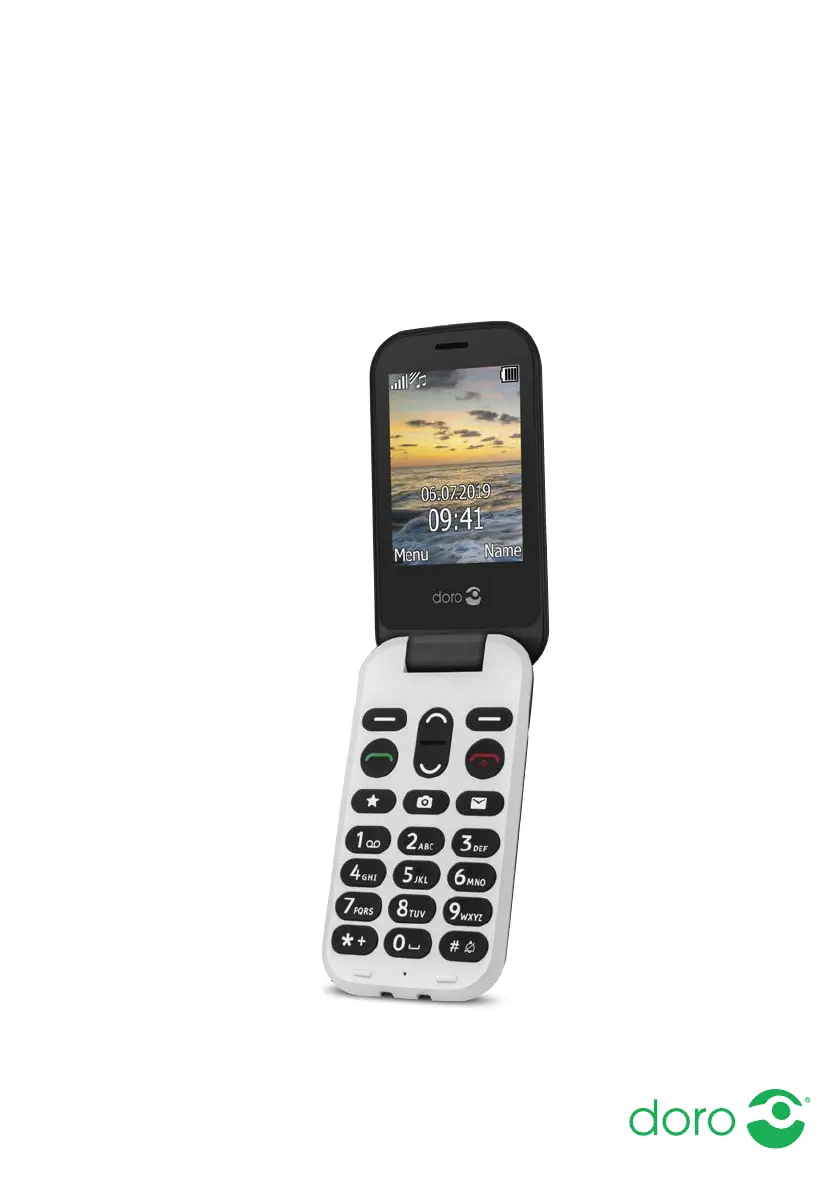
What to do if my Doro Cell Phone fails to set a function?
- BBetty BrownSep 23, 2025
If your Doro Cell Phone fails to set a function, it may be because the function is not supported or subscribed to from the network. Contact your service provider.
What to do if my Doro Cell Phone fails to set a function?
If your Doro Cell Phone fails to set a function, it may be because the function is not supported or subscribed to from the network. Contact your service provider.
Why can't I add a contact on my Doro Cell Phone?
If you're unable to add a contact on your Doro Cell Phone, it's likely that your phonebook memory is full. Delete existing contacts to free up memory.
How to fix a Doro 6060 Cell Phone that cannot be switched on?
If your Doro Cell Phone cannot be switched on, it might be due to a low battery charge. Connect the power adapter and charge the battery for 3 hours. Note that full battery capacity is reached after the battery has been charged 3–4 times. Alternatively, the battery might be incorrectly installed, so check its installation.
What to do if my Doro 6060 is not charging?
If your Doro Cell Phone is not charging, several factors could be the cause. First, check the battery and charger for any signs of damage. Ensure that the charger is correctly connected to both the phone and the power socket. Also, batteries should only be charged in temperatures between 0 °C and 40 °C, so improve the charging environment if necessary.
What to do if I get a 'SIM card error' on my Doro 6060?
If you're getting a 'SIM card error' on your Doro Cell Phone, there are a few things you can check. First, examine the SIM card for any visible damage; if damaged, contact your service provider. Next, ensure the SIM card is correctly installed by removing it and reinstalling it. Finally, wipe the contact surfaces of the SIM card with a clean cloth to remove any dirt or dampness.
What to do if my Doro 6060 is not accepting the PIN code?
If your Doro Cell Phone is not accepting the PIN code, it means that the wrong PIN code has been entered too many times. Enter the PUK code to change the PIN code, or contact your service provider.
Why is the signal weak on my Doro 6060 Cell Phone?
If you are experiencing a weak signal on your Doro Cell Phone, it could be because you are too far from the base station. Try again from another location. Alternatively, there might be network congestion, so try calling at a later time.
What to do if I cannot place or receive calls on my Doro 6060 Cell Phone?
If you are unable to place or receive calls on your Doro Cell Phone, call barring might be activated. Deactivate call barring. If the problem persists, contact your service provider.
Why is my Doro 6060 Cell Phone failing to send or download MMS?
If your Doro Cell Phone fails to send or download MMS, it could be because the phone memory is full. Delete received MMS or select to set the default storage for MMS to be saved on a memory card (not included). Alternatively, the incorrect MMS profile might be selected. For some service providers, the MMS profile has to be selected manually.
How to fix failure to add a contact on Doro 6060 Cell Phone?
If you are unable to add a contact to your Doro Cell Phone, the phonebook memory might be full. Delete contacts to free up memory.
Detailed instructions for inserting SIM cards, memory cards, and the battery into the phone.
Guide on connecting the charger, understanding the charging indicator, and initial charging tips.
Steps to turn the mobile phone on and off, including PIN entry and unlock procedures.
Using predictive text, changing case, input modes, and language options.
Managing PIN codes, changing PIN, SIM lock, and password options for security.
Step-by-step guide on initiating calls, answering, and ending conversations.
Detailed steps for adding new contacts, editing, deleting, and managing entries.
How to activate and use the dedicated assistance button for emergency help.
Creating and sending SMS messages, managing recipients, and message centre settings.
Solutions for common issues like charging failures, call problems, SIM errors, and network connectivity.
Important precautions regarding network usage, environment, medical devices, hearing, data security, and malware.
| Display diagonal | 2.8 \ |
|---|---|
| External display | Yes |
| Display resolution | 320 x 240 pixels |
| External display diagonal | 1.7 \ |
| Storage temperature (T-T) | -20 - 60 °C |
| Operating temperature (T-T) | 0 - 40 °C |
| WAP | - |
| Data network | GPRS, GSM |
| SIM card type | MicroSIM |
| SIM card capability | Dual SIM |
| 2G bands (primary SIM) | 900, 1800, 1900 MHz |
| Mobile network generation | 2G |
| Talk time (2G) | 6 h |
| Battery voltage | 3.7 V |
| Battery capacity | 1000 mAh |
| Standby time (2G) | 420 h |
| RAM capacity | 8 MB |
| ROM capacity | 16 MB |
| Compatible memory cards | MicroSD (TransFlash) |
| Flash type | LED |
| Rear camera resolution (numeric) | 3 MP |
| USB connector type | Micro-USB |
| Headphone connectivity | 3.5 mm |
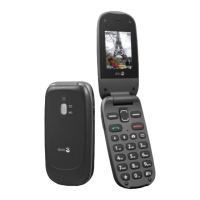
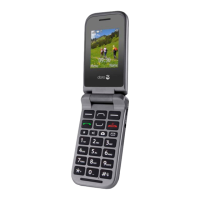
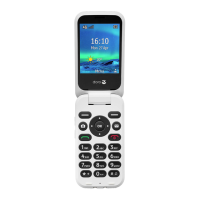
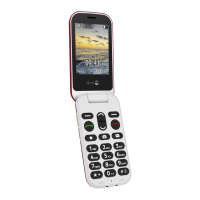
| Form factor | Flip |
| Phonebook capacity | 100 entries |
| Personal info management (PIM) | Alarm clock, Calculator, Calendar, Events reminder |
| Multimedia Messaging Service (MMS) | Multimedia Messaging Service (MMS) is a standard way to send messages that include multimedia content to and from a mobile phone over a cellular network |
| Ringer type | Polyphonic |
| Polyphonic rings quantity | 9 |
| Body SAR (EU) | 1.499 W/kg |
| Head SAR (EU) | 0.595 W/kg |
| Type | Feature phone |
| Product color | Black |
| Depth | 21 mm |
|---|---|
| Width | 57 mm |
| Height | 106 mm |
| Weight | 124 g |