EasyManua.ls Logo

Doro 6040 - User Manual

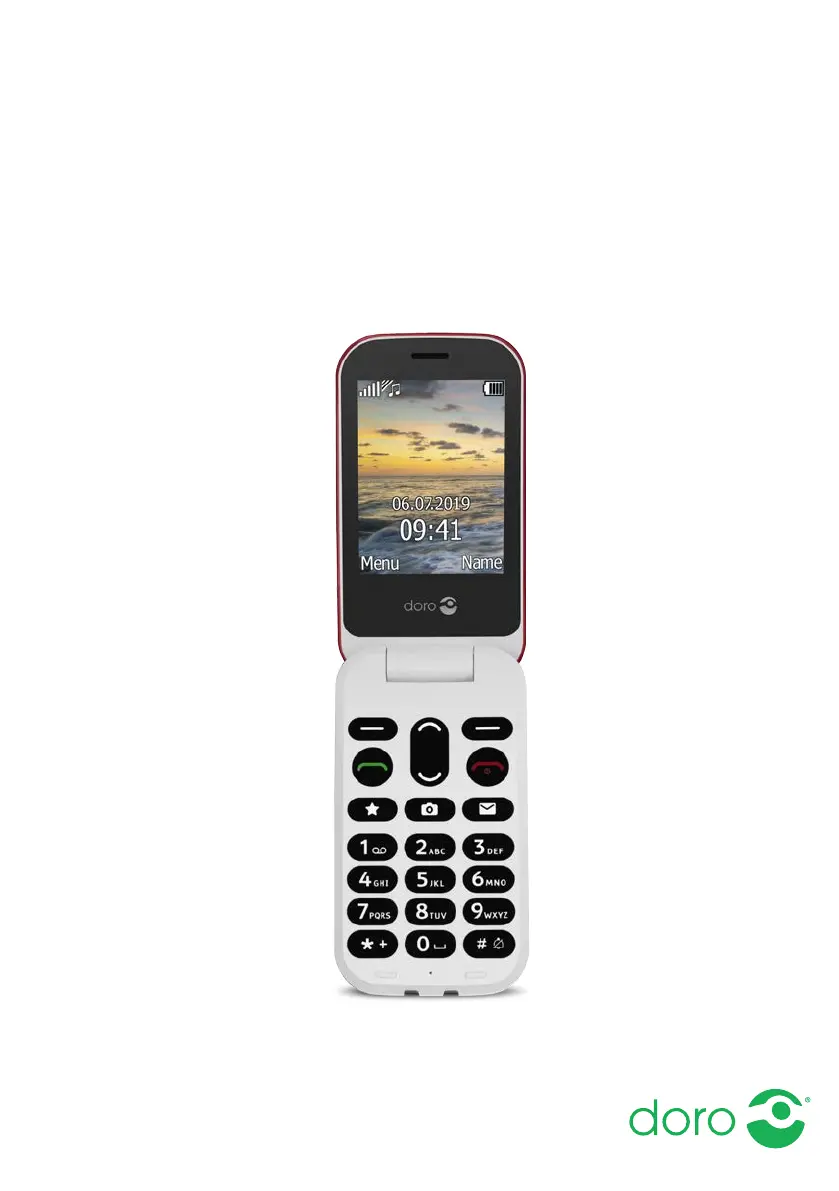
Doro 6040
62 pages
Print Icon
To Next Page IconTo Next Page
Loading...
English
Doro 6040

Table of Contents

Other manuals for Doro 6040

Questions and Answers

  • M
    Michael BriggsAug 19, 2025
    What to do if my Doro Cell Phone shows a SIM card error?
    • M
      mullenjoshuaAug 19, 2025
      If your Doro Cell Phone shows a SIM card error, check the condition of the SIM card. If it is damaged, contact your service provider. Also, check the installation of the SIM card by removing it and reinstalling it. Finally, wipe the contact surfaces of the SIM card with a clean cloth in case it is dirty or damp.
  • T
    Tina StewartAug 21, 2025
    What to do if my Doro 6040 doesn't accept the PIN code?
    • A
      Anthony GomezAug 21, 2025
      If your Doro Cell Phone doesn't accept the PIN code, it's possible that the wrong PIN code was entered too many times. Enter the PUK code to change the PIN code, or contact your service provider.
  • T
    timothy69Aug 23, 2025
    Why can't I add a contact on my Doro 6040?
    • J
      Jason MasonAug 23, 2025
      If you are unable to add a contact on your Doro Cell Phone, the phonebook memory may be full. Delete contacts to free up memory.
  • M
    Michelle HendersonAug 26, 2025
    Why is my Doro 6040 Cell Phone battery not charging?
    • T
      Thomas TuckerAug 26, 2025
      There could be several reasons why your Doro Cell Phone isn't charging. The battery or charger might be damaged, so check them. Ensure the charging environment is between 0 °C and 40 °C. Also, verify that the charger is correctly connected to both the phone and the power socket.
  • J
    Jordan TranAug 28, 2025
    How to fix a Doro 6040 that won't turn on?
    • S
      Sara HernandezAug 28, 2025
      If your Doro Cell Phone won't switch on, the battery charge may be low. Connect the power adapter and charge the battery for 3 hours. Note that full battery capacity is reached after the battery has been charged 3–4 times. Also, check if the battery is correctly installed.
  • C
    Connie WilsonAug 30, 2025
    What to do if my Doro 6040 Cell Phone has a weak signal?
    • T
      teresajohnsonAug 30, 2025
      If your Doro Cell Phone has a weak signal, you might be too far from the base station. Try again from another location. Network congestion could also be the issue; try calling at a later time.
  • L
    Leslie RamirezSep 1, 2025
    Why does the standby time on my Doro 6040 Cell Phone decrease quickly?
    • S
      steelerebeccaSep 2, 2025
      If the standby time on your Doro Cell Phone is decreasing quickly, the battery charge capacity may be too low, and you may need to install a new battery. Also, if you are too far from the base station, the phone constantly searches for a signal, which consumes battery power. Try to find a place with a stronger signal, or temporarily turn off the phone.
  • S
    Sandra ChavezSep 3, 2025
    Why can't I place or receive calls on my Doro 6040 Cell Phone?
    • G
      Gail CookeSep 3, 2025
      If you are unable to place or receive calls on your Doro Cell Phone, call barring might be activated. Deactivate call barring. If this does not solve the problem, contact your service provider.
  • A
    Anthony MendezSep 6, 2025
    Why can't I send or download MMS on my Doro 6040?
    • P
      pchapmanSep 6, 2025
      If you're having trouble sending or downloading MMS on your Doro Cell Phone, it could be due to a full phone memory. Delete received MMS or set the default storage for MMS to be saved on a memory card (not included). Also, an incorrect MMS profile may be selected; for some service providers, the MMS profile has to be selected manually.
  • T
    Tammie HughesSep 8, 2025
    Why does my Doro 6040 Cell Phone fail to connect to the network?
    • M
      Mark EllisSep 8, 2025
      If your Doro Cell Phone fails to connect to the network, the SIM card may be invalid. Contact your service provider. Also, there may be no coverage of GSM service, in which case you should also contact your service provider.

Summary

Congratulations on your purchase

Get started

Initial setup instructions for SIM, memory card, and battery installation.

Get to know your phone

Turn the phone on and off

Steps to power the device on and off, including PIN code entry.

Start-up wizard

Guides through initial basic settings configuration.

Navigate the phone

Phone indicators

Explains the meaning of the phone's indicator lights.

Step-by-step instructions

Explains how to follow instructions and confirm actions.

Enter text

Select character

Method for selecting characters using numerical keys.

Enter text with predictive text

Using the dictionary for word suggestions.

Input mode

Hearing aid compatible

Details on the phone's hearing aid compatibility and ratings.

Phone settings

Time & date

Setting the phone's time and date.

PIN code options

Managing PIN code settings and SIM lock.

Blacklist

Whitelist

Calls

Make a call

Steps to initiate a phone call.

Receive a call

How to answer or reject incoming calls.

Call options

Silent

Activating or deactivating silent mode.

SOS calls

Call settings

Answer mode

Setting how incoming calls are answered.

Call waiting

Managing multiple calls simultaneously.

Caller ID

Call barring

Fixed dial (FDN)

Phonebook

Add contact

Adding new contacts to the phonebook.

Manage phonebook contacts

Phonebook settings

Phonebook configuration options.

Speed dial

ICE (In Case of Emergency)

Storing emergency contact and medical information.

Assistance button

Make an assistance call

Initiating a safety call via the assistance button.

Activation

Number list

Adding recipients for assistance calls.

Activate text messages (SMS)

Position SMS

Sending location information with assistance SMS.

Confirm with 0

Messages

Core messaging functions.

Create and send picture message (MMS)

Create and send voice message

Inbox, Outbox and Sent

Message settings

Message configuration options.

SMS centre

Cell broadcast

Receiving broadcast messages.

MMS settings

Memory status

Checking memory usage for MMS.

MMS profile

Configuring MMS network settings.

Add new MMS profile

Reminder

Delete

Deleting messages from folders or all messages.

Camera (take photos)

Adjustments

Adjusting camera settings like zoom and flash.

Camera settings

Configuring camera parameters like image size.

Image viewer

Connectivity

Bluetooth

Connecting wirelessly to other Bluetooth devices.

Bluetooth settings

Configuring Bluetooth visibility and device name.

Network setup

Audio path

Routing audio calls to phone or Bluetooth device.

Services

Accessing network provider services.

File manager

Connect the phone to a computer

Transferring files between phone and PC via USB.

Sound & Display

Audio setup

Adjusting audio settings for clarity and hearing aids.

Tone setup (ringtone)

Selecting and setting ringtones.

Ringtone volume

Silent

Activating or deactivating silent mode.

Alert type

Customizing notification types (ringtone/vibration).

Wallpaper

Text size

Adjusting the size of text in menus and messages.

Idle display

Customizing standby screen display.

Brightness

Adjusting the display brightness.

Additional functions

Response by Doro

Information about the Doro response service for security.

Alarm

Setting and managing alarms.

Organiser

Using the phone's organizer tools.

Calendar

Add task

Creating calendar entries.

Daily reminder

Setting daily reminders.

Calculator

Torch

Using the phone's LED flashlight.

Display status symbols

Explaining icons shown in the status bar.

Display main symbols

Reset settings

Reset all

Restore all phone settings and content.

Troubleshooting

Phone cannot be switched on

Solutions for issues with powering on the device.

Failure to charge the battery

Troubleshooting battery charging problems.

Standby time decreases

Failure to place or receive calls

Troubleshooting call connection problems.

SIM card error

Troubleshooting issues related to the SIM card.

Sound

Failure to add a contact

Solutions for issues when adding contacts.

Unable to send or receive Picture Messages; MMS with the SIM card

Resolving MMS issues related to SIM card or profile.

Safety instructions

Network services and costs

Information on network usage and associated costs.

Operating environment

Medical units

Precautions regarding medical equipment interference.

Areas with explosion risk

Safety warnings for explosive environments.

Li-Ion battery

Protect your hearing

Advice on preventing hearing damage from loud sounds.

Emergency calls

Critical information about making emergency calls.

Vehicles

Protect your personal data

Tips for safeguarding personal information.

Malware and viruses

Recommendations to protect the device from malware.

Care and maintenance

Warranty

Specifications

Hearing aid compatibility

Information on the phone's hearing aid compatibility.

Specific Absorption Rate (SAR)

Correct disposal of this product

Declaration of Conformity

Statement of compliance with EU directives.

Doro 6040 Specifications

General IconGeneral
Body SAR (EU)1.432 W/kg
Wi-FiNo
SIM card typeMicroSIM
SIM card capabilitySingle SIM
Mobile network generation-
BluetoothYes
Bluetooth version3.0+HS
Talk time (2G)6.8 h
Battery capacity1000 mAh
Standby time (2G)420 h
Subscription typeNo subscription
TypeCamera phone
Product colorBlack
Headphone connectivity3.5 mm
SpeakersMono
Polyphonic rings quantity7
Multimedia Messaging Service (MMS)Multimedia Messaging Service (MMS) is a standard way to send messages that include multimedia content to and from a mobile phone over a cellular network
Display diagonal- \
Display resolution320 x 240 pixels
Rear camera resolution (numeric)2 MP
Compatible memory cardsNot supported
Form factorFlip
PersonalizationWallpaper
Text prediction system typeT9
Personal info management (PIM)Alarm clock, Calculator, Calendar, Games
Weight and Dimensions IconWeight and Dimensions
Depth20 mm
Width57 mm
Height106.7 mm
Weight118 g

Related product manuals