40
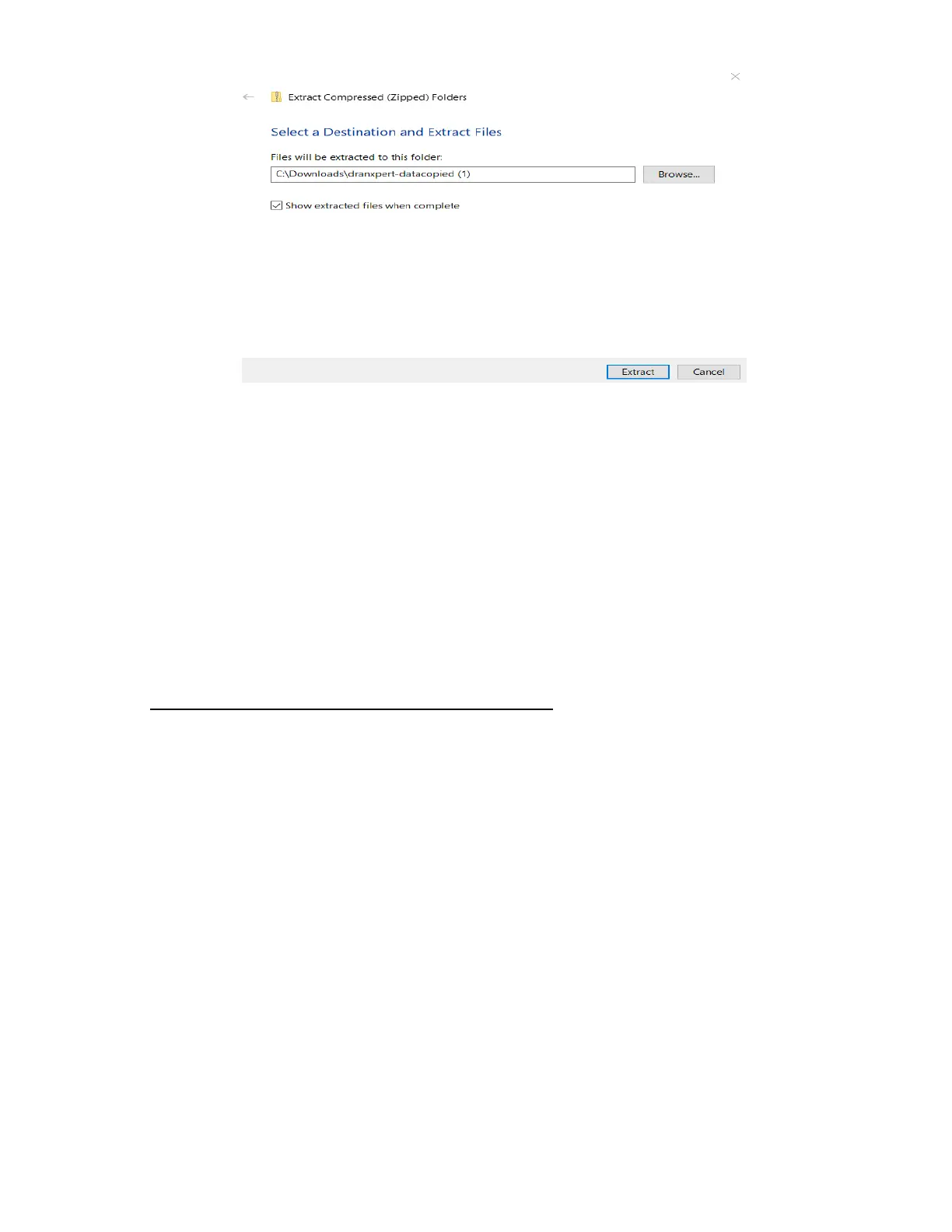
3) Click the Browse button to choose or create the folder where the
extracted data files will be saved.
4) Click Extract to save the DranXperT files to the location chosen
in step #3. Note that DranXperT data files are of the file type
“.json”.
5) When the above is completed, the DranXperT data is ready to be
viewed by Dran-View XP. See the View Recorded Data section
below.
Deleting data files from DranXperT’s memory
1) Check the file(s) to delete or click the Check All button to select
all data files.
2) Click the Delete Selected Data Files button.
3) When prompted, click OK to delete the selected files or Cancel
to abort.


 To Next Page