Configuring Web Pages
1. Make sure your PC connects to the router correctly.
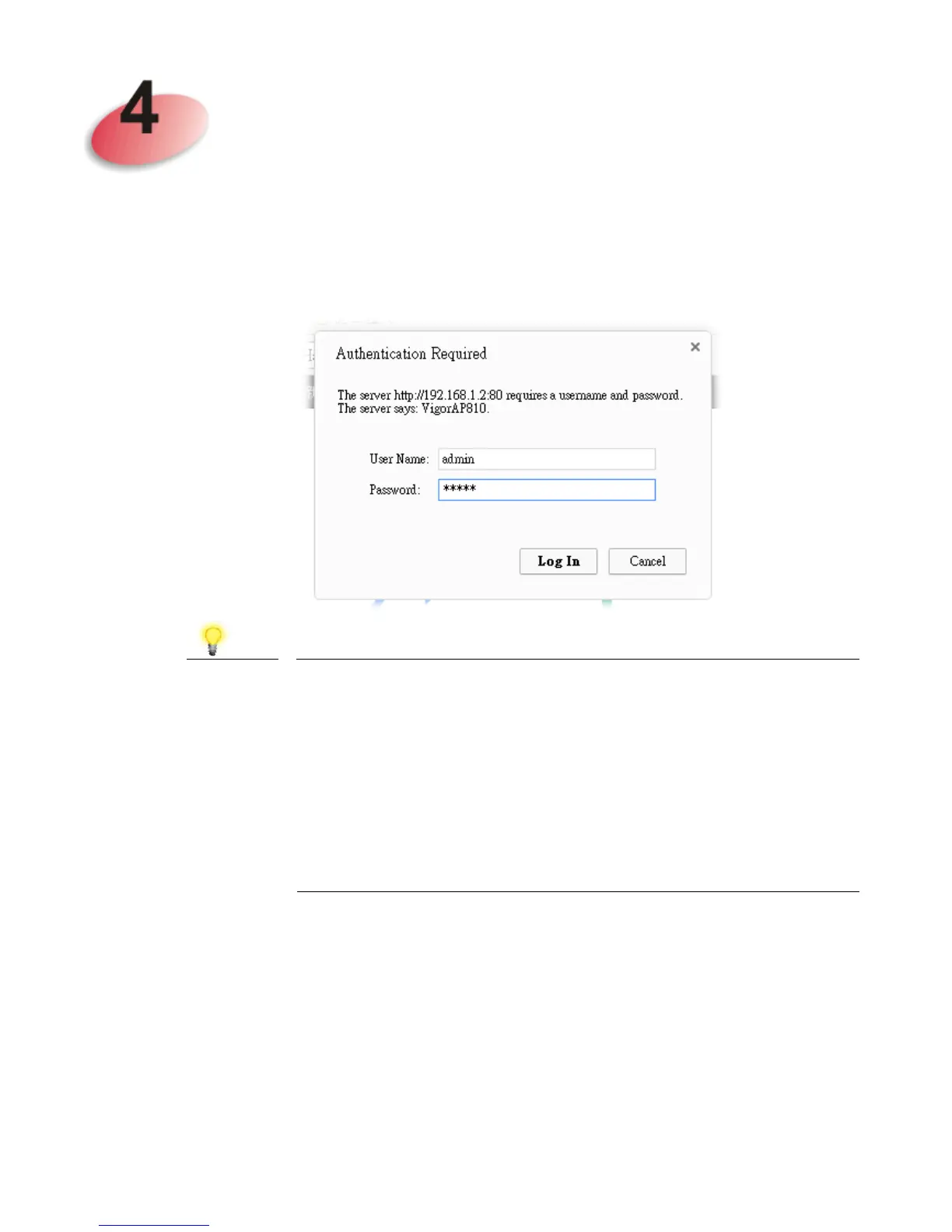
2. Open a web browser on your PC and type http://192.168.1.2. A pop-up
window will open to ask for username and password. Pease type
“admin/admin” on Username/Password and click Login.
Note
You may either simply set up your computer to get IP
dynamically from the router or set up the IP address of the
computer to be in the same subnet as the IP address of
VigorAP 810.
If there is no DHCP server on the network, then VigorAP
810 will have an IP address of 192.168.1.2.
If there is DHCP available on the network, then VigorAP
810 will receive its IP address via the DHCP server.








 To Next Page