9
DREWTECH - Tech2Win DRIVER
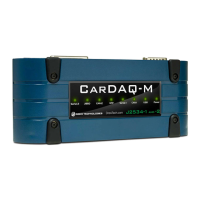
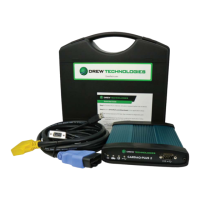
DrewTech’s Tech2Win driver allows the use of the CarDAQ-Plus 2
®
device as the interface using
the Tech2Win application. If communication concerns are encountered, first check the
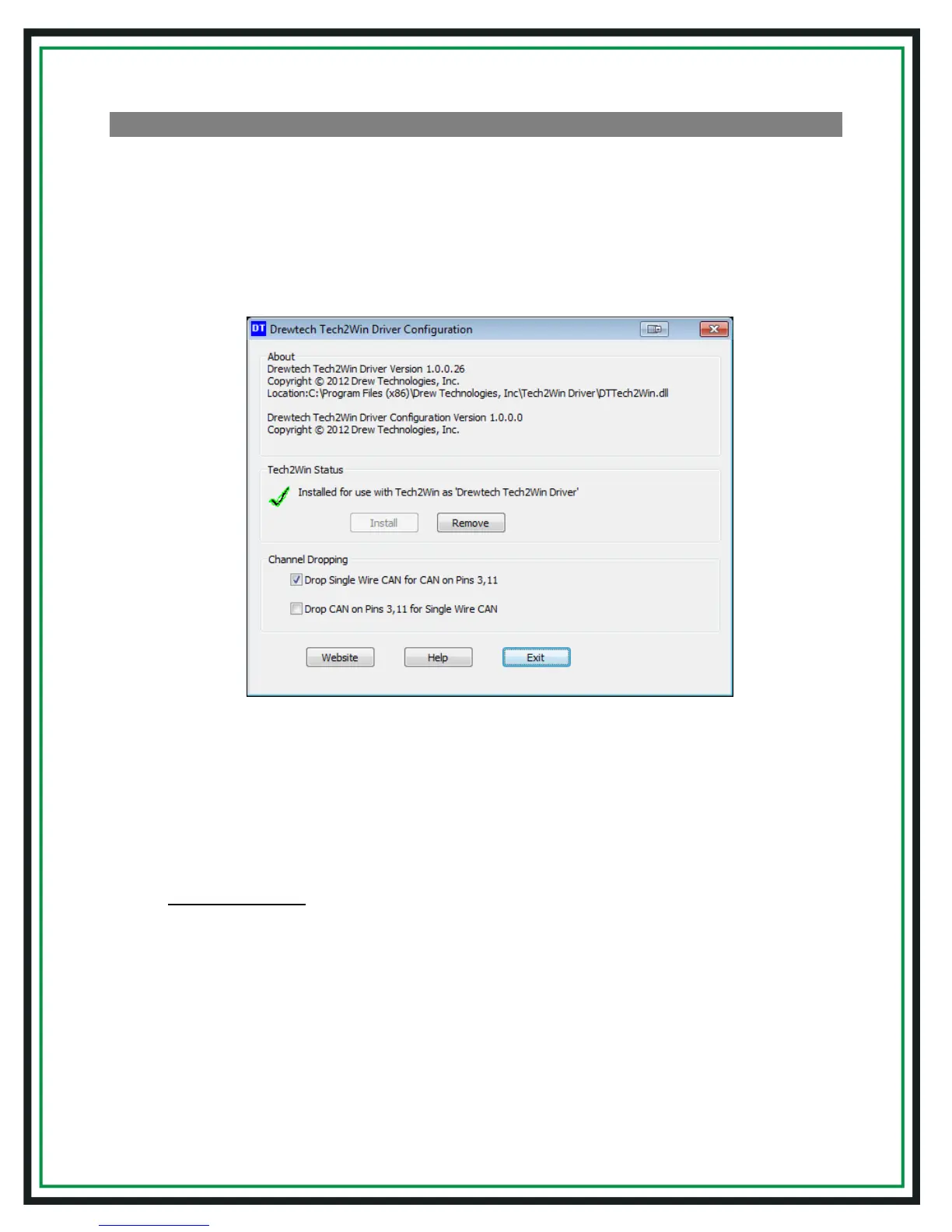
DrewTech Tech2Win driver status and configuration:
1. Go to: Start>All Programs>Drew Technologies, Inc>Tech2WinDriver and open the
"DrewTech Tech2Win Driver Configuration" application
2. Confirm that the driver is installed, which is indicated by a green check mark. Note: If
there is a red X, click"Install"
Troubleshooting:
• If the "Install" does not work, click on "Exit", then right-click on the Start menu short cut
and choose “Run as Administrator.” Reopen the "DrewTech Tech2Win Driver
Configuration" application and click "Install"
• Channel Dropping: Depending on which vehicle systems are being diagnosed, selecting
"Drop Single..." or "Drop CAN..." options may need to be changed to communicate
properly. CAN on 6 & 14 is not affected by this


 To Next Page