8
After you do the initial setup of your Drobo FS, you can then set up
shares, users, etc. Drobo Dashboard will prompt you for share names,
usernames, etc. Please see page 15 for further information on managing
shares.
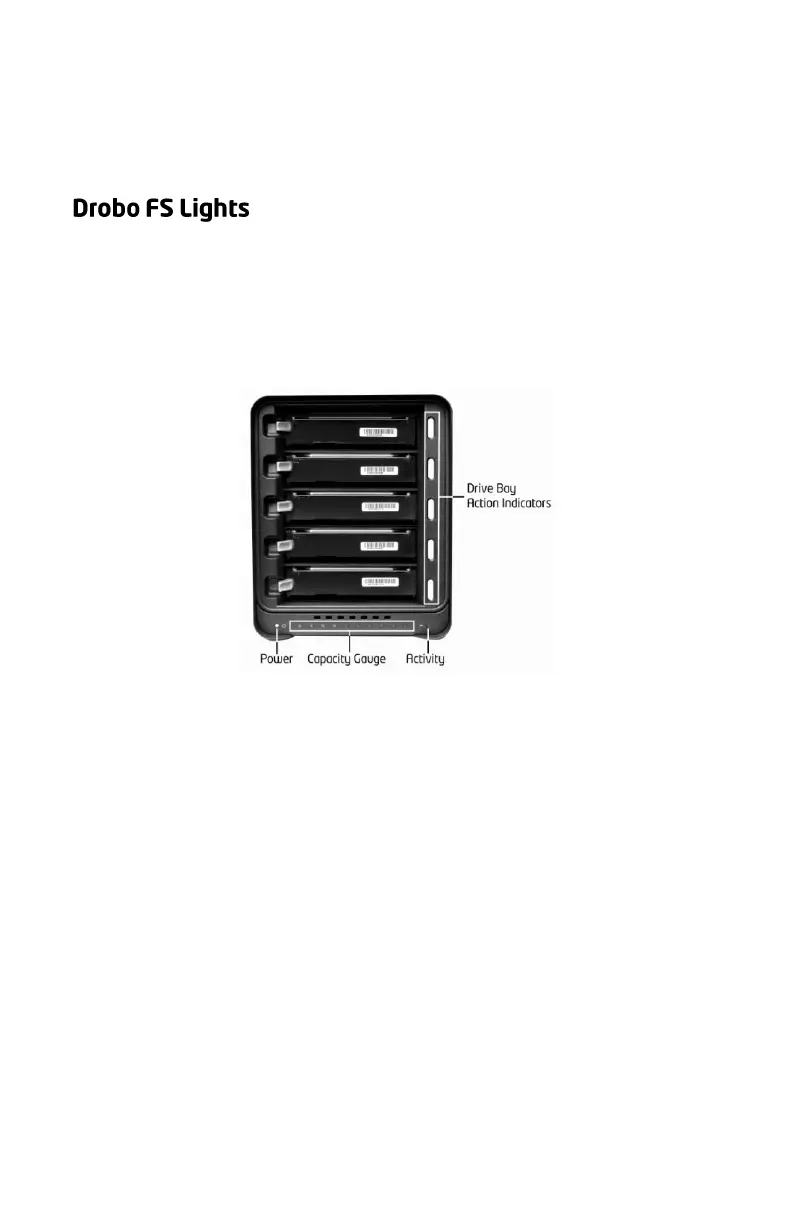
One of the many benefits of your Drobo FS is a series of lights that tell
you everything you need to know, without your having to launch any
application software on your computer. Remember, Drobo FS is
designed to actively monitor and protect your data at all times.
Drobo FS will automatically take any necessary actions and display them
using the following lights:
Green: No action is required. All drives are healthy.
Solid Yellow: Add a drive or replace the current drive with a
larger drive soon. Drobo FS is running out of disk space.
Blinking Yellow and Green: Do not remove these drives or
power down. Drobo FS is working to protect your data.
Solid Red: Add a drive or replace the current drive with a
larger drive immediately. Drobo FS is critically low on space.
Blinking Red: Replace this drive immediately. This drive has
failed and needs to be replaced.
Green: The power is on and Drobo FS is ready.
Yellow: Drobo FS is in standby mode.
Red: Drobo FS has overheated. Disconnect the data cable
and then the power cable. Let it cool down for at least 30
minutes and then restart.
Blinking Green: Data is actively being transferred between
your computer and Drobo FS.
Blue: Displays the percentage of your Drobo FS that is full, in
10% increments.



 To Next Page