EasyManua.ls Logo

DSC HS2016 - User Manual

DSC HS2016
56 pages
Print Icon
To Next Page IconTo Next Page
Loading...
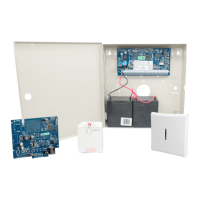
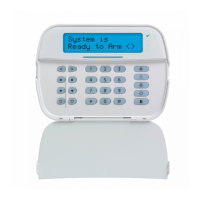
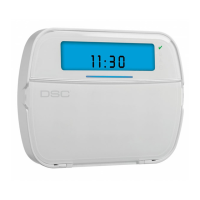
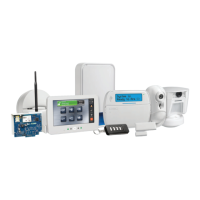
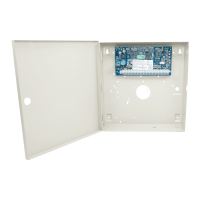
HS2016/2032/2064/2128 Alarm Panel
V1.0 User Manual
WARNING: This manual contains information on limitations regarding
product use and function and information on the limitations as to liability
of the manufacturer. The entire manual should be carefully read.

Table of Contents

Other manuals for DSC HS2016

Questions and Answers

  • J
    johnsonmaryAug 21, 2025
    What to do if my DSC Control Panel shows a 'Panel Low Battery' warning?
    • C
      Christina ShafferAug 21, 2025
      If your DSC Control Panel displays 'Panel Low Battery', first, verify that the voltage measured across the AC terminals is between 16-18 VAC. Replace the transformer if needed. Next, disconnect the battery wire leads and check that the battery charging voltage measured across the battery leads is between 13.70 - 13.80 VDC. Finally, connect the battery, remove AC power, and ensure the voltage measured across the Aux terminals is at least 12.5VDC.
  • J
    jermainetorresSep 3, 2025
    What to do if my DSC Control Panel is 'Not Networked'?
    • M
      Mr. Mason SchmittSep 3, 2025
      If your DSC Control Panel is not networked, ensure the device is physically present. Check the current signal strength and the signal strength during the last 24 hours. Try replacing the battery or pressing the tamper switch. If problems persist, enroll the device again.
  • S
    Stephanie MooreSep 1, 2025
    What to do if my DSC Control Panel displays 'HSM2204 No Battery'?
    • J
      John HolmesSep 2, 2025
      Verify that the battery is connected. Refer to the troubleshooting steps for panel low battery.
  • C
    Christina ChavezAug 31, 2025
    What to do if my DSC Control Panel displays 'HSM2300 No Battery'?
    • A
      Andrea RayAug 31, 2025
      Verify that the battery is connected. Refer to the troubleshooting steps for panel low battery.
  • M
    Mr. Craig GuzmanAug 29, 2025
    How to set Time and Date on DSC Control Panel?
    • B
      Bradley DurhamAug 29, 2025
      To program the time and date on your DSC Control Panel: Enter [*][6][Master Code] then press [01]. Enter the time and date (24-hour clock) using the format HH:MM MM/DD/YY. For example, for 6:00 pm, June 29, 2010, enter: [18] [00] [06] [29] [10].
  • A
    adamcurtisAug 28, 2025
    What does 'HSM2204 Battery Trouble' mean on my DSC Control Panel, and how can I fix it?
    • C
      Craig ColeAug 28, 2025
      If your DSC Control Panel displays 'HSM2204 Battery Trouble', the HSM2204 battery voltage is less than 11.5VDC. To resolve this, charge the battery, as it may be low due to a long period without AC. If the battery is old and no longer able to hold a charge, replace it.
  • A
    Amanda RobinsonAug 26, 2025
    What does 'HSM2300 Low Battery' mean on my DSC Control Panel and how can I fix it?
    • R
      Ronald MorenoAug 27, 2025
      If your DSC Control Panel displays 'HSM2300 Low Battery', enter 07 to view which HSM2300 has a battery voltage less than 11.5V. Charge the battery, as it may be low due to a long period without AC. If the battery is old and no longer able to hold a charge, replace it.
  • K
    Kelsey FisherAug 25, 2025
    What to do if my DSC Control Panel says 'Panel No Battery'?
    • C
      Christopher PerezAug 25, 2025
      If your DSC Control Panel shows 'Panel No Battery', verify that the battery is connected. Refer to the troubleshooting steps for a panel low battery.
  • D
    Daniel BlackAug 23, 2025
    What causes 'Communications' error on DSC Control Panel and how to resolve it?
    • S
      Sean RobertsAug 23, 2025
      If your DSC Control Panel displays 'Communications' issues, measure the voltage across TIP and RING on the panel. The voltage should be approximately 50VDC when no phone is off-hook and approximately 5VDC when any phone is off-hook. Try wiring the incoming line directly to TIP and RING. If the trouble clears, inspect the wiring or the RJ-31 phone jack.

Summary

Quick Reference Guide

Keypad Arming and Disarming Procedures

Instructions on how to arm and disarm the security system using the keypad.

Zone Bypassing Procedures

Procedures for bypassing individual zones or groups to exclude them from arming.

About Your Security System

System Testing Procedures

Procedure for performing weekly system tests to ensure proper operation.

Securing the Premises

Arming the System with a Keypad

Instructions for arming the system using various keypad modes like Away, Stay, and Night.

Arming with a 2-way Wireless Key

How to arm the PowerSeries Neo system using a 2-way wireless key.

Arming with a Proximity Tag

Procedure for arming the system using a proximity tag.

Bypassing Zones and Groups

Steps to bypass individual zones or groups to exclude them from arming.

Arming Errors and Exit Faults

Troubleshooting common errors and fault conditions during arming.

Disarming the System

Methods for disarming the security system using keypad, wireless key, or proximity tag.

Emergency Keys and Alarms

Emergency Keys and Alarm Functions

Using dedicated keys for Fire, Medical, or Panic alarms and alerting the monitoring station.

Alarm Types and Auditory Signals

Description of different alarm sounds and their corresponding event priorities.

Fire Alarm Response Procedures

Steps to follow during a fire alarm, including silencing and contacting the central station.

Carbon Monoxide Alarm Handling

Information on CO alarms, their sounds, and immediate actions to take.

Intrusion Alarm Handling and Cancellation

Handling intrusion alarms, silencing, and contacting the central station.

Wireless Keys and Other Devices

2-way Wireless Key Operation

Instructions for arming/disarming and calling for help using 2-way wireless keys.

Managing Users

Types of User Access Codes

Explanation of different user access code types like Master, User, Supervisor, Duress.

Configuring User Functions

Managing Troubles

Trouble Indication and Silencing

Understanding system trouble indicators, beeps, and how to view trouble levels.

Trouble Condition Categories and Codes

Detailed list of trouble conditions, types, and notification codes for system issues.

Managing Partitions

Additional Features

Installer Warning

System Installation and Failure Risks

Information on potential system failures and the importance of proper installation.

Safety Instructions

General Safety Precautions and Servicing

Essential safety instructions for using and servicing the equipment.

Maintenance and Troubleshooting Guidelines

Guidelines for cleaning, maintenance, and basic troubleshooting.

Locating Detectors and Escape Plan

DSC HS2016 Specifications

General IconGeneral
Mounting TypeWall mount
Power Supply16.5VAC
Battery Backup12VDC
Operating Temperature32°F to 120°F (0°C to 49°C)
Dimensions267mm

Videos

How To Factory Default DSC NEO Alarm Panel, HS2016

Related product manuals