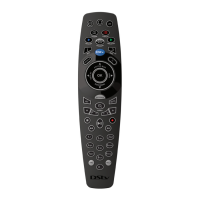
DStv Remote A6 (Advanced Options)
A DVANCED O PTIONS : S TANDBY
How to programme the A6 remote to switch your DStv Explora and other audio/visual
equipment into (or out of) standby
OBJECTIVE
Programme the STANDBY button on the A6 remote to switch multiple devices into (our
out of) standby in a predefined sequence.
EXAMPLE
Switch your surround sound system on, followed by your TV, followed by the DStv
Explora.
You can programme a simple sequence (option 1) or a timed sequence (option 2).
• A simple sequence will run the programmed steps without delays between each
step (example : switch on the TV, immediately followed by the surround sound
system, immediately followed by the DStv Explora.)
• A timed sequence will run the programmed steps exactly as they were programmed
(example : switch on the TV, wait 1 minute, switch on the surround sound system,
wait 25 seconds, then switch on the DStv Explora.)
Simple Sequence (Option 1)
Press ARC and STANDBY on the A6 remote for 3
seconds.
The LEDs will go AMBER within
three seconds. When you release
these buttons, the LEDs will blink
AMBER continuously.
Take the remote of the device that you want to
switch on or off, and place it on a flat surface, facing
the A6 remote.
Press and hold STANDBY on the other remote.
When the LEDs on the A6 blink AMBER
continuously, release the STANDBY button on the
other remote.
Repeat this step for each device that you want to
switch on or off (up to 14 devices).
The A6 LEDs will give one
GREEN blink, and then blink
AMBER continuously.
If the A6 LEDs give two RED
blinks, the sequence has timed
out or the A6 is not able to
“learn” from the other remote.
Try again from step 1.
If you also want to switch the Explora on (or off) as
part of this sequence, press STANDBY once on the
A6 remote.
The A6 LEDs will give one
GREEN blink, and then blink
AMBER continuously
Once you have programmed STANDBY for all your
devices, press HELP to end the programming
sequence.
The A6 LEDs will give three
GREEN blinks, confirming that
you have successfully completed
the programming sequence.
If the A6 LEDs give two RED blinks at any time - something has gone wrong and you will need to start the
programming sequence from Step 1.



 To Next Page