GraphicProducts.com | 800-788-5572
Connecting Bronco Max to a PC | 9
CONNECTING BRONCO MAX TO A PC
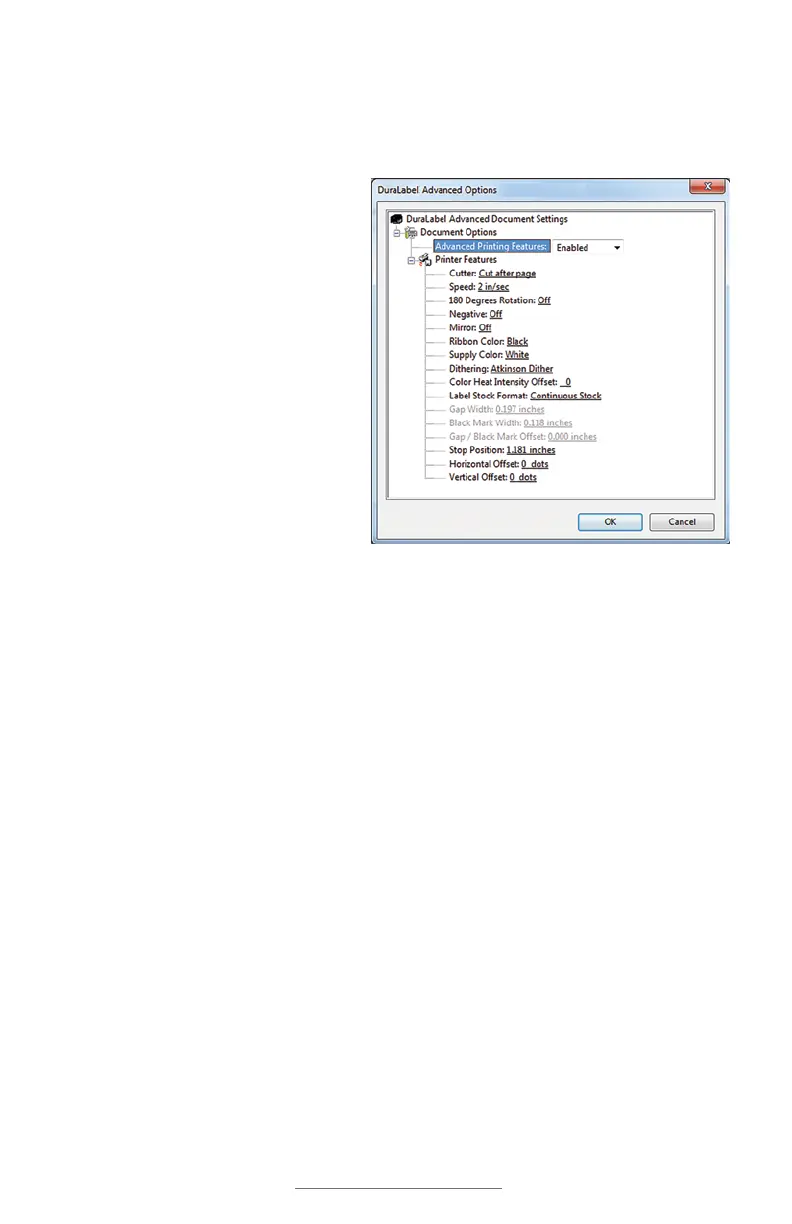
When accessing the Printing Preferences from a PC, the orientation setting (landscape/
portrait) will be the only option immediately available. Additional options for unusual
needs, or for troubleshooting, can be reached by clicking the “Advanced…” button:
• Cutter: cut after each label
printed, after a complete job
(such as a batch of labels printed
together), or not at all.
• Speed: choose either 2 or 3 inches
per second. (For best quality, use
the default of 2.)
• 180 Degrees Rotation: choose
whether your Bronco Max rotates
all print jobs by 180 degrees for
troubleshooting.
• Negative: switch the printed and
non-printed areas of the design. If
a design would normally print with
blue text (ribbon color) on a white
background (label stock color),
printing the same design with Negative enabled would result in white text (label
stock color) on a blue background (ribbon color).
• Mirror: flip the design backward, as if viewed in a mirror.
• Ribbon Color and Supply Color: manually select different material colors for
software previews; the actual printed results will not be changed.
• Dithering: choose how Bronco Max uses patterns of dots to approximate shades of
darkness.
• Heat Intensity Offsets: for troubleshooting, adjust the heat used in the printing
process.
• Label Stock Format (and following options): manually select the type of label
stock: continuous stock, stock with gaps (die-cut supply), or stock with marks
(black-mark supply).
The remaining options may be useful for troubleshooting, but should ordinarily be left at
their default values.



 To Next Page