8 | Connecting Bronco Max to a PC
GraphicProducts.com | 800-788-5572
CONNECTING BRONCO MAX TO A PC
Your printer comes with a PC version of the LabelForge PRO label design software, as
well as a Windows printer driver.
Connecting the Printer
When connecting your Bronco Max to a PC for the first time, follow these steps:
1. Make sure Bronco Max is plugged in, and power it on by pressing the power button.
2. Next, connect a USB cable from the Bronco Max’s USB-B port to a USB-A
port on your PC.
3. Run the Bronco Max driver installation program, included on the USB
flash drive that came with your printer. You will need IT administrator privileges to
continue, and you will need to restart your computer to complete installation.
4. Run the LabelForge PRO installation program, also included on the USB flash drive.
You may need IT administrator privileges to continue.
If you need help, please contact your DuraLabel representative for support.
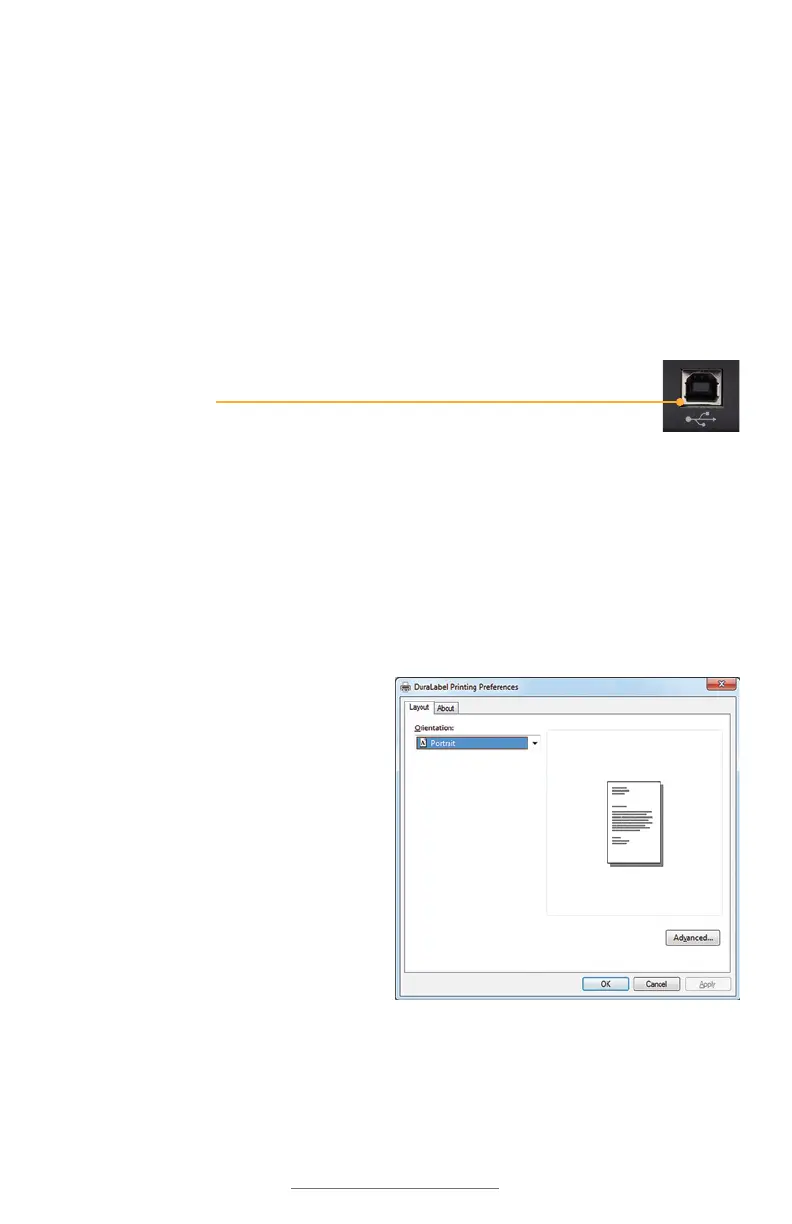
PC Driver Settings
After initial setup, your Bronco Max will
appear in the list of available printers
on your computer. Be sure to select
the appropriate printer when you want
to print labels or other documents.
You can choose some of the settings
for your Bronco Max through Printing
Preferences.
5



 To Next Page