16
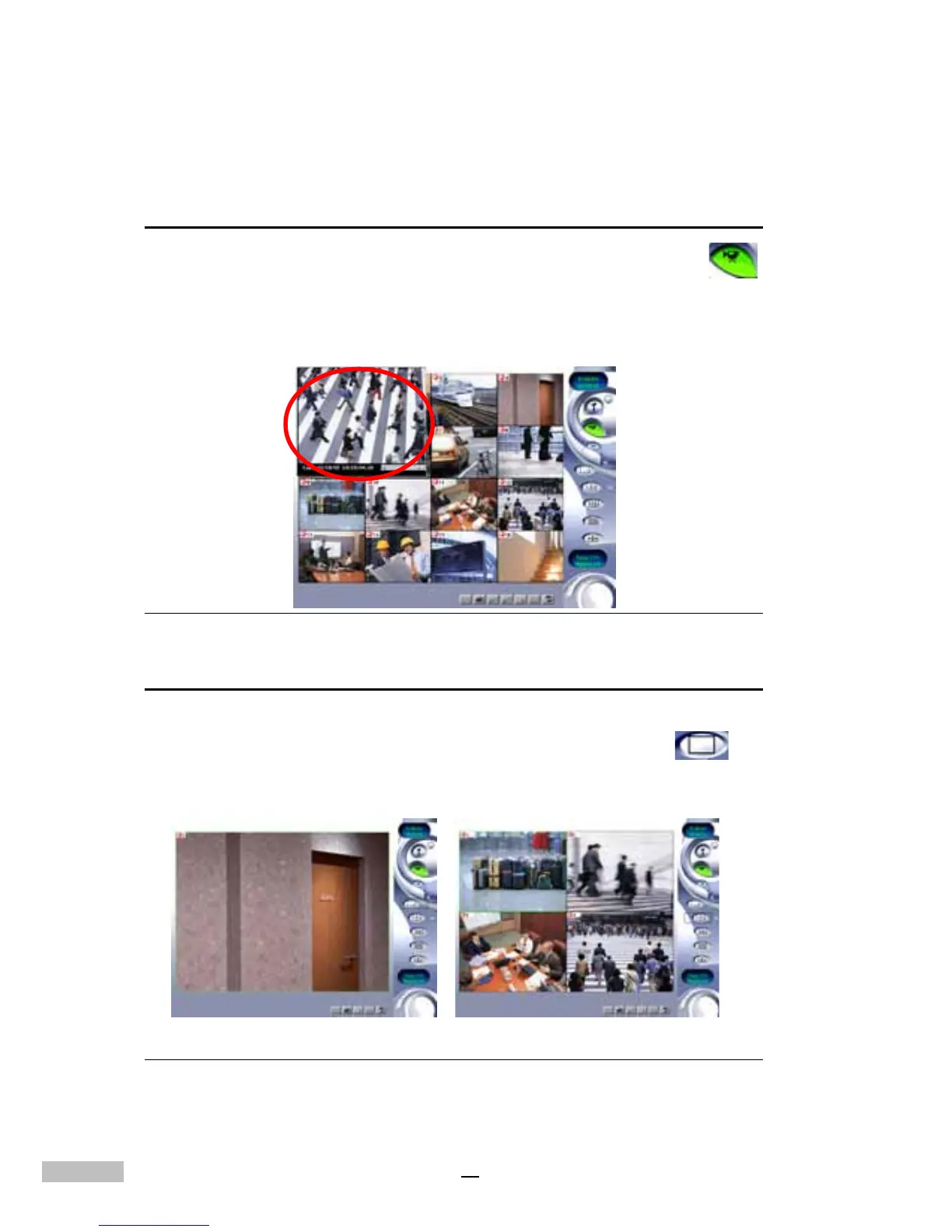
Single View Camera Screen
1.Step 1: Click the Single View Camera Icon on the right-side toolbar
------------------------------------------------------------------------------
2.Step 2: The image will expand to single view mode (As shown below)
Figure 3-4: The Single and The Quad Camera View Screen
Clicking separate windows will display different settings screens. The first
window is the camera screen. Please refer to the instructions later on in
this manual.
Playback Panel
1.Step 1: Click the Playback Icon on the right-side toolbar------
2.Step 2: View the video database under the Playback Screen. Click on
a selected file and open the recorded data. (The red circle indicates
the playback image).
Figure 3-3: The Playback Screen



 To Next Page