15
Chapter 3Chapter 3
QUICK GUIDE TO ICONS ON THE MAIN SCREEN
This chapter explains the quick access icons on the main screen. Some of
these icon functions will be explained in depth later in the manual. The Main
Screen is the central hub of your Digital Video Recorder. If you scroll your
mouse over any of the icons, a note will appear explaining what that icon
does. Entering the DVR Main Screen, the icons on the right side may be
used to control different functions of your DVR. The following brief descrip-
tion explains how to activate these different functions.
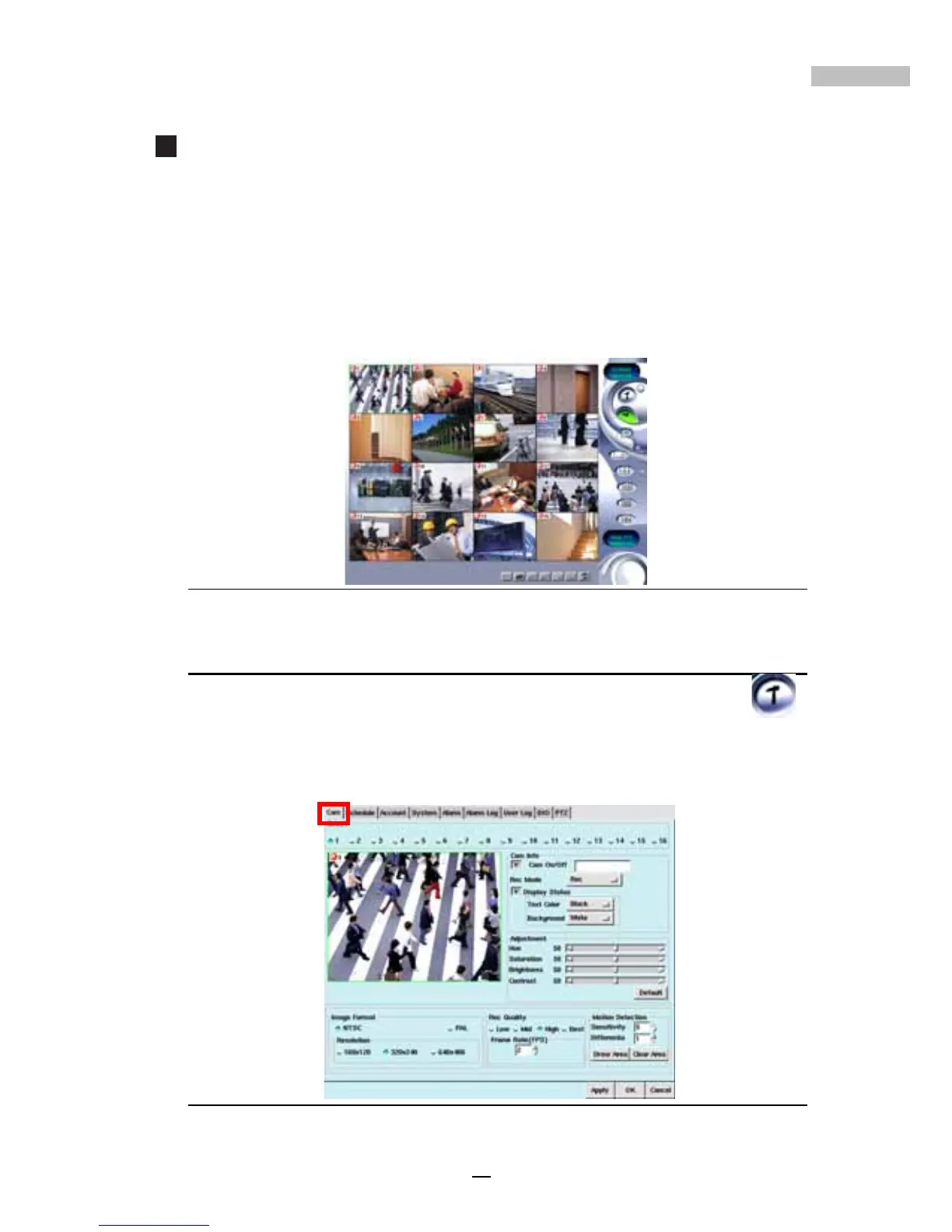
Figure 3-1: The Main Screen
Settings Panel
1. Step 1: Click the Setup Icon on the right-side toolbar-----------
2. Step 2: To view the respective configuration windows [Cam,
Schedule, Account, System, Alarm, Alarm Log, User Log
and PTZ], click on the corresponding tabs.
Figure 3-2: The Settings Main Screen



 To Next Page