16
Making connectionsDX-60D260A13
Using HDMI
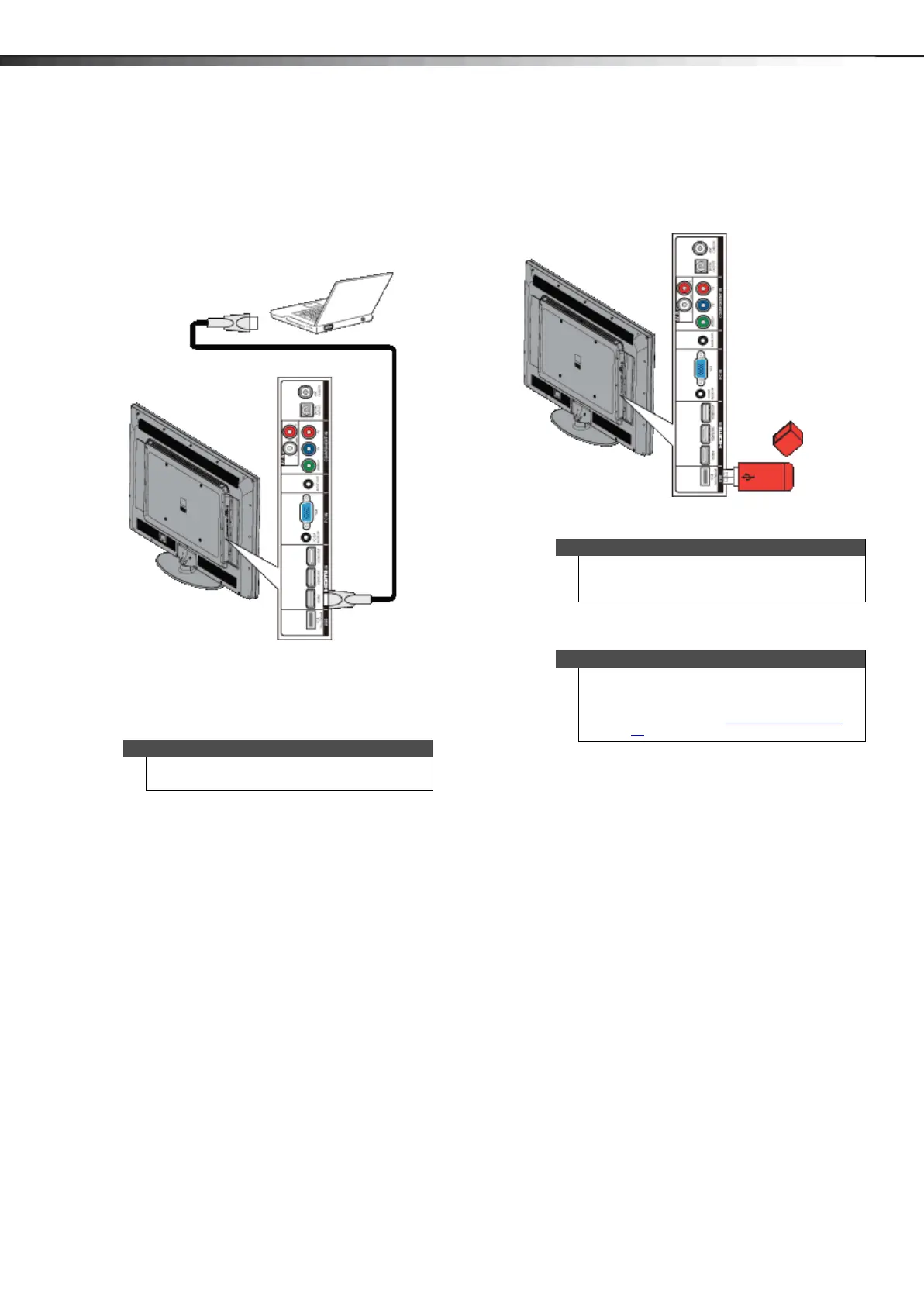
To connect a computer using HDMI:
1 Make sure that your TV’s power cord is unplugged
and the computer is turned off.
2 Connect an HDMI cable (not provided) to the HDMI
jack on the side of your TV and to the HDMI OUT
jack on the computer.
3 Plug your TV’s power cord into a power outlet, then
turn on your TV and the computer.
4 Press INPUT to open the INPUT SOURCE list.
5 Press or to highlight HDMI1, HDMI2, or HDMI3,
then press ENTER.
6 Adjust the display properties on the computer,
if necessary.
Connecting a USB flash drive
To connect a USB flash drive:
1 Plug a USB flash drive into the USB port on the side
of your TV.
2 Press INPUT to open the INPUT SOURCE list.
3 Press or to select USB, then press ENTER.
Note
You can also press HDMI repeatedly to select the
computer.
Caution
Do not remove the USB flash drive or turn off the TV
while using the USB flash drive. You may lose data or
damage the USB flash drive.
Note
The Photos viewer only supports JPEG format
images (with “.jpg” file extensions) and not all JPEG
files are compatible with your TV.
For more information, see “Using a USB flash drive
”
on page 36
.
Side of TV
USB flash drive
12-1236_DX-60D260A13 MAN_V1_EN.book Page 16 Thursday, March 21, 2013 8:17 AM





 To Next Page