Using closed captioning
31
DX-60D260A13
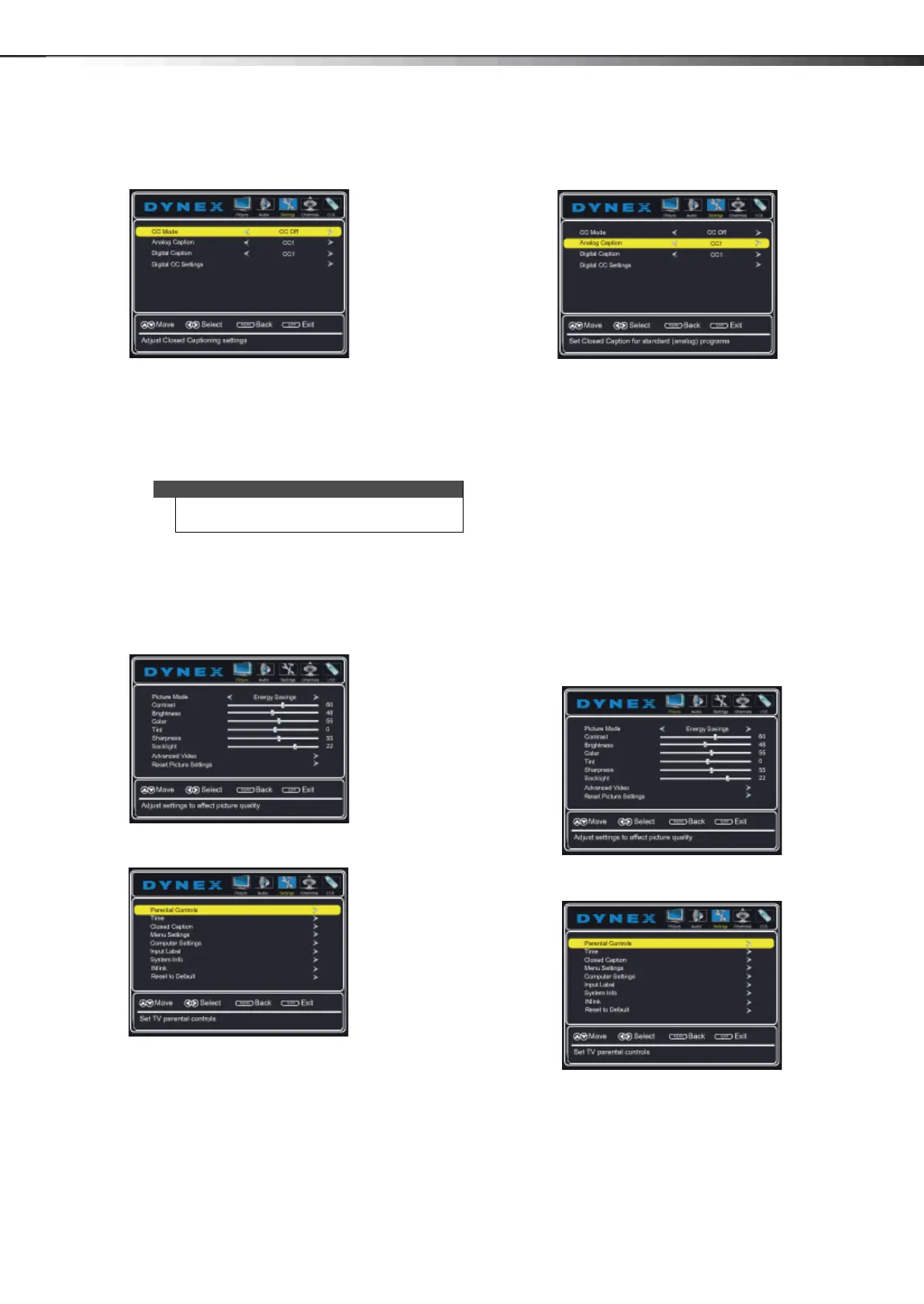
3 Press or to highlight Closed Caption, then
press ENTER. The Settings-Closed Caption menu
opens.
4 Press or to highlight CC Mode, then press or
to select CC Off (turns off closed captioning), CC
On (turns on closed captioning), or CC On When
Mute (turns on closed captioning when the sound is
muted).
5 Press MENU to return to the previous menu, or press
EXIT to close the menu.
Selecting the analog closed captioning
mode
To select the closed captioning mode:
1 Press MENU. The on-screen menu opens with the
Picture menu displayed.
2 Press or to highlight Settings, then press . The
Settings menu opens.
3 Press or to highlight Closed Caption, then
press ENTER. The Settings-Closed Caption menu
opens.
4 Press or to highlight Analog Caption, then
press
or to select an analog caption setting. You
can select:
• CC1 through CC4—Closed captioning appears in
a small banner across the bottom of the screen.
CC1 is usually the “printed” version of the audio.
CC2 through CC4 display content provided by
the broadcaster.
• Tex t1 through Tex t4—Closed captioning covers
half or all of the screen. Tex t1 through Text4
display content provided by the broadcaster.
5 Press EXIT to close the menu.
Customizing digital closed captioning
styles
To customize digital closed captioning styles:
1 Press MENU. The on-screen menu opens with the
Picture menu displayed.
2 Press or to highlight Settings, then press . The
Settings menu opens.
Note
You can also press CCD to turn closed captioning on
or off.
12-1236_DX-60D260A13 MAN_V1_EN.book Page 31 Thursday, March 21, 2013 8:17 AM




 To Next Page