36
Restoring settings to defaultDX-60D260A13
Displaying a list of INlink-compatible
(HDMI-CEC) devices
You can display a list of HDMI CEC devices that are
connected to your TV.
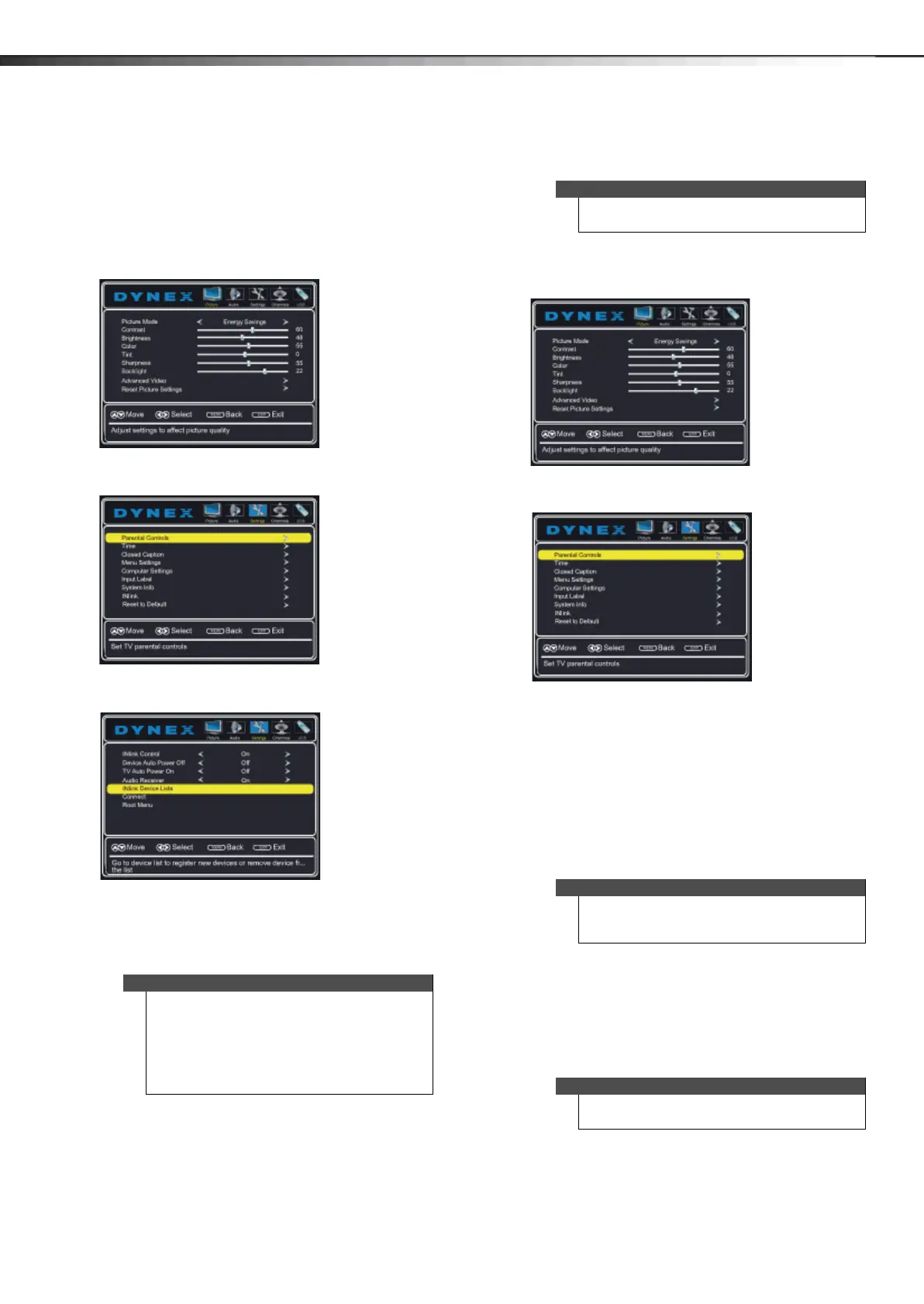
To display a list of INlink-compatible devices:
1 Press MENU. The on-screen menu opens with the
Picture menu displayed.
2 Press or to highlight Settings, then press . The
Settings menu opens.
3 Press or to highlight INlink, then press ENTER.
The Settings-INlink menu opens.
4 Press or to highlight INlink Device Lists, then
press ENTER. A list of the HDMI CEC-compatible
devices you have connected to your TV appears.
5 Press MENU to return to the previous menu, or press
EXIT to close the menu.
Restoring settings to default
To restore settings to default:
1 Press MENU. The on-screen menu opens with the
Picture menu displayed.
2 Press or to highlight Settings, then press . The
Settings menu opens.
3 Press or to highlight Reset to Default, then
press ENTER. A confirmation box opens.
4 Press or to select Ye s (to reset all settings to
factory default), or No (to not reset).
5 Press EXIT to close the menu.
Using a USB flash drive
You can connect a USB flash drive to your TV to view
compatible JPEG pictures.
Switching to USB mode
To switch to USB mode:
1 Make sure that you have connected the USB flash
drive to the USB port on the side of your TV.
2 Press INPUT. The INPUT SOURCE list opens.
3 Press or to highlight USB, then press ENTER.
Note
• HDMI cables must be used to connect HDMI
CEC-compatible devices to your TV.
• The connected device’s HDMI CEC feature must
be turned on.
• If you connect an HDMI device that is not HDMI
CEC-compatible, the INlink Control option
does not work.
Caution
When you restore default settings, all the settings
you have customized are reset.
Notes
• The JPEG picture viewer only supports JPEG
format images (with “.jpg” file extensions).
• Not all JPEG files are compatible with your TV.
Note
To exit USB mode, press INPUT to open the INPUT
SOURCE list, then select another input source.
12-1236_DX-60D260A13 MAN_V1_EN.book Page 36 Thursday, March 21, 2013 8:17 AM




 To Next Page