FG Series BACnet v2.3
8
BACnet Server Configuration
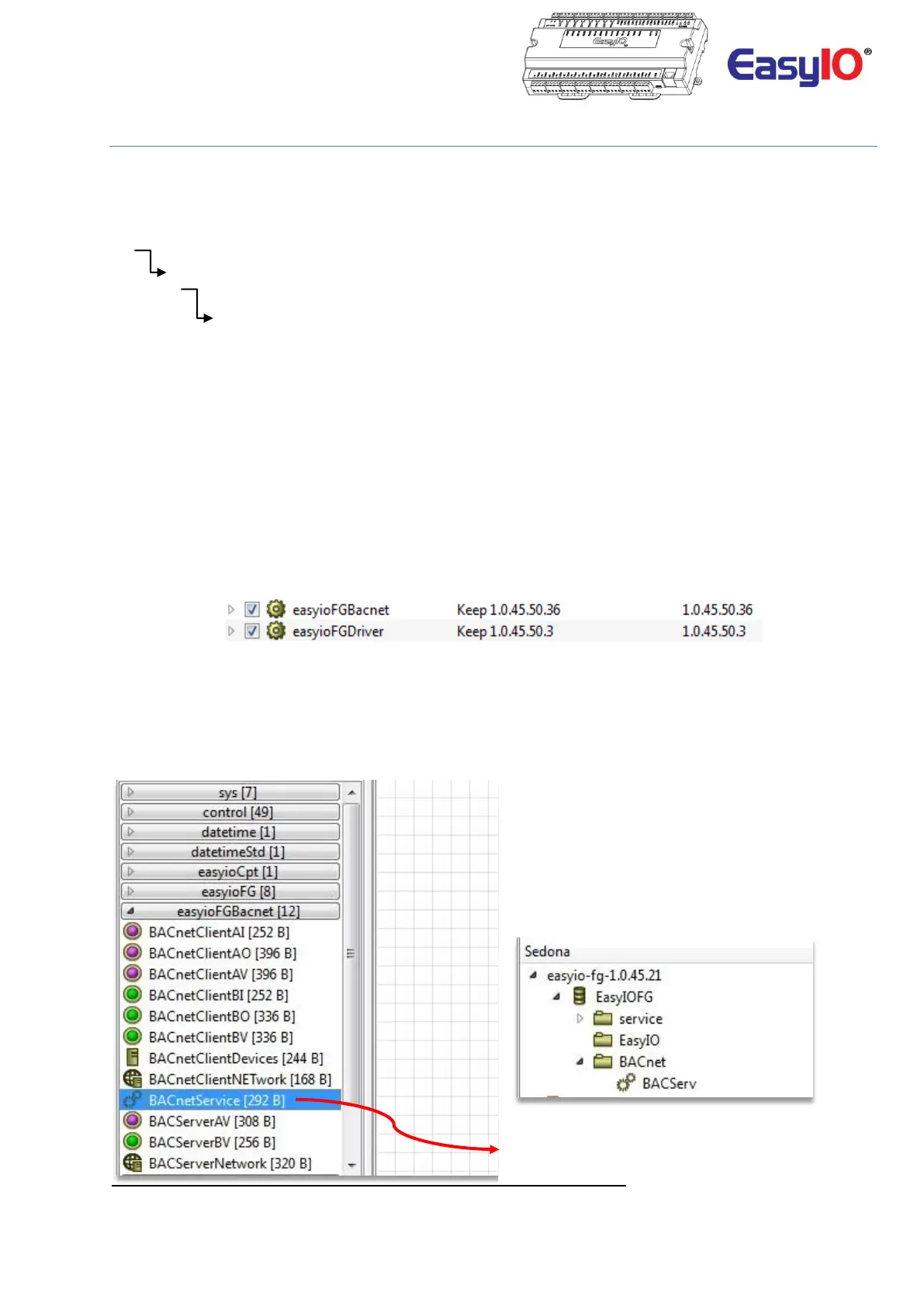
The architecture of the driver is deployed as shown below in Step 2. The network object can be dropped anywhere
in the Sedona app tree. Our recommendation is to create a separate folder for each network, identified as you
require.
Bacnet Service
Bacnet Server Network (Both IP and MSTP)
Points (BACnet server objects)
The Bacnet driver kit “easyioFGBACnet is dependent on the installation of the “easyioFGDriver”. Both kits need to
be installed to enable configuration of the Bacnet network in an FG Series device.
Step 1
Connect to the controller with Sedona Workbench or CPT Tool.
Default login credentials are as below;
IP address : 192.168.10.11 (FG+ Series) , 192.168.10.12 (FS Series)
Username : admin
Password :<no password>
Add the kits to the controller by navigating to manage kits and install easyioFGBACnet and easyioFGDriver into
your controller.
Step 2
Choose easyioFGBACnet from kit library.
Drag & drop the BACService into your App. The object can be dropped in the EasyIO folder or a new folder can be
created for the Service Object.
In the example below, the object is dropped into a new folder named “BACnet”.



 To Next Page