EasyManua.ls Logo

EasySMX Arion 9013 - User Manual

EasySMX Arion 9013
11 pages
Print Icon
To Next Page IconTo Next Page
Loading...
GAME CONTROLLER
ESM-9013 USER MANUAL
Question and Answer IconNeed help?

Do you have a question about the EasySMX Arion 9013 and is the answer not in the manual?

Summary

Introduction

Package Contents

Lists the items included in the product package: controller, wireless adapter, and manual.

Specifications

Product Sketch and Operation

Product Sketch

Diagram showing the layout and labeling of the game controller's buttons and features.

Connect to PS3

Steps to connect the controller to a PS3 console using the USB receiver.

Connect to PC

Initial instructions for connecting to a PC, detailing default mode and indicators.

Connectivity Details

Connect to Android Smartphone;Tablet

Instructions for connecting the controller to Android devices using an OTG adapter or cable.

Button Test

Status Indicators and Settings

Low Battery Reminder

Indicates low battery status through slow flashing of controller LEDs.

TURBO Button Setting

Guide on how to enable and disable the TURBO function for rapid button presses.

FAQ

After-sale Services

Contact Information

Provides email addresses for customer support in various countries.

Overview

This document is the user manual for the EasySMX ESM-9013 Wireless Game Controller.

Function Description

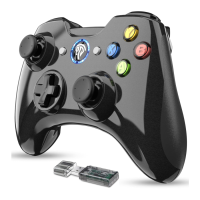
The EasySMX ESM-9013 is a wireless game controller designed for use with multiple platforms, including PS3, PC (Windows 7/Vista/8/10), and Android 4.0 and above. It provides a familiar gamepad layout with various buttons and analog sticks for gaming control. The controller supports both vibrating and non-vibrating game modes, offering haptic feedback where supported. It operates wirelessly via a USB receiver.

Important Technical Specifications

  • Model: ESM-9013
  • Product Name: Wireless Game Controller
  • System Compatibility: PS3, PC (Windows 7 / Vista / 8 / 10), Android 4.0+
  • Package Size: 135*132*77MM
  • Product Size: 146*105*65MM
  • Weight: 220g
  • Operating Temperature: 0°C ~ 70°C
  • Operating Voltage: 2V ~ 3.5V
  • Power Supply: 2 AA Batteries
  • Operating Current:
    • Non-vibrating: <40mA
    • Vibrating: <150mA
  • Battery Life (with 1800mAh battery):
    • Vibrating games: 20 hours
    • Non-vibrating games: 90 hours

Usage Features

Initial Setup: Before first use, users are instructed to visit http://www.easysmx.com to download and install the necessary driver for PC use.

Controller Components: The controller features:

  • LT & RT (Left Trigger & Right Trigger)
  • RB & LB (Right Bumper & Left Bumper)
  • EasySMX logo (Home button)
  • BACK button
  • START button
  • LEFT ANALOG STICKS & L3 (Left Analog Stick & Press-down function)
  • RIGHT ANALOG STICKS & R3 (Right Analog Stick & Press-down function)
  • D-pad (Directional Pad)
  • A, B, X, Y action buttons
  • PLAYER INDICATORS (LEDs)
  • TURBO button

Battery Installation: The controller requires 2 AA batteries. Users need to remove the battery cover and install the batteries according to the instructions.

Connectivity:

  • Connect to PS3:

    1. Plug the USB receiver into a free USB port on the PS3 console.
    2. Press the HOME Button.
    3. Connection is successful when LED 1 stays on.
  • Connect to PC:

    1. Insert the USB receiver into your PC.
    2. Press the HOME Button.
    3. Connection is successful when LED1 and LED2 stay on.
    4. By default, the gamepad operates in Xinput mode (recognized as "Xbox 360 Controller for Windows").
    5. Mode Switching (PC):
      • Xinput to Dinput emulation: Press and hold the HOME Button for 5 seconds. LED1 and LED3 will glow solid.
      • Dinput emulation to Dinput digit: Press the HOME Button once. LED1 and LED4 will stay on.
      • Dinput digit to Android mode: Press the HOME Button for 5 seconds. LED3 and LED4 will stay on.
      • Android mode back to Xinput: Press the HOME Button for 5 seconds. LED1 and LED2 will stay on.
    • Note: One computer can pair with more than one game controller.
  • Connect to Android Smartphone/Tablet:

    1. Plug a Micro-B/Type C OTG adapter or OTG cable (not included) into the USB receiver.
    2. Plug the OTG adapter or cable into your phone or tablet.
    3. Press the HOME Button.
    4. Connection is successful when LED3 and LED4 keep on.
    5. If the controller is not in Android mode, follow the PC mode switching steps to put it into Android mode.
    • Note: The Android device must fully support OTG function and have it enabled. Android games currently do not support vibration.

Button Test (PC):

  1. Insert the wireless adapter into a USB port.
  2. Go to "devices and printers" from the computer desktop.
  3. Right-click the controller icon ("Xbox 360 Controller for Windows" in Xinput mode) and select "game controller" -> "property" to test buttons.
  4. To test in ordinary PC mode (Dinput), long-click the EasySMX (HOME) button until LED1 and LED3 are on. The gamepad will be renamed "PC USB CONTROLER". Then, right-click and go to "GAME CONTROLLER" -> "Property" to test.

Low Battery Reminder: When connected, the LED indicators will flash slowly to indicate low battery.

TURBO Button Setting:

  1. To set TURBO function: Press and hold any desired key, then press the TURBO Button. The TURBO LED will flash, indicating successful setting. Holding this key during gaming will now achieve fast strike.
  2. To disable TURBO function: Hold down the key with TURBO enabled and simultaneously press the TURBO Button again.

Maintenance Features

General Tips:

  • Keep the controller away from water to avoid electrical accidents.
  • Do not dismantle the controller.
  • Keep the game controller and accessories away from children or pets.
  • Take breaks if hands feel tired during use.
  • Take breaks regularly to enjoy games.

Troubleshooting (FAQ):

  • Controller failed to connect:

    • Press HOME Button for 5 seconds to force connection.
    • Try another free USB port or restart the computer.
    • Replace the batteries.
  • Controller failed to be recognized by computer:

    • Ensure the PC's USB port works fine.
    • Try another free USB port if insufficient power causes unstable voltage.
    • Windows XP or lower operating systems require X360 game controller driver installation first.
  • Cannot use controller in game:

    • The game might not support game controllers.
    • Gamepad settings may need to be configured within the game.
  • Controller does not vibrate:

    • The game might not support vibration.
    • Vibration might not be turned on in the game settings.
    • Android mode does not support vibration.

After-sale Services: Customers with problems or suggestions are encouraged to contact EasySMX via email. Specific email addresses are provided for the United States, United Kingdom, France, Germany, Spain, Italy, Russia, and Japan.

Promotional Information: Users are encouraged to follow EasySMX to get a 20% discount on their next order, with a QR code provided for this purpose. Contact information for EasySMX Co., Limited, including email and website, is also provided.

EasySMX Arion 9013 Specifications

General IconGeneral
BrandEasySMX
ModelArion 9013
CategoryVideo Game Controller
LanguageEnglish

Related product manuals