Connect to PC
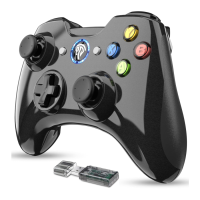
1. Insert the USB receiver into your PC and press the Home Button once to power on the gamepad
and it will auto connect to your PC. When LEDI and LED2 stay on
it means that the connection
is finished and gamepad is Xinput mode by default.
2. Press and hold the Home Button for 5 seconds to switch to Dinput emulation mode. LEDI and
C)
LED3 will glow solid
3. Press the HOME Button once to switch to Dinput digit mode, and LEDI and LED4 will stay on
4. In this mode, press the Home Button for 5 seconds to switch to Android mode and LED3 and LED4
will stay on. Press it for 5 seconds again to return to Xinput mode.
Note: one computer can pair with more than one game controllers.
Connect to Android Smartphone/ Tablet
1. Plug the Micro-B/Type C OTG adapter (Not Included) into the Nano receiver.
2. Plug the receiver into your phone or tablet.
3. Press the Home Button once to power on the game controller. LED3 and LED4 will keep on, indicating
the connection is done.
Note:
1. Your Android phone or tablet must fully support OTG function that needs to be on first.
2. Android games does not support vibration for now. If the gamepad is trying to pair under non-Android
mode, press the Home Button for 5 seconds to get it right.
TURBO Button Setting
1. Press and hold any key you want to set with TURBO function, then press TURBO Button. The TURBO
LED will start flashing, indicating setting is done. After that, you are free to hold this button during gaming
to achieve fast strike.
2. Hold down this button again and press TURBO Button simultaneously to disable TURBO function.
05


 To Next Page