EasyManua.ls Logo

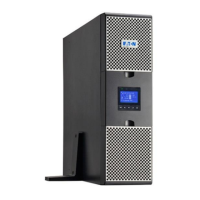
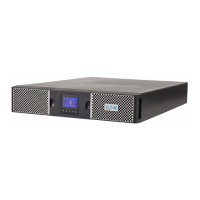
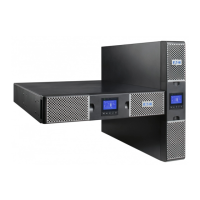
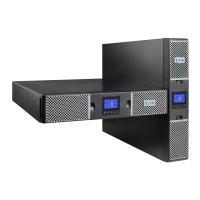
Eaton 9PX 11000 - User Manual

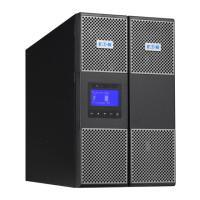
Eaton 9PX 11000
44 pages
Print Icon
To Next Page IconTo Next Page
Loading...
ENGLISH
9SX 8000
9SX 11000
9PX 8000
9PX 11000
9SX EBM 240V
9PX EBM 240V
Installation
and user manual
Copyright © 2012 EATON
All rights reserved.
Service and support:
Call your local service representative
8-11kVA EU_EN

Questions and Answers

  • M
    Matthew GonzalezAug 16, 2025
    What to do if the Eaton 9PX 11000 power overload LED is on?
    • M
      Marcus RamseyAug 16, 2025
      When the Power Overload LED is on and the UPS beeps continuously, it means the power demands of your connected equipment exceed the UPS capacity. To resolve this, remove some equipment from the Eaton UPS. The UPS will continue to operate, but might switch to Bypass mode or shut down if the load increases. The alarm will reset once the overload condition is resolved.
  • U
    ugeorgeAug 19, 2025
    Why is the Eaton UPS battery mode LED on?
    • G
      garciasharonAug 19, 2025
      When the Battery mode LED is on and the UPS beeps every 10 seconds, it indicates a utility failure, and your Eaton UPS is running on battery power. Prepare your equipment for shutdown as the UPS is now providing battery backup.
  • B
    breannapearsonAug 22, 2025
    Why is the Eaton UPS in bypass mode?
    • G
      Gabriel WoodAug 22, 2025
      If the Eaton UPS is beeping continuously and the Bypass mode LED is on, the connected equipment is powered but not protected by the UPS. Check for alarms such as overtemperature, overload, or UPS failure.
  • A
    Amber SinghAug 25, 2025
    How to troubleshoot an Eaton 9PX 11000 UPS that does not start?
    • R
      Robert GreenAug 26, 2025
      If the Eaton UPS does not start, check the input connections to ensure they are correctly connected. Also, verify if the Remote Power Off (RPO) switch is active or the RPO connector is missing. If the UPS Status menu displays the "Remote Power Off" notice, inactivate the RPO input.
  • M
    Michael DanielsAug 28, 2025
    What does it mean when the Eaton UPS input/output bad wiring LED is on?
    • M
      Maria MillerAug 28, 2025
      If the Eaton UPS is beeping continuously and the Input bad wiring / Output bad wiring LED is on, it means that the input or output cables are not connected to the correct terminal blocks. Ensure that you correctly connect the Input/Output cables.
  • J
    jwallaceAug 31, 2025
    Why is my Eaton UPS not providing enough backup time?
    • W
      Wendy PhillipsAug 31, 2025
      If the Eaton UPS does not provide the expected backup time, apply utility power for 48 hours to charge the batteries. If the problem continues, contact your service representative.
  • K
    Kelli HernandezSep 2, 2025
    What to do if Eaton 9PX 11000 UPS no battery LED is on?
    • A
      Ana WoodSep 3, 2025
      If the Eaton UPS is beeping continuously and the No battery LED is on, it indicates that the batteries are disconnected. Verify that all batteries are properly connected. If the condition persists, contact your service representative.
  • J
    jacquelinecoxSep 6, 2025
    Why is the Eaton 9PX 11000 UPS battery fault LED on?
    • A
      aprilshafferSep 6, 2025
      If the Eaton UPS is beeping continuously and the Battery fault LED is on, it means the battery test failed due to bad or disconnected batteries, or the battery minimum voltage has been reached in ABM cycling mode. Verify that all batteries are properly connected. Start a new battery test. If the condition persists, contact your service representative.
  • S
    smithryanSep 9, 2025
    What does it mean if the Eaton UPS overtemperature LED is on?
    • B
      Beverly SanchezSep 9, 2025
      If the Eaton UPS overtemperature LED is on and it beeps every 3 seconds, it means that the UPS internal temperature is too high or a fan has failed. If the UPS transferred to Bypass mode, it will return to normal operation when the temperature drops 5°C below the warning level. If the condition persists, shut down the UPS, clear vents, remove any heat sources, allow it to cool, ensure airflow is not restricted, and restart it. If the condition continues, contact your service representative.
  • D
    deleonhannahSep 12, 2025
    What does 'MBP disconnected' mean on my Eaton 9PX 11000?
    • J
      jwalshSep 12, 2025
      If the Eaton UPS displays 'MBP disconnected', it means the HotSwap MBP is no longer connected to the UPS. If the HotSwap MBP is connected, check that the detection connector is correctly plugged.

Summary

SAFETY INSTRUCTIONS

Certification standards

Lists the safety and EMC certification standards the UPS complies with.

Special symbols

Explains various symbols used in the manual for warnings and information.

Safety of persons

Details critical safety precautions for personnel when working with the UPS and its batteries.

Product safety

Outlines safety guidelines related to the UPS unit's installation and connection to power sources.

Special precautions

Provides specific handling and installation advice, emphasizing the need for multiple people.

1. Introduction

1.1 Environmental protection

Discusses Eaton's environmental protection policy, product eco-design, substances, and end-of-life disposal.

2. Presentation

2.1 Standard installations

Illustrates typical tower and rack installation configurations for the UPS and EBM, including dimensions.

2.2 Rear panels

Details the connectors and ports located on the rear panel of the UPS and Extended Battery Modules.

2.3 Accessories

Lists various optional accessories available for the UPS, such as communication cards and battery modules.

2.4 Control panel

Explains the UPS front panel's graphical LCD, buttons, and indicator lights for status monitoring.

2.5 LCD description

Describes the information displayed on the UPS LCD screen, including operation status, load, and battery status.

2.6 Display functions

Outlines the menu structure and functions accessible via the UPS control panel for configuration and monitoring.

2.7 User settings

Details user-configurable settings such as language, LCD brightness, audible alarms, and output parameters.

3. Installation

3.1 Inspecting the equipment

Guides users on checking the UPS for shipping damage and verifying battery recharge dates.

3.2 Unpacking the cabinet

Provides instructions and precautions for safely unpacking the UPS and its components.

3.3 Checking the accessory kit

Lists the items to verify in the accessory kit included with the UPS and Extended Battery Module.

3.4 Connecting the EBM(s)

Details the procedure for connecting Extended Battery Modules (EBMs) to the UPS.

3.5 Connecting other accessories

Refers to specific user manuals for connecting other UPS accessories.

3.6 Tower installation

Explains how to install the UPS in a vertical tower configuration, including panel orientation.

3.7 Rack installation

Describes the process for mounting the UPS and EBM in a rack enclosure, including battery pack removal.

3.8 Installation requirements

Specifies recommended upstream protection and cable cross-sections for UPS installation.

3.9 Installation depending on the system earthing arrangement (SEA)

Illustrates different installation configurations based on system earthing arrangements and galvanic isolation.

4. Power cables connection

4.1 Access to terminal blocks

Details how to access the terminal blocks for power cable connections and emphasizes grounding.

4.2 Common input sources connection

Provides step-by-step instructions for connecting common input AC sources to the UPS.

4.3 Separate input source connection

Guides on connecting separate AC input sources (Normal and Bypass) to the UPS.

4.4 Frequency converter connection

Explains how to connect the UPS for frequency converter applications, with specific instructions for bypass terminals.

5. Operation

5.1 UPS startup and shutdown

Describes the procedures for starting up the UPS from utility or battery, and for shutting it down safely.

5.2 Operating modes

Explains the different operating modes of the UPS: Online, Battery, Bypass, and Standby.

5.3 Transferring the UPS between modes

Details how to switch the UPS between Online, Battery, and Bypass modes using the control panel.

5.4 Setting High Efficiency mode

Guides on configuring the High Efficiency mode for optimal energy usage, recommended for IT equipment.

5.5 Configuring Bypass settings

Explains how to configure bypass operation, including transfer out of tolerance and interrupt time settings.

5.6 Configuring battery settings

Covers settings related to automatic battery tests, low battery warnings, external battery configuration, and deep discharge protection.

5.7 Retrieving the Event log

Instructs on how to access and view the UPS event log through the front panel display.

5.8 Retrieving the Fault log

Details how to access and view the UPS fault log through the front panel display.

6. Communication

6.1 Communication ports

Describes the RS232, USB, and relay output communication ports available on the UPS.

6.2 Eaton Intelligent Power Software suite

Introduces the Eaton Intelligent Power Software suite for UPS monitoring, data analysis, and system management.

7. UPS maintenance

7.1 Equipment care

Provides guidelines for maintaining the UPS, including keeping the area clean and optimal operating temperatures.

7.2 Storing the equipment

Offers advice on storing the UPS for extended periods, including battery charging recommendations.

7.3 When to replace batteries

Indicates when battery replacement is recommended based on the UPS display and service life.

7.4 Replacing batteries

Details the safety precautions and procedures for replacing the UPS batteries.

7.5 Replacing the UPS equipped with a HotSwap MBP

Explains how to service or replace the UPS with a HotSwap MBP without interrupting load power.

7.6 Recycling the used equipment

Advises on the proper disposal of used UPS equipment and batteries according to environmental regulations.

8. Troubleshooting

8.1 Typical alarms and faults

Provides a chart to diagnose and resolve common UPS alarms, faults, and conditions.

8.2 Silencing the alarm

Describes how to silence audible alarms on the UPS front panel and the importance of resolving the underlying condition.

8.3 Service and support

Guides users on what information to have ready when contacting service and support for the UPS.

9. Specifications

9.1 Model specifications

Lists specifications for different UPS models, including power ratings, weights, dimensions, and electrical data.

10. Glossary

Eaton 9PX 11000 Specifications

General IconGeneral
Power Rating11000 VA
Output Power10000 W
Output Power Capacity10000 W
Form FactorTower
Dimensions (HxWxD)440 x 200 x 600 mm
Weight40 kg
TopologyDouble Conversion Online
Output Frequency50/60 Hz
Input Frequency40-70 Hz
Operating Temperature0 to 40 °C
CommunicationUSB, Serial
Network ManagementOptional Network Card
Typical Recharge Time3 hours
Communication PortsUSB
Operating Humidity0 to 95% non-condensing

Related product manuals